
When the Reporter opens, the landing page is the Library of Saved Inquiries, and it automatically displays the Library Cards on file for your login, as seen in the next screen shot.
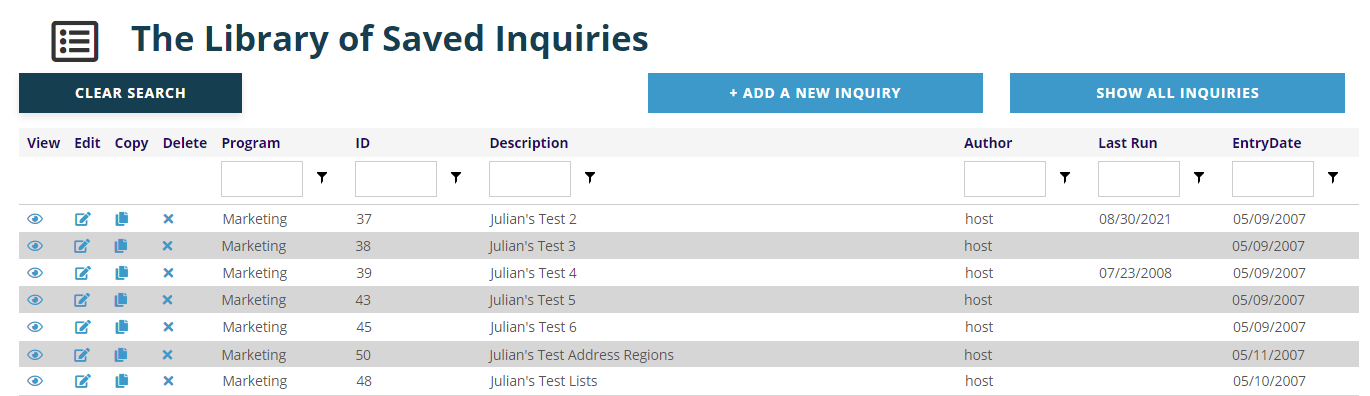
To see all the Library Cards that have been saved under all logins, click on the Show All Inquiries button at the top right above the grid. Note that anytime you return to this screen from other areas of the Reporter, it will default to showing only your Library Cards, but the option to show all inquiries will always be available.
The results grid seen above has clickable icons to View, Edit, Copy, or Delete a particular Library Card and column headings for Program, ID, Description, Author, Last Run and Entry Date. The definitions and uses of the last six fields will be covered in the next section of this chapter about Library Cards. If you have more than 20 cards on file, the display will list the first 20 and allow you to page through 20 at a time. You may alternatively change the number displayed to 10 or 50 per page and use the page numbers to move forward or backward to see the other pages of cards. These page controls appear only when necessary at the bottom left of the grid display.

The column headings in this grid are also underlined since they are action links that cause a change in the grid’s sort order when clicked. If you click on a column name once, the grid will be re-sorted in ascending order by the values in that column. Click again to sort the list in descending order.
Immediately below each of the column headings are white filter boxes. These allow you to further filter the results list. You may enter a value in the white text box at the top of the column and click on the funnel icon to restrict the grid results to Library Cards with that value. For example, you can enter the value “Meetings” in the white box below the Program column header, click on the funnel and select “Contains” and the grid will reload with only those cards that fit that filter choice.
If you know the ID number, which is also the Library Card number, of the card that you wish you use, you can enter that number in the ID filter box from the initial landing page, set the funnel icon to “Equal To” then click on the Show All Inquiries button and the matching Library Card will appear alone in the grid. This approach is particularly useful during times of year when the same card may need to be run multiple times in a day, week or month.
To clear any search using any of the filters, or the Show All Inquiries search results, click on the Clear Search button that appears above and to the far right of the grid when any search has been performed.
You can View any Library Card in the grid by clicking on the  view icon in that card’s row all the way to the left.
You can Edit any Library Card in the grid by clicking on the  edit icon in that card’s row in the second column from the left.
You can Copy any Library Card in the grid by clicking on the  copy icon in that card’s row in the third column from the left. This feature is very helpful when you want to create a card that is very similar to one that already exists and also keep the original as is for future use. If you copy a card and make changes to any aspect of it, be sure to also edit the card’s Description to reflect the purpose of the new card to more easily identify going forward which card has which query.
The fourth column from the left in each Library Card’s row contains the  delete icon that when clicked will Delete the card, unless the card has been used to send blast email, in which case it cannot be deleted.
If you need to create a new Library Card, click on the Add an Inquiry button that is above the grid.
Library Cards can be created, used and saved to be re-used another day, and are the subject of the next section.