
The first page is accessed by selecting Events in the Meetings drop down menu. Here on the Meetings >> Events home page, you can view a selected range of past, present and future meetings. The screen default setting displays the Past 6 Months & Future Meetings, but you can also choose via radio buttons at the top right to see All Future meetings, All Past meetings, the Un-Dated meetings, or All meetings in the system. This last option is selected in the next screen shot. NOTE: for convenience, Future Meetings includes the past 7 days meetings.
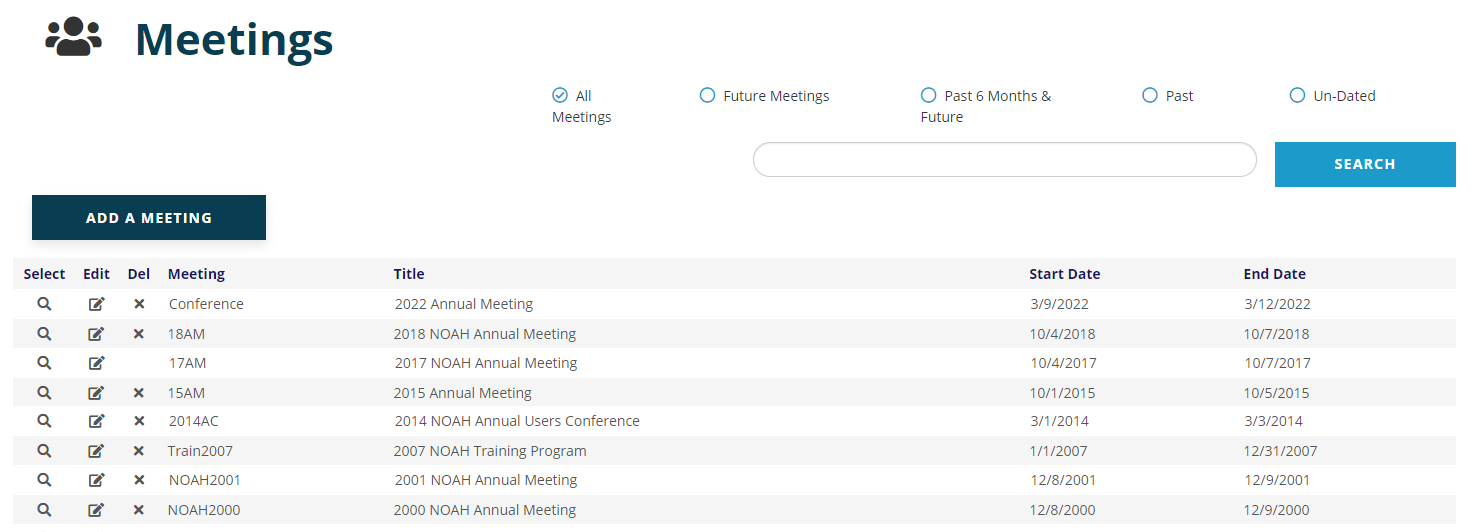
In this view, you can see Meeting ID, Title and Start and End Dates. If you have more than 10 meetings on file, the display will list the first 10 and allow you to page through 10 meetings at a time. You may alternatively change the number displayed to 20 or 50 per page, and use the page numbers to move forward or backward to see the other pages of meetings. These page controls appear at the bottom left of the display.

You can also use the Search field at the top right of the grid, under the radio buttons, to search for a meeting by Meeting ID or Title.

If you need to create a new meeting, click on the Add A Meeting at the top left of the Meetings grid. You will then see this screen.
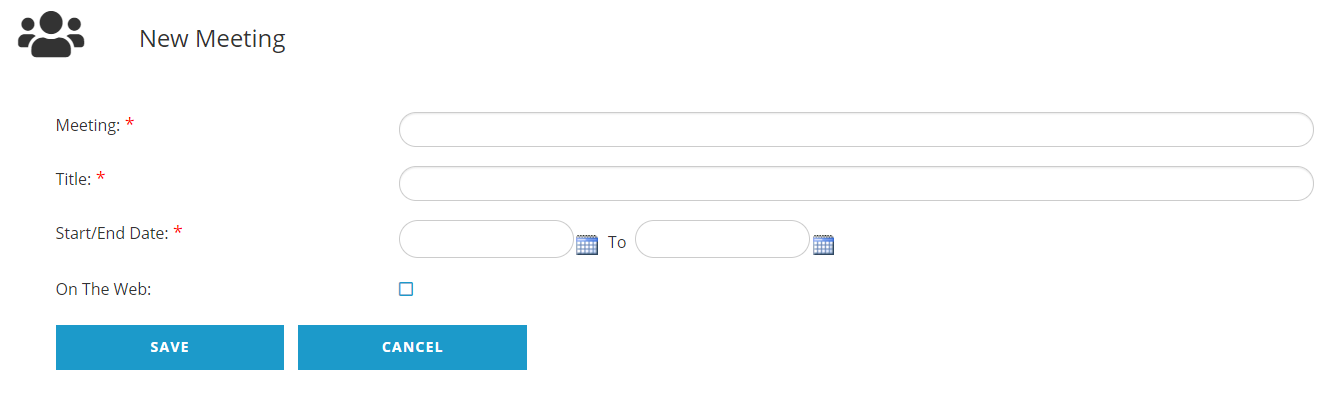
The Meeting field is where you create a meeting ID. Each meeting and event has an ID, and you can select the meeting ID within certain parameters. The first two digits should always be the year the meeting or event takes place, and then followed by as few capital letters as possible that can be shorthand for what the meeting or event is about. Following this naming convention will make it much easier later in reporting, exporting and cloning the meeting the following year. NOTE: because the Meeting is used as a key to link other related items to this meeting, it cannot be changed once set.
Here are some examples of well-constructed Meeting IDs based on different kinds of meetings:
For a 2022 Annual Meeting: 22AM
For a 2022 Annual Conference: 22AC
For a Legislative Day in 2022: 22LD
For a series of Home Study Courses in 2022 : 22HSC
The Title field (also referred to as Search1) allows for a full title description of the meeting. It should be words rather than abbreviations, as it usually gets displayed on the website with registration information. The Title can be more descriptive, as it is what your members will see in multiple places. For the suggested Meeting ID at the top of the above example list that is 22AM, the Title could then be entered as 2022 Annual Meeting.
Start/End Date field lists the dates that span the meeting. If the meeting is multiple courses over a year then enter January 1, YYYY for the Start Date and December 31, YYYY for the End Date.
The On The Web check box denotes if this event should be shown on your website, for example in a calendar of events.
All other data is tracked at the event level, but data at the meeting level can be edited from the Meetings page by clicking on the  edit icon in a meeting’s row, found in the second column from the left.
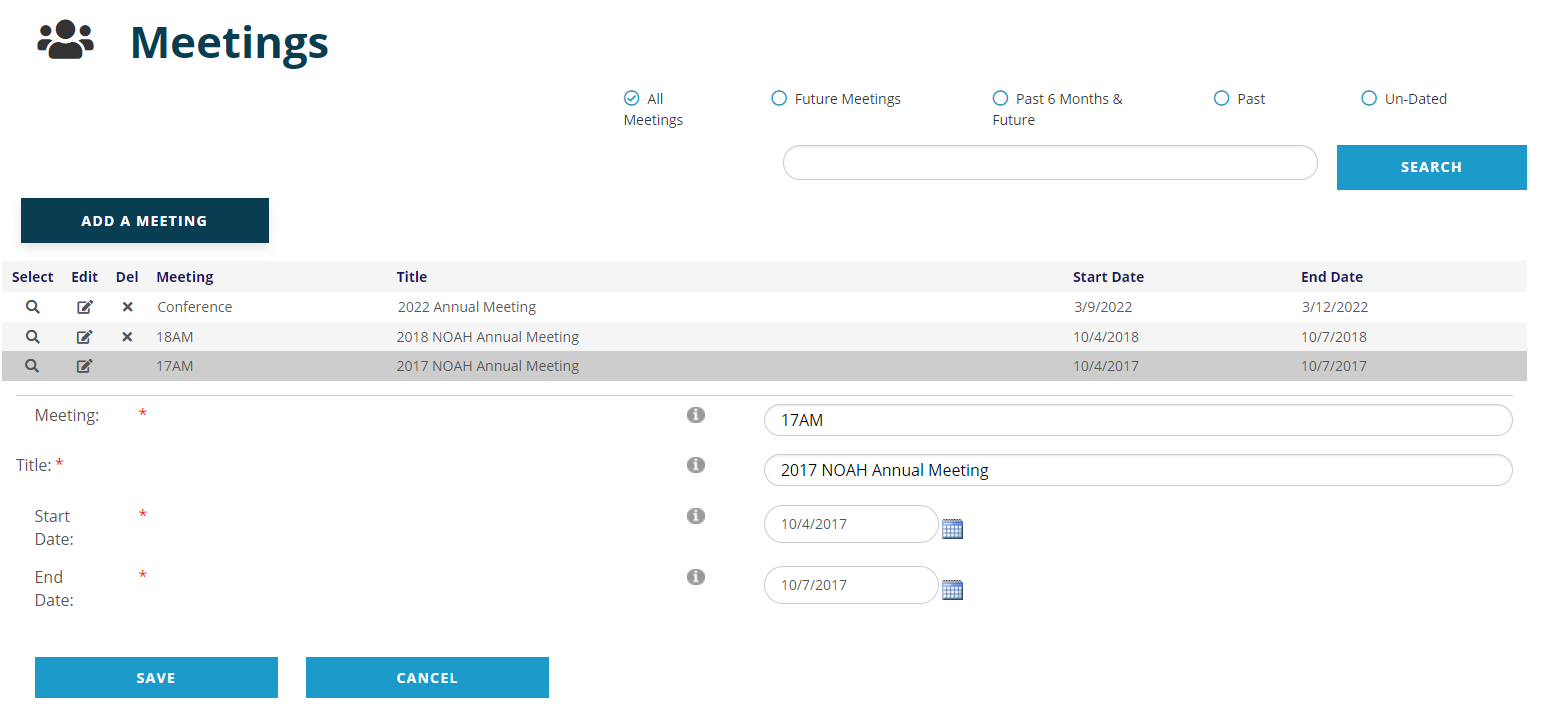
Beware of changing the meeting's Title or Start Date and End Date once registration has opened (the Meeting ID cannot be changed). Click the Save button to save changes, or click the Cancel button if no changes are to be made, or changes are to be discarded.
Note that if you use the red  icon to delete a meeting, all of its events will also be deleted.
You may select any meeting for viewing by clicking on the  magnifying glass in that meeting’s row all the way to the left. When you select a meeting, the meeting title appears above and to the left of a grid where its events are shown. The next screen shot shows the result of Selecting the first meeting on the list from the previous screen shot.
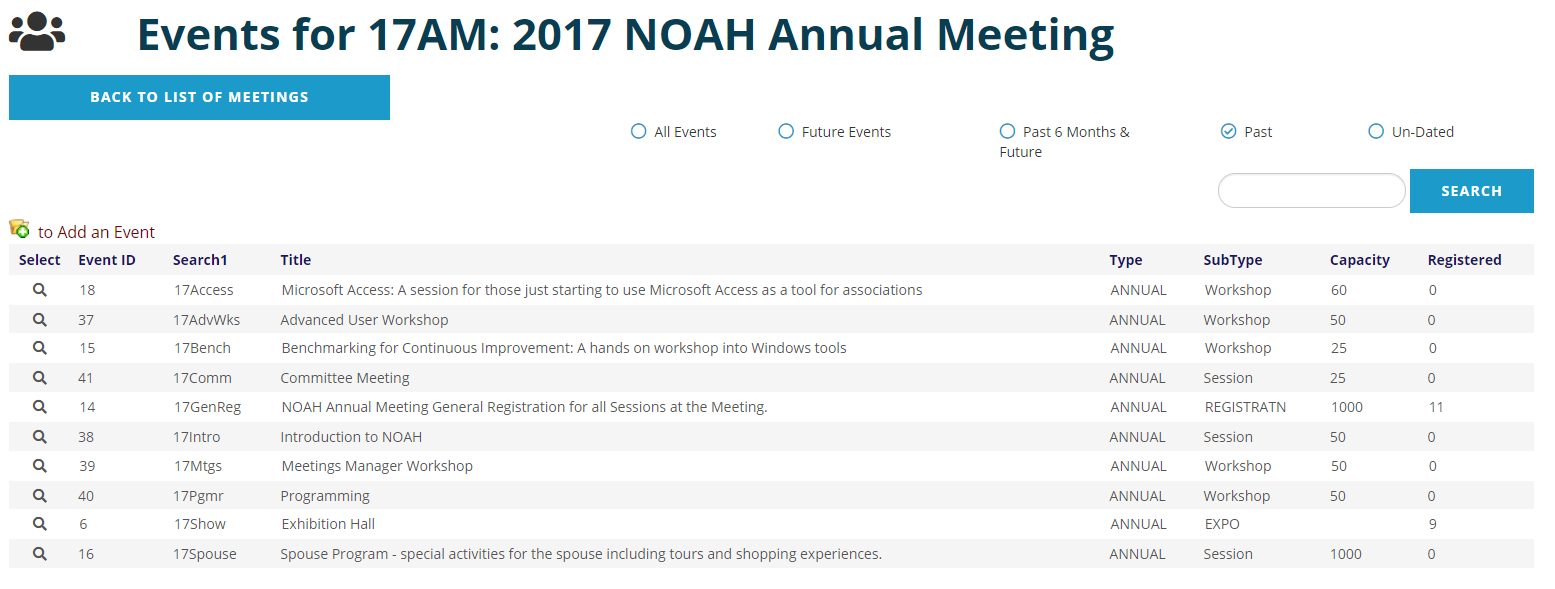
If the meeting has more than 50 events the page will start with the first 50 and at the bottom left of the grid you can page through 50 events at a time. You may also reduce the number displayed per page to 10 or 20. The “All Future Events” radio button is helpful when you need to view just the upcoming events within a meeting that is setup as a series of events over time, like training sessions or workshops.
The meeting’s events are listed in alphabetical order by the Search1 (Event Code) field. But by clicking on the header of any of the columns you can change the sort criteria, initially in ascending order. You can click the heading title again to sort in descending order. Sorting by SubType allows you to see like events grouped together, such as site visits, breakout sessions and workshops.
Please note that for a tradeshow or an exposition hall, even if it takes place in conjunction with one of your meetings, you need a separate Event in the AMS for booth sales and exhibitor personnel registration. In some cases, the AMS also requires you to set up separate events for Sponsorship and/or Advertising for a meeting. These processes are covered in the Shows section of this knowledge base.