
Once you click on the Submit button to create a report, or the Export button to create an export, the View page should reload with the messages described in the previous output sections above to confirm that NOAH has begun to build your report or export.
Then click on the My Reports button, found at the top right of the page. 
The page will reload with a grid of the Reports, Counts, Labels, Lists and Exports that you have run from any Library Card under your login. A sample grid is in the next screen shot.
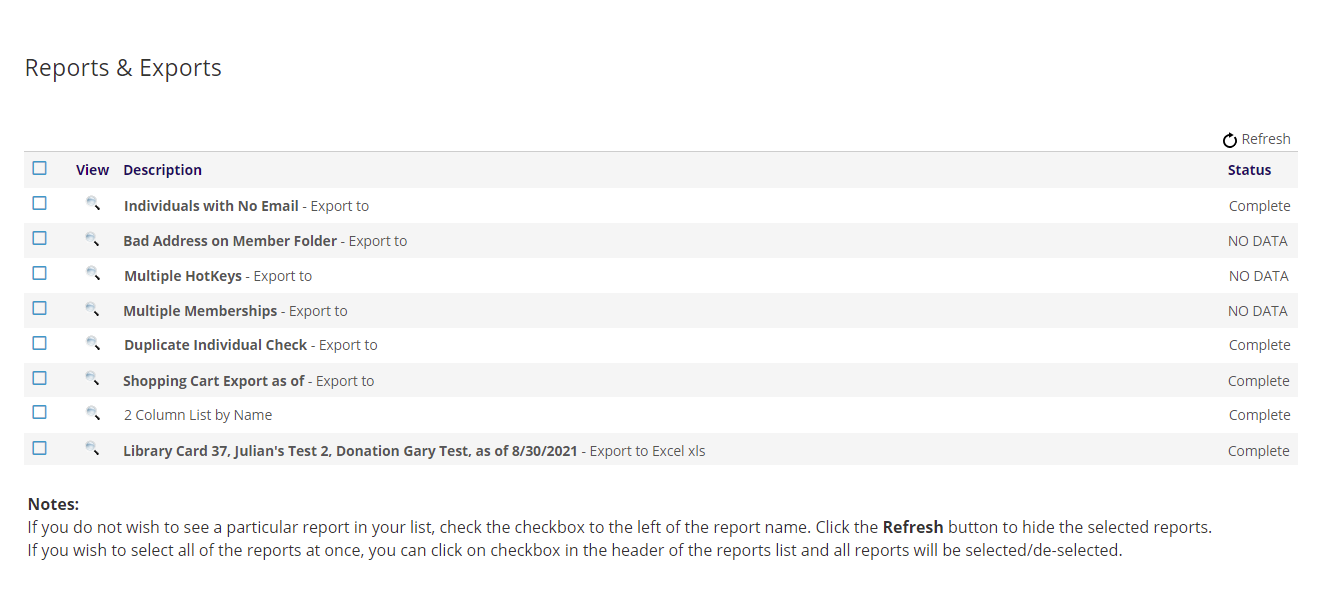
The Reports and Exports grid has a clickable  View icon for each of your reports and exports, and column headings for Description and Status. The most recent output products appear at the top of the grid, and are in reverse chronological order by run date, getting older as you move down the grid.
The column headings for “Description” and “Status” are underlined since they are action links that cause a change in the grid’s sort order when clicked. If you click on a column name once, the grid will be re-sorted in ascending order by the values in that column. Click again to sort the list in descending order.
The far-left column has check boxes that are used to select items for deletion from the grid per the instructions found below the grid under “Notes”.
If your grid defaults to listing 20 output products at a time, and you have more than 20 products on file, the display will list the first 20 and allow you to page through 20 at a time. You may alternatively change the number displayed to 10 or 50 per page and use the page numbers to move forward or backward to see the other pages of output. These page controls appear only when necessary at the bottom left of the grid display.

The report or export you just requested will be listed at the top of the grid if you don’t re-sort the list. First look at the far-right column to check the status of your export. If the status is OPEN or Running, your report or export isn’t finished yet. Click on Refresh right above the status column periodically until the status changes to Complete. If your report or export contains a lot of records, be patient as it could take a few minutes or more to complete.

Be sure to save the report or export to your own computer if you wish to keep a copy, as your list of previously run reports and exports gets cleared periodically.