
Booth sales are tracked in multiple locations:
- On the Invoice
- On the Folder
- On the Show Floor
If you to make changes to one, you may need to update all of them. If you are just changing assigned booths, you can use the Edit Assignments button, which updates all three places.
Invoice
The Invoice for the booth sale tracks the related booth number in the Booth field.
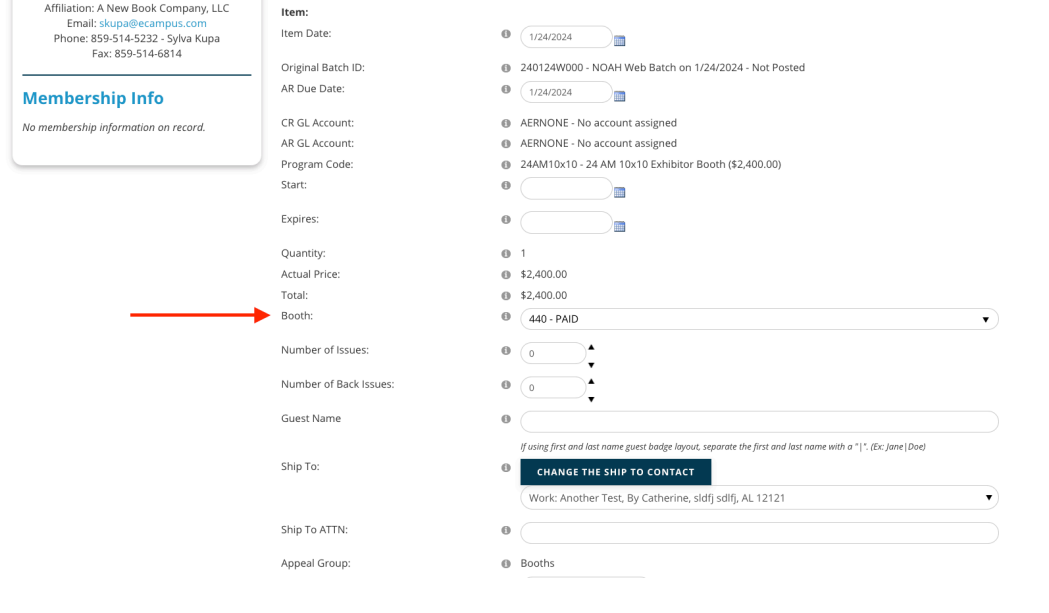
You can change/move to a different booth using this drop down on the invoice only. NOTE: This will not update the price. If you need to change the HotKey for the booth, you will need to use the Adjustment Wizard to cancel the line item and add another. The Adjustment Wizard would also be used to cancel and refund a booth sale.
Changes to the Invoice do not update the Folder or Show Floor, so you also need to update them.
Folder
The folder for each Show Booth tracks information for booth that can be updated.
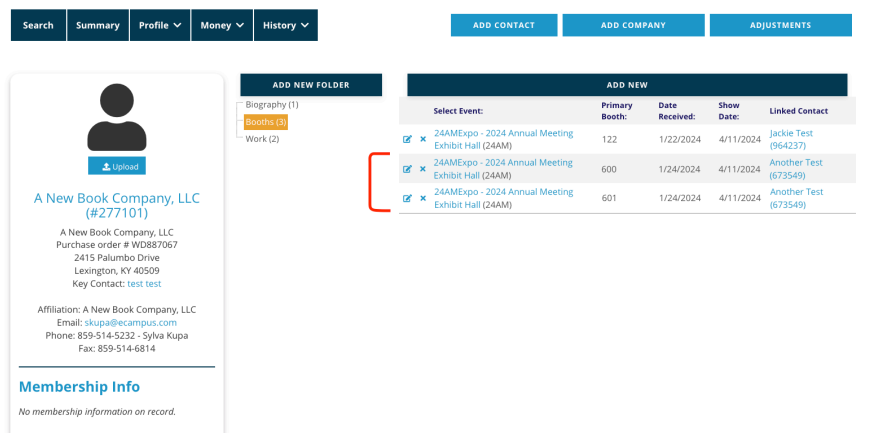
If the booth sale was cancelled, you can delete the folder entry for that booth sale. Changes to the booth sale, for example the booth number, can also be changed on the related folder. You will see that much of the information related to the booth sale is stored on the folder.
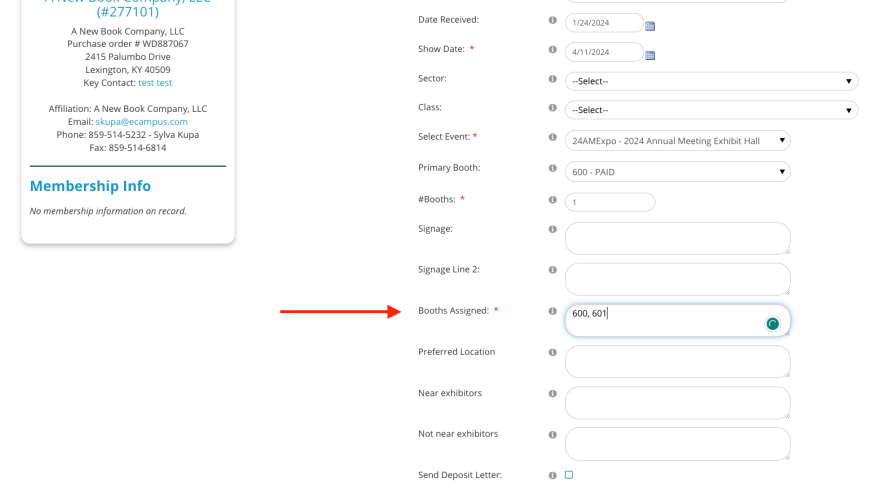
If you are combining booths you can put both numbers in the Booths Assigned fields and delete one of the folders.
Show Floor
The Show Floor is visible on the website, and changes to booths also need to be updated here using the Booth Edit.
If you canceled a booth sale, you will need to edit the booth and change its status to open/available.
To combine adjacent booths sold, you will need to combine the on the floor, and on the folders. The invoice would have both booths and would not need to be combined.
Scenarios
- Cancel a booth sale- first cancel the invoice item, delete the booth folder, then update the booth status on the show floor
- Changing an assigned booth- use the Edit Assignments button on Show.
- Combine adjacent booths sold-
- In the Folder with the Primary Booth, put both booth numbers into the Booths Assigned input field
- On the Show Floor, using the Booth Edit, change the booth status to MULTIPLE BOOTH SALE and save. This gives the booth a gray booth color and makes the booth invisible on the website
- Select the Primary Booth and edit the width or height depending on if the adjacent booth are left to right or top to bottom connected and save the change
- Go back to the company folders and delete the non-Primary Booth folder