
The User Accounts area of the NOAH System Configuration allows you to manage your organization staffs' use of the AMS.
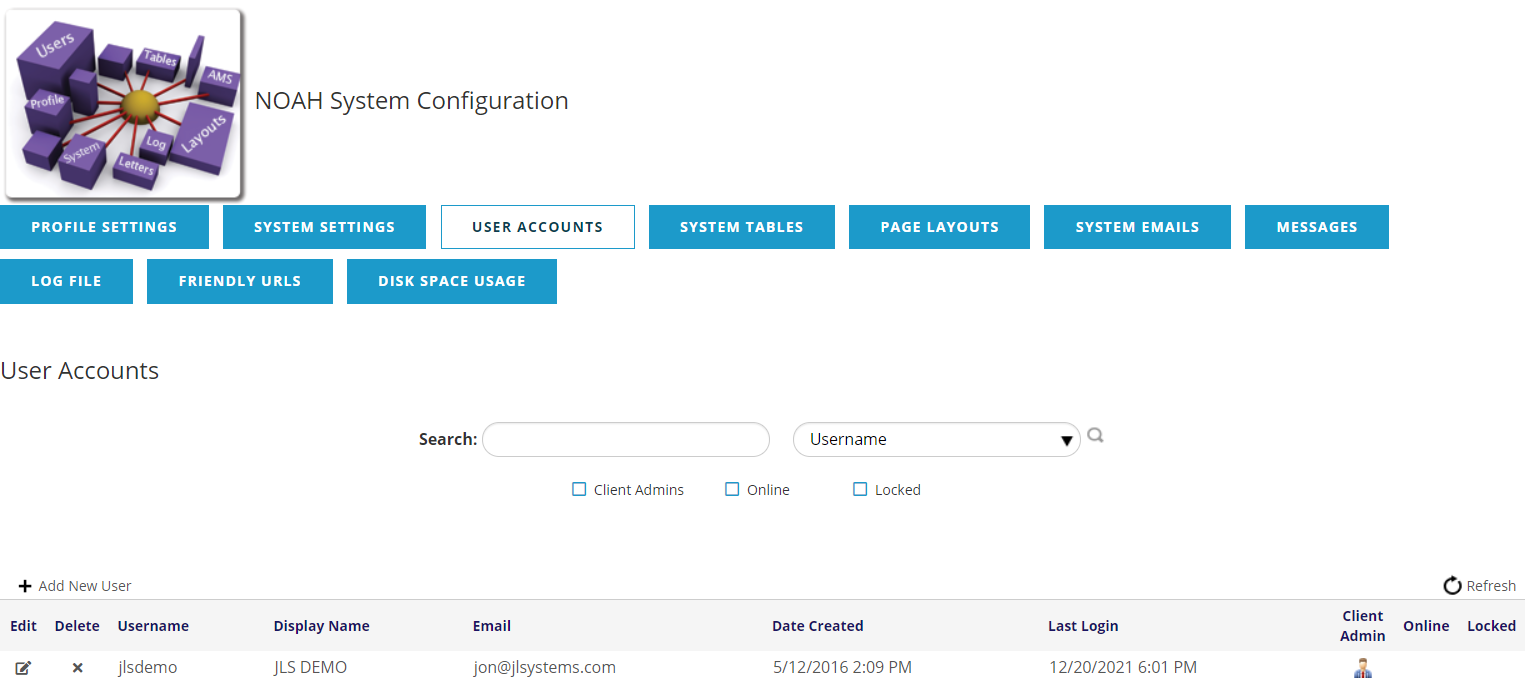
The middle section of the page allows you to search, or filter, the list of users in the grid at the bottom of the page based on the name and using the check boxes to show Client Admins, the users currently Online (logged in), or by Locked (can't login) accounts.
You can click the + Add New User to add a new user, or use the  edit button to edit a given user, or the
 delete button to delete a user. Deleting cannot be undone.
Since Adding and Editing a user are very similar and use the same page, we will consider them together. When you click either of the buttons, the grid will expand to show sections on User Info, User Roles, and Profile Controls.
User Info
This section shows general information about the user, and items with a red asterisk (*) are required.
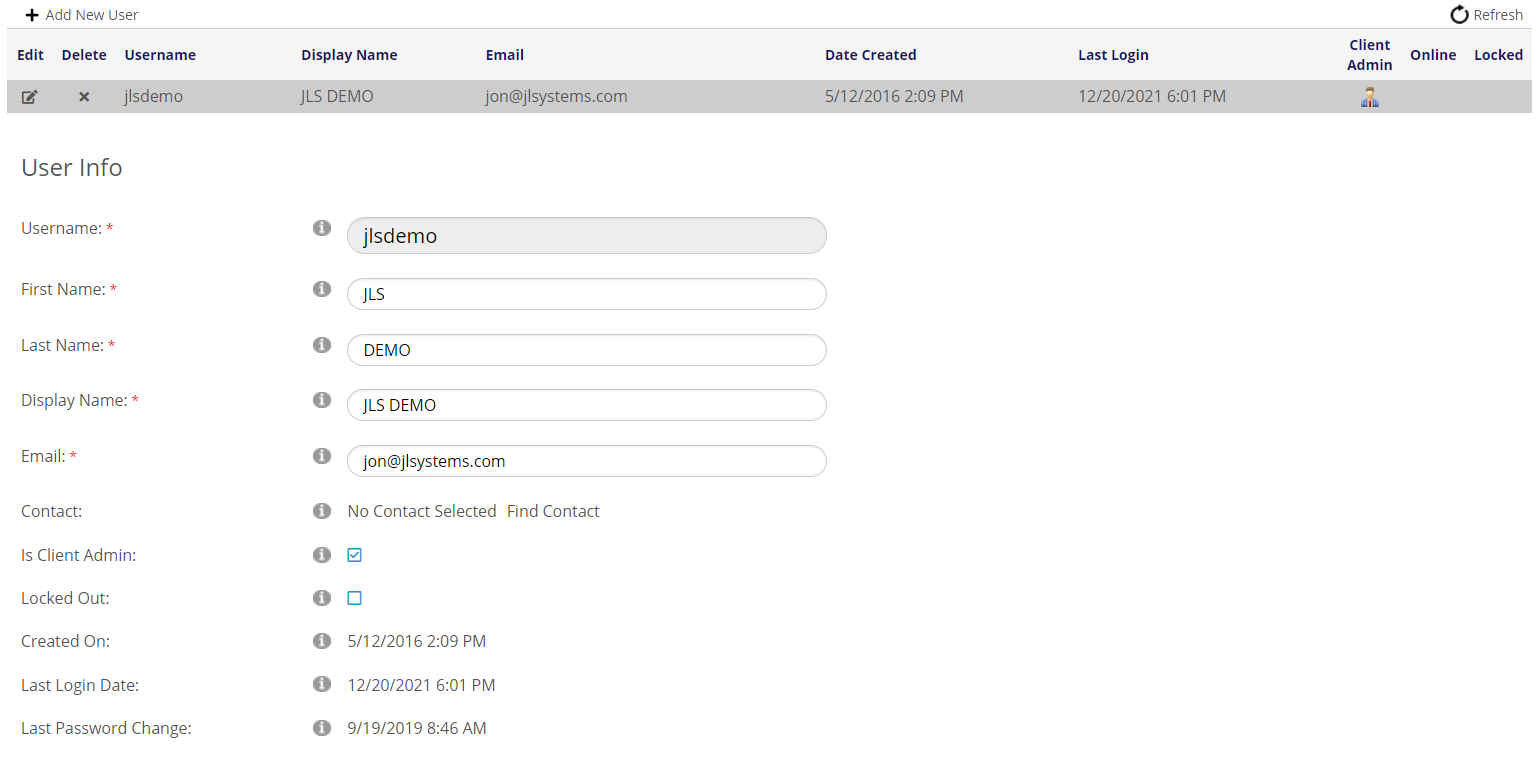
The Username would be what someone would login to the system with and the name would also be associated with logging information. This should be limited to letters and numbers with no special characters (i.e. no email addresses). The Password is defined farther down on the screen.
NOTE: Do not change an existing user name. This will break permissions in the AMS. If you need to change a Username, you can open a support ticket, or create a brand new User Account to be used.
NOTE: some clients are in shared environments and the Username must be unique across all the organizations in a shared environment.
First Name, Last Name, and Display Name, are the names of the user.
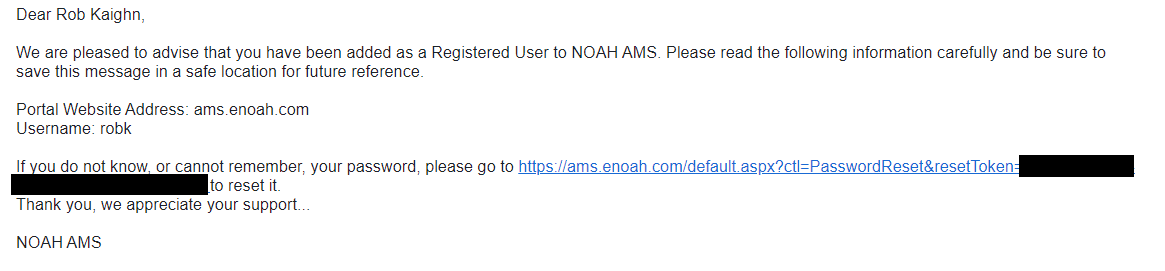
Email is the email address of the user. Typically, this is the email at your organization and the same as the linked Contact (below). When an account is created, a welcome message will be sent to this Email with the AMS URL, Username, and a link to reset the password.
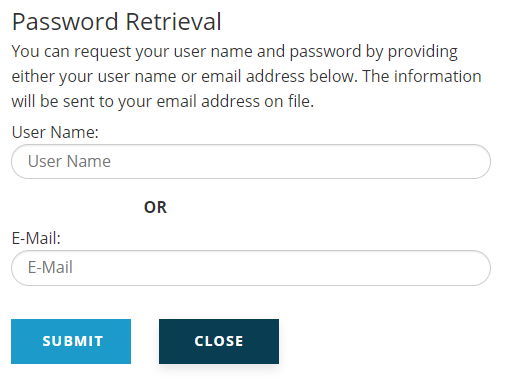
If as user has forgotten their password, the AMS login screen has a link for Forgotten your Password? where a user can enter their Username or this Email to have a password reset message sent to this Email address.
Contact is for linking this user to the Contact for this person in the AMS. It is important that this linkage be made as there are various functions in the system that require a contact record. Note Pad, Reporter, and other functions use this Contact, and staff will use the login created here to login to your website, but they will be logging in as this Contact.
NOTE: Once the User Account has been created, this account will still need to be activated on the website so it can be used to login there. The exact same username and password created here should be set there. If using the Quick Activation you would also use the same Contact ID entered above. Once they are sync'd up, you should be able to change the password in either the AMS or on your website. No standard DNN Roles (i.e. Administrators) are granted to staff User Accounts, these should be manually added in DNN if needed.
The Is Client Admin check box signifies that this user is a System Administrator and has access to the System menu option and the configuration pages under that. No other permissions are granted with this check box.
Locked Out will be checked if this user is locked out of the system for some reason, usually after 5 failed login attempts. Unchecking the box clicking the Update button at the very bottom of the screen will unlock a users account. Locked users will be unlocked automatically after 15 minutes.
Created On, Last Login Date, and Last Password Change are all informational.
NOTE: The AMS Licensing is based on the number of concurrent users logged in, not the number of named user accounts. If one logs out using the Log Out button at the top right of the screen, it immediately frees up a license, but if one does not log out and just closes the browser, it takes 2 hours before an automatic log out frees up the license; in the case the user can login again and Log Out properly to free up the license. Also, each user may only be logged in once. Multiple users can't be using the same login at the same time, and you can't login at the same time in multiple browsers; as second login by a user will log out the first session.
User Roles
This section defines the Menu options the user will have access to in the AMS menu. The password is also set at the bottom of this section.
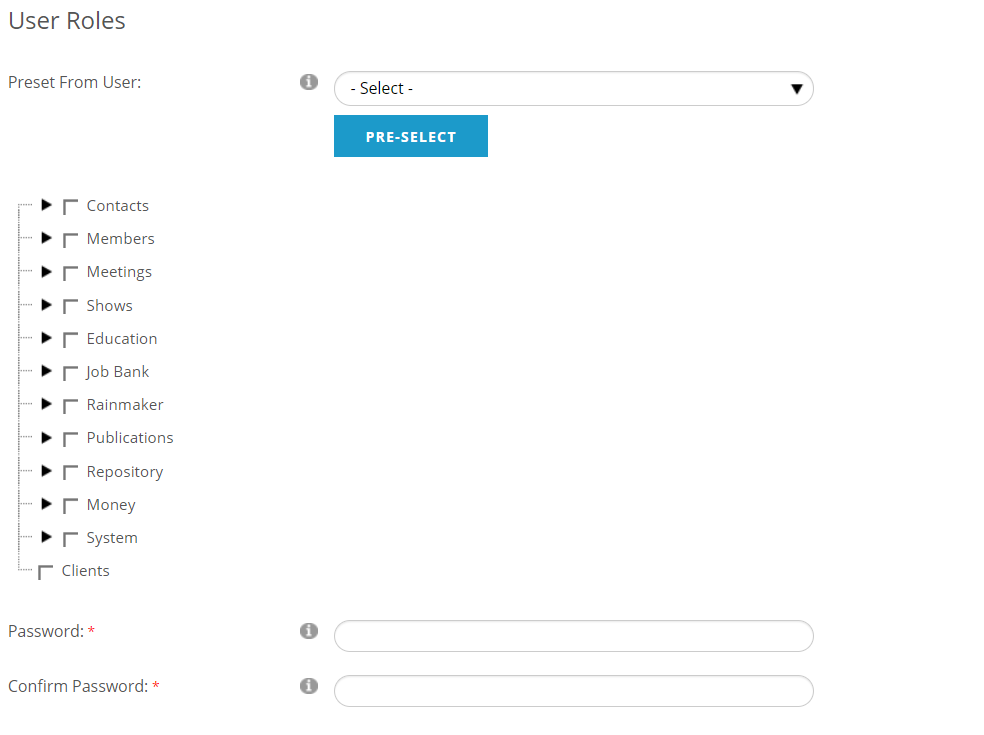 First, you can choose a user to copy roles from. For example, if you've hired a new membership person, you might just want to copy the roles from another existing user instead of creating this user's roles from scratch. Pick the user in the Select drop-down and click on the PRE-SELECT button to populate these roles. You can still make changes to roles after this is done.
On the left, you will see a tree of the menu options. You can click the  arrow to the left of the menu items to expand them and see the items under that menu option. When you check a box, it will turn blue and select all items below it in the tree. If you unselect items under it, the box will turn grey to show that only some of the menu items have been selected.
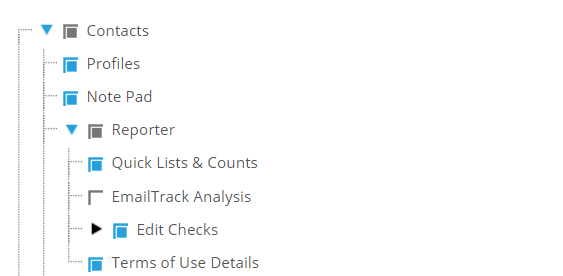
In the example above, Contacts and Reporter have grey boxes because EmailTrack Analysis has been unchecked. You will probably want to unselect items your organization is not using.
NOTE: Field level security can be accomplished under Page Layouts for a given field.
The Password is set at the bottom of this section. New Users will have boxes to enter and confirm a password, and existing users will have a Change Password link that will show the boxes to enter and confirm a new password. The password must have the following characteristics:
- a minimum of 7 characters long
- a minimum of one upper case character
- a minimum of one lower case character
- a minimum of one number
NOTE: there is a list of "banned" passwords that are not allowed because they are common, profane or easily guessed. Attempting to use one of these will give a message that The new password is not valid. Please make sure it is at least 6 characters long. If you get this message, please try a more complex password.
NOTE: If you delete a User Account by mistake, you can re-create it, however, the Username and Password must match exactly what they were before. Otherwise you will get an error message that the Username is already in use.
Profile Controls
This section controls the items the user can see when looking at a contact's Profile.
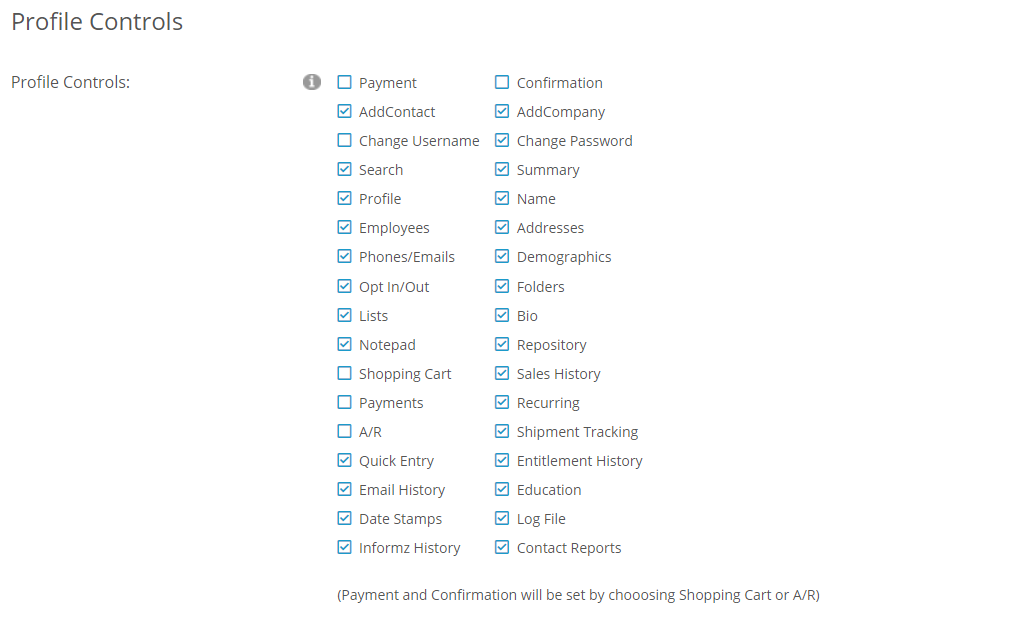
You will probably want to unselect items your organization is not using. You can learn more about each of these options in the Profile section of the knowledge base.
New Staff Check List
- Create a Contact record for the new staff person using their association email address
- Create a User Account using their association email address
- The Username should not contain special characters (i.e. @)
- Roles can be copied from a similar user
- Remember the username and password
- Go to your web site and create new login using the Quick Activation by Contact ID link
- Enter the Contact ID, first & last name for the Contact you created above
- For the login, enter the EXACT SAME username and password you created for the User Account
The user will be able login to both the AMS and website using the same credentials.