
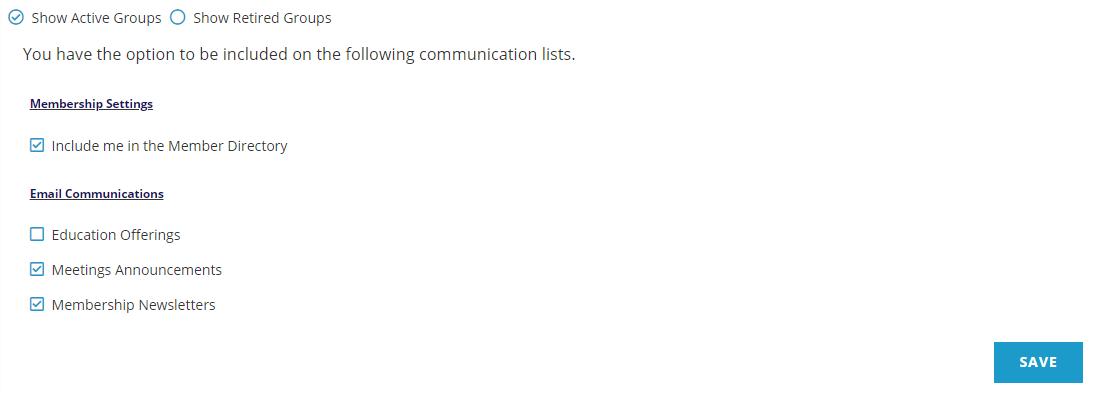
The Opt In/Out tab is where a contact can opt in or out of certain email communications and other settings. The most common examples, other than specific email topics offered by your association, are settings that control permissions for appearing in online membership directories. A sample Individual contact record’s Opt In/Out tab in the AMS is in the next screen shot.
The Opt In or Out Dictionary is a grouping table. The view above is also driven by the proper Sort Order and Instructions unique to OPTINOUT GroupCodes and MasterCodes, which are described later in this section.
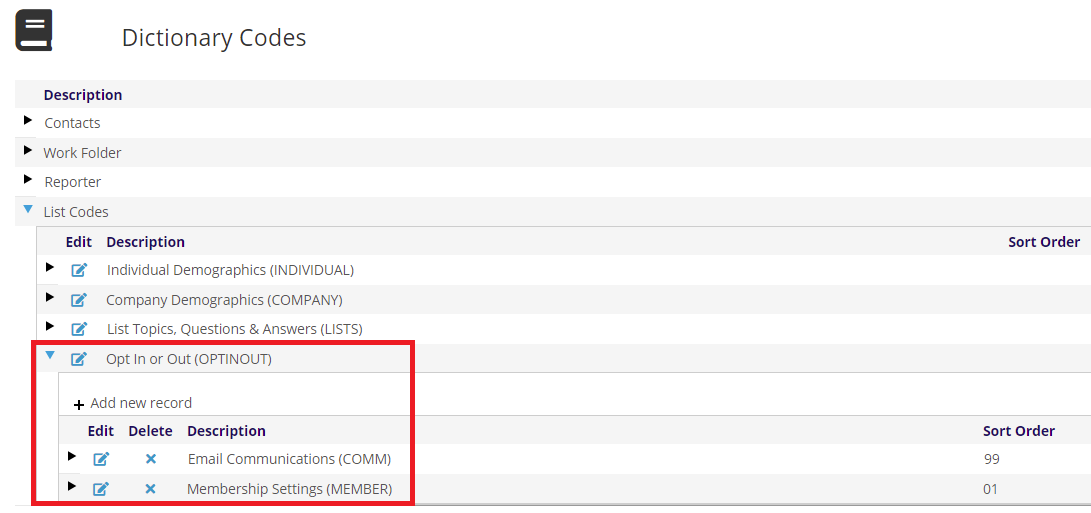
The GroupType Opt In or Out (OPTINOUT) in the List Codes Dictionary with sample GroupCodes of COMM and MEMBER is seen in the next screen shot.
Examples of common MasterCodes for each of these GroupCodes are seen in the next two screen shots.
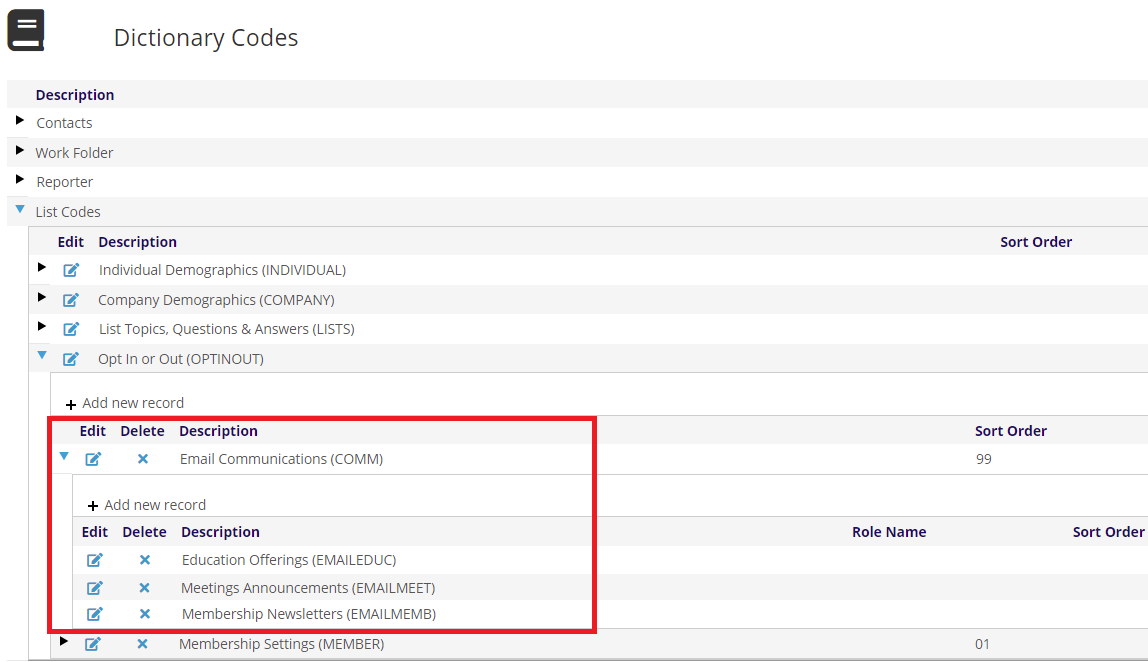
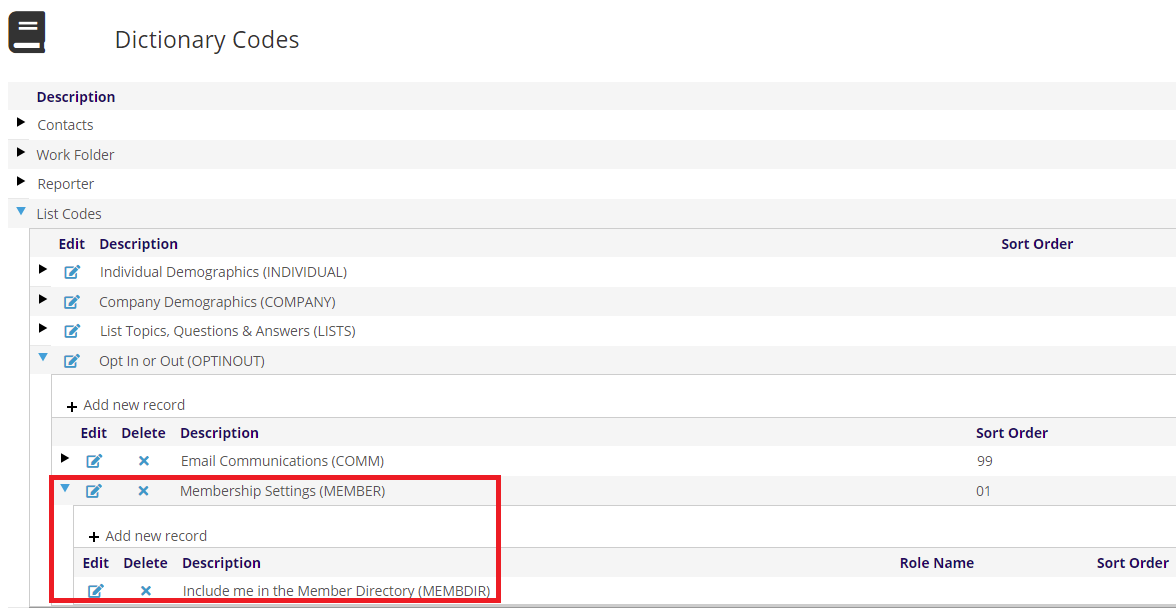
The Description fields in the GroupCodes and their MasterCodes seen above flow to the labels in the Opt In/Out tab in the AMS and online profile, as seen in the first screen shot in this section.
Each GroupCode that belongs to the OPTINOUT GroupType must have an entry in the Sort Order field so that the system knows in what order to display them in the Opt In/Out tab. In the screen shot at the beginning of this article of the Opt In/Out tab in the AMS, the “Email Communications” description appears below the one for “Membership Settings” due to the entries in each respective GroupCode’s Sort Order field, as seen in these screen shots.
As mentioned in the Introduction in this chapter, all entries in the Sort Order field must have the same number of digits, so “01” is entered for the MEMBER GroupCode instead of “1,” since the entry for COMM is “99.”
Specific Instructions are required for each OPTINOUT MasterCode that define one of two default modes. These Instructions are set up to automatically opt a new contact record either in or out of the Email Communications and Membership Settings by entering DFLT=IN or DFLT=OUT in the Instructions field.
For example, an EMAILMEET MasterCode with Instructions set to DFLT=IN will automatically opt new contact records in to receive emails for Meetings Announcements, as seen in the next screen shot of the edit mode for that MasterCode under the COMM GroupCode.
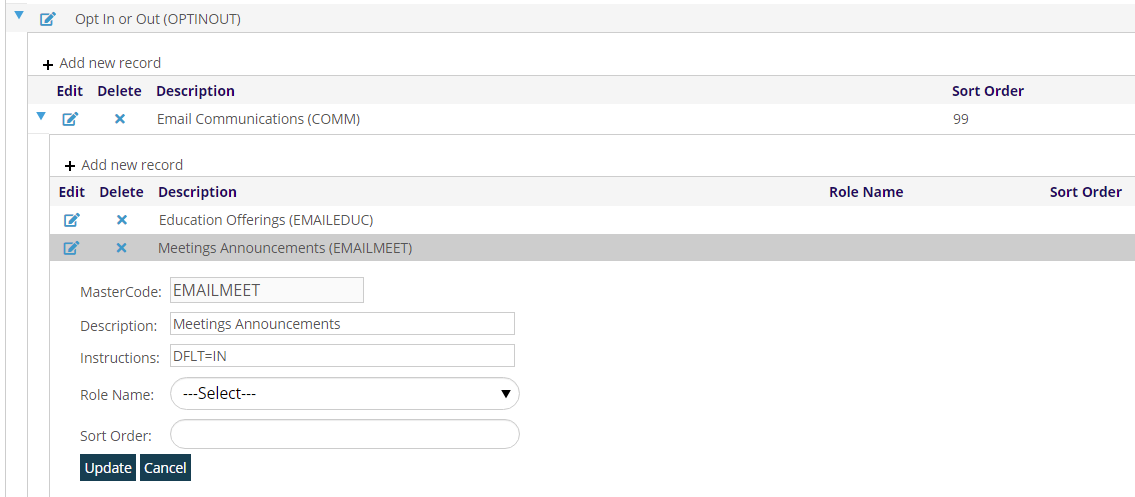
The DFLT=IN in the Instruction field will flow to the Opt In/Out tab of a contact record, as seen earlier in this section, and place a check mark in the box next to “Meetings Announcements.” Any person or company that wants to opt out of this particular email communication would need to go to the Opt In/Out tab in their Individual or Company contact record and click on that box to uncheck it. You can set all MasterCodes to DFLT=IN or DFLT=OUT on a case by case basis, and they don’t have to all be set to the same default.
The same determination must be made for the single MasterCode that belongs to our other sample, “Membership Settings.” The MasterCode with Instructions set to “DFLT=IN” that will automatically opt new contact records in to be included in a Membership Directory is in the next screen shot.
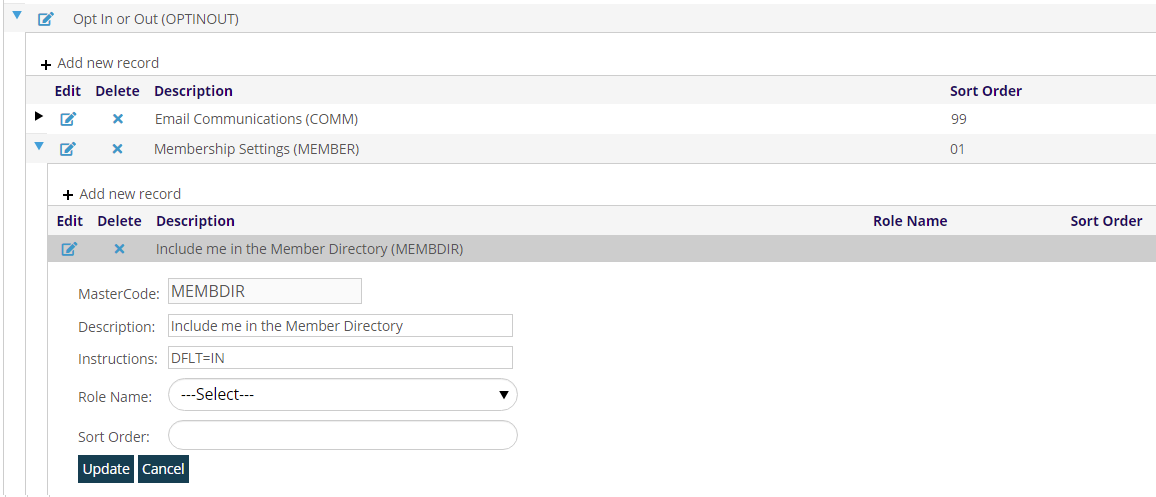
Any person or company that wants to opt out of this automatic inclusion in your association’s Membership Directory would need to go to the Opt In/Out tab in their Individual or Company contact record and click on the corresponding box to uncheck it.
Conversely, for any of these MasterCodes with DFLT=OUT in the Instructions field, the default will be set to automatically opt all contact records out of the corresponding option. Any person or company that wants to opt in to that option would need to go to the Opt In/Out tab in their Individual or Company contact record and click on the corresponding empty box to check it off and begin receiving those communications.
NOTE: Setting the DFLT option only sets the default choice when displayed on the screen. The actual data is not saved on a contact's Profile until the Save button is hit. If you add an Opt In or Out, only those who are created or updated after the DFLT option is set will have this added to their record. If you have many existing records that need this Opt In or Out added, you can contact support and supply a list of those who should have it added to their record, and it can be done behind the scenes.
There are some optional Instructions for Opt In/Out MasterCode questions as follows.
RETD=YES allows the corresponding question to be retired and hidden from view without deleting it from your system. If it has been used, deleting it would corrupt the data collected, which could be needed in the future.
HIDE=YES will stop this MasterCode from displaying.
TYPE=MEMBALL causes the question to display only for those contact records that have a current membership.
TYPE= NONMEMB causes the question to display only for those contact records without a current membership.
When TYPE= is followed by the dictionary code for a Member SubType, the question displays only for contact records with that Member SubType. More than one code for a Member SubType can be included, separated by a comma and no spaces, as seen in the example Instruction in the next screen shots.
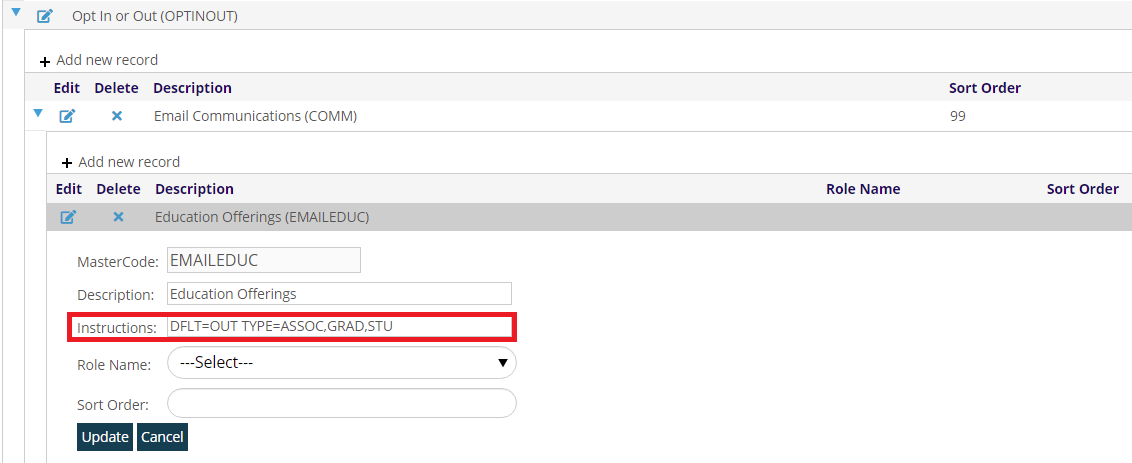
CONT= when followed by the dictionary code for a Contact Type, the question displays only for contact records with that Contact Type. More than one code for a Contact Type can be included in this Instruction, separated by a comma and no spaces, as seen in the example Instruction in the next screen shot.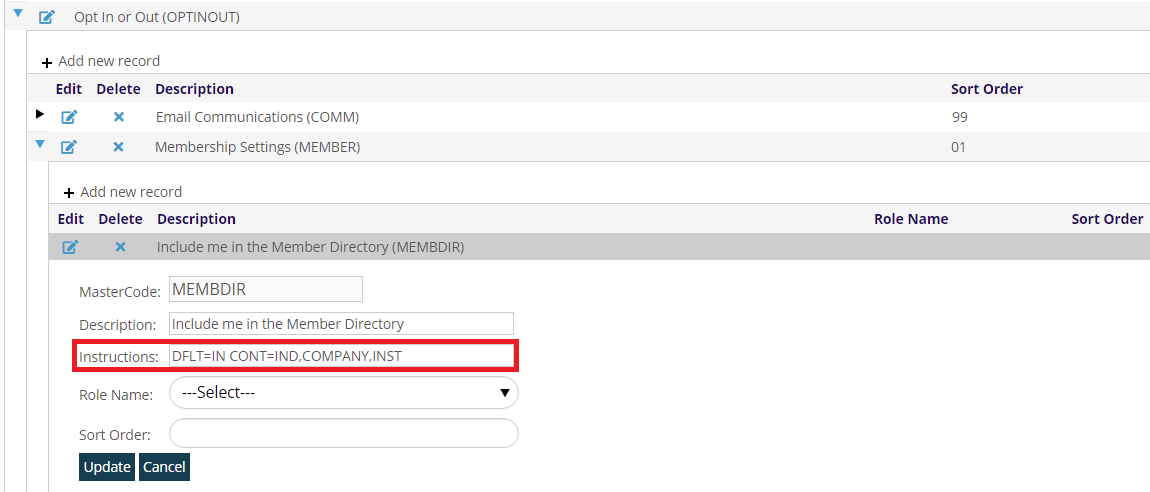
More information on the Opt In/Out tab is provided in the Contacts section of this knowledge base.