
Before you build any multiple-choice questions under Document Data in a submission document, you must create the answers you want the user to choose from in the Repository Dictionary. Any answers you create can be used across multiple submission forms as needed. Simple answer sets such Yes/No or True/False could be used many times. Other multiple choice questions that are needed for recurring processes such as awards, scholarship and membership applications, and calls for volunteers can use the same sets of answers, such as Education level options ranging from High School through Graduate School.
This section is written with the assumption that the reader is already familiar with how dictionaries work in the AMS. If you need a refresher on the controls and how the codes relate to one another, refer to the Dictionary section of the knowledge base. Once you know the basics, these sets of answers can be easily constructed if you start the process with a clear and complete list of all the answer sets you need.
You can access the Repository Dictionary by expanding Repository Attributes in the grid on the Repository landing page, as seen in the next screen shot. 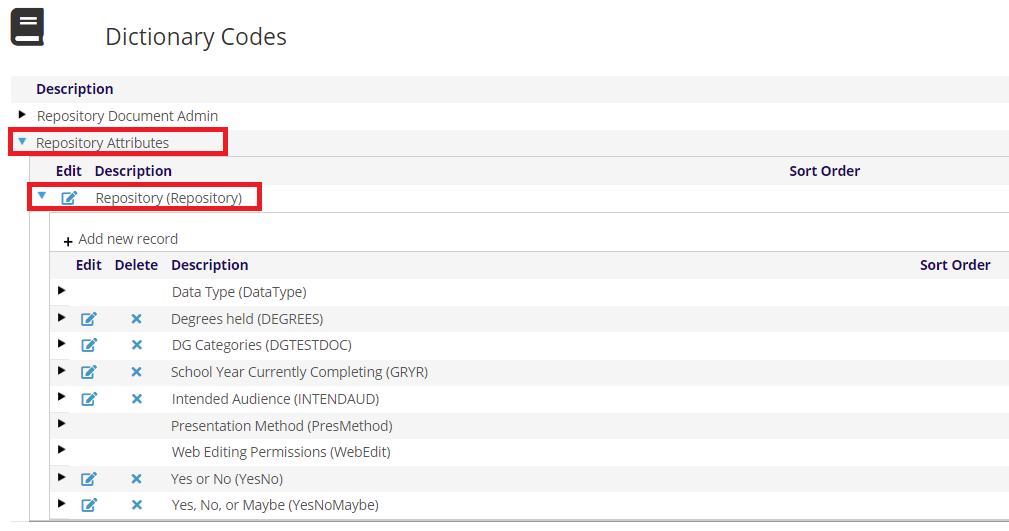
The Repository Dictionary allows you to create GroupCodes and MasterCodes to define the answers to multiple-choice questions. When you build a multiple-choice question in a submission document, you will need to refer to the corresponding codes when creating document data in order to populate the web form with the desired answers from which the user must choose.
For example, if you need to create a new set of answers for the question “What is your current school year?”, you would create the needed table of values for those answers here. First, click on +Add new record found at the top of the GroupCode grid, as seen in the previous screen shot. Then the following fields will appear above all existing GroupCodes.
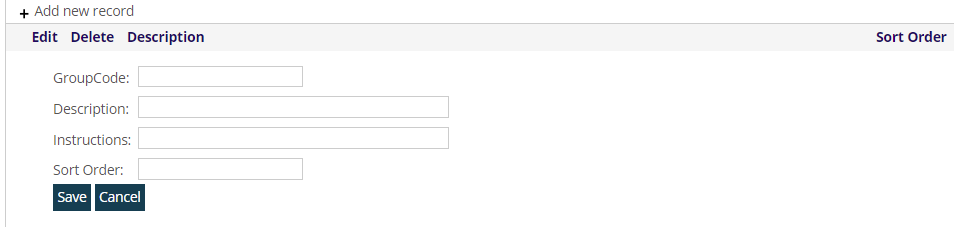
For our schoolyear example, “GRYR” is entered for the new unique GroupCode.
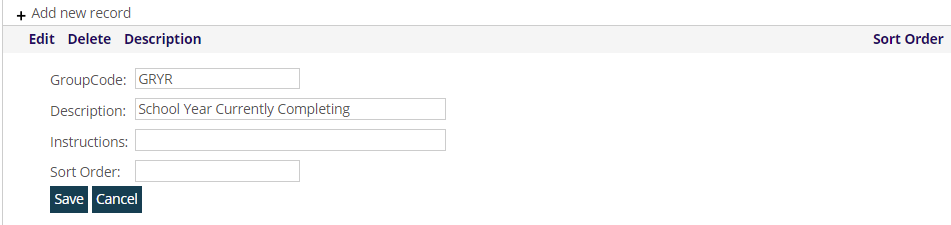
The text entered in the Description field, “School Year Currently Completing” will appear in the Repository dictionary grid of GroupCodes once it has been saved, and in the “Group Code” drop down menus in the Document Data forms used to build submission and reviewer questions. This Description will not be visible to those filling out or reviewing submissions. Since you may use these answers again in the future, choose text that will help you find this particular GroupCode in what could grow to be a long list in the grid and drop down menus.
Be sure to click on the Save button to create the new GroupCode, or click Cancel if you need to discard it. Once the GroupCode is saved, you can expand it to create MasterCodes under it for each of the possible answers you want the user to choose from when answering the corresponding question. An example MasterCode that could be created for our school year GroupCode is in the next screen shot.
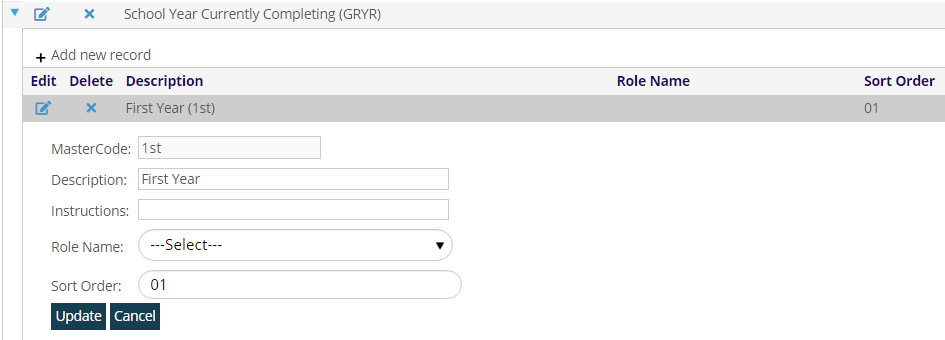
The text entered in the Description field will appear as written on the web form, so enter this data exactly as you want the user to see it among all of the other answers. Each time you save a new Group or MasterCode, the message in green "Your changes were saved." should appear at the top left of the entire grid.
A list of MasterCodes that could define a full set of those school year answers is in the next screen shot.
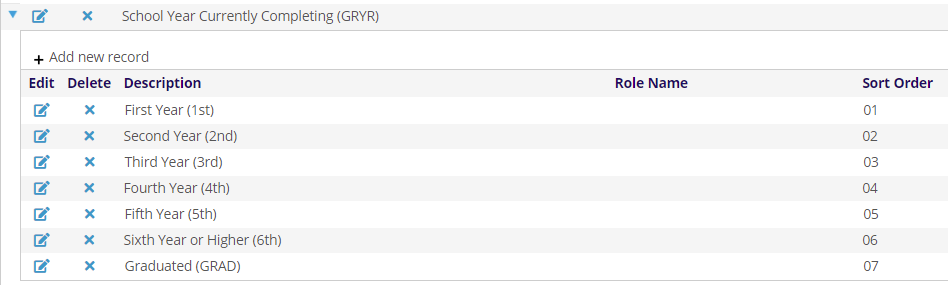
Note the use of the Sort Order field in these sample MasterCodes, which causes these particular answers to appear in a logical order for the user when viewing them in the web form. When Sort Order isn’t defined, the possible answers will be presented in the web form in alphanumeric order by Description, which would not have been a good idea in this case. When you enter numbers in the Sort Order field, the MasterCodes also follow this order in the dictionary grid, as seen above. Once you have created all of the MasterCodes you need, it is recommended that you take a moment to view the full list of them and double check to make sure you didn’t forget to make an entry under Sort Order, or if you need to switch the order for any answers.
Do not edit any entries in the Role Name or Instructions. These are likely to be customizations and you should consult a Client Admin if you have questions about them.
These codes that define answers to multiple choice questions can be used in as many submission documents as necessary. Therefore, if you edit any of the codes you have created, it will change them in every submission document that has document data for which they have been selected. If, for example you had a GroupCode and MasterCodes that defined “Yes” and “No” answers, as seen in the next screen shot, it could be in use in multiple submission and/or reviewer documents, and therefore also currently active in any web forms generated by those documents via the Repository module on your live website.

If at the same time, you needed to create a multiple choice question in Document Data for which the user chooses from answers of “Yes”, “No” and “Maybe”, it would not be a good idea to add a new MasterCode of “Maybe” to the existing YesNo GroupCode seen above. You would instead need to create a new GroupCode and MasterCodes under it for all three answers, as seen in the next screen shot.

When creating the question in Document Data for which you needed these three answers, select this new GroupCode of “YESNOMAYBE” in the corresponding drop down field.
This section of the Repository Dictionary is also where the Data Types, Presentation Methods, and Web Edit Permissions, described in a previous section, that are used to build submission questions are defined. These methods are standard across all AMS users, and are only created and edited by JL Systems' staff.
You can also use this dictionary to create customized tabs to group related questions together in the web display. This approach is highly recommended when your form includes questions that cover different requirement areas. Examples of possible tabs to be seen by the user filling out the web version of a submission document are in the next screen shot, to the right of the Tabs arrow.
The user can use these tabs to guide themselves through all of the questions.
To set up tabs that don’t already exist, first go to the Repository dictionary under Repository Attributes and then click on “+ Add new record”. Note that the characters entered in the GroupCode field must match the Document Type used for the submission document where you want the tabs to appear. This critical step tells the system to which document the tabs belong once you’ve defined them. For one of our running examples, we need to enter “DGTESTDOC” in the GroupCode field.
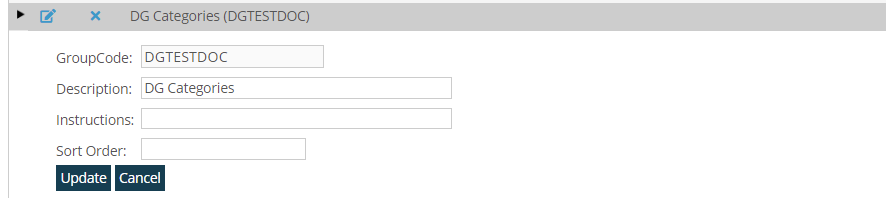
Add MasterCodes under that GroupCode to define the tabs for Contact, Education or Professional Information are in the next screen shot.

Sort Order should be defined for each MasterCode to control the order in which the tabs will appear to the user on the web form.