
Before we discuss how to create criteria, we should describe the different Criteria Controls used in the Reporter.
Some controls are familiar and straightforward, such as text boxes, check boxes, radio buttons and drop down menus. Others are more complex, so we’ll discuss them alongside examples in screen shots.
Several kinds of criteria have check box trees so you can select one or more codes to query, depending on which kind of criteria you are creating. For example, when setting Profile criteria, you can use the tree structure to choose one or more Contact Types, or drill down one level to select one or more Contact Subtypes. For example, in this screen shot, the arrow for the “Organization” Contact Type is highlighted. 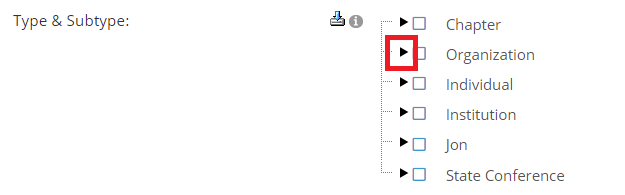
Single click on that arrow to expand the tree to see the Organization SubTypes. The arrow now points down so you can easily see which branches of a tree have been expanded.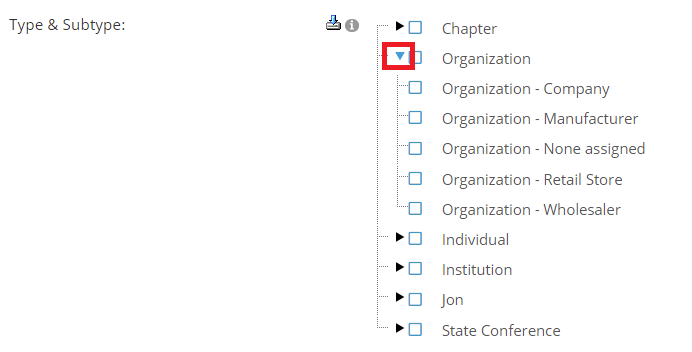
If you check the “Organization” check box, the control will automatically select all of its SubTypes, also known as the children of this parent Type. If you want to set criteria for one or more, but not all, of a particular SubType, do not check the box for the parent Type. Only check the box for the SubType(s) you wish to include. For example, the single selection at left will cause a query to search for contact records with the Organization SubType of “Manufacturer" and "Retail Store”, and not any other SubTypes.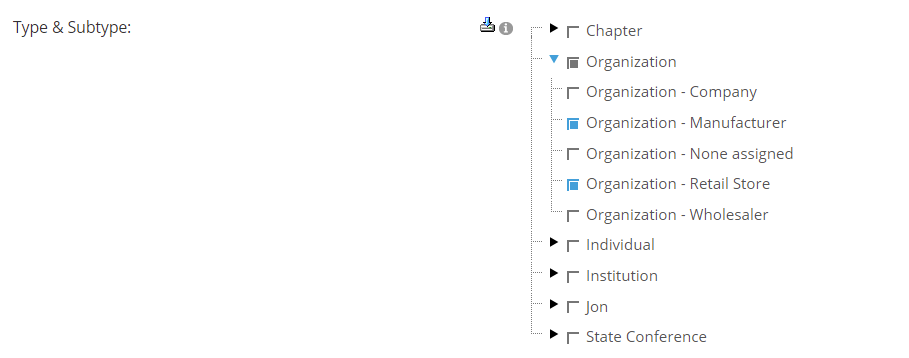
Click on any checked box to deselect it. Click on any blue arrow to collapse its branch of a tree. If all the items under an option are selected, the box will be blue, if only some are selected it will be gray.
When checking any box in this tree structure, expand the tree to the lowest level to see everything that would be selected as a result, to make sure you are choosing what you need and nothing more, as some trees contain more levels of choices than others.
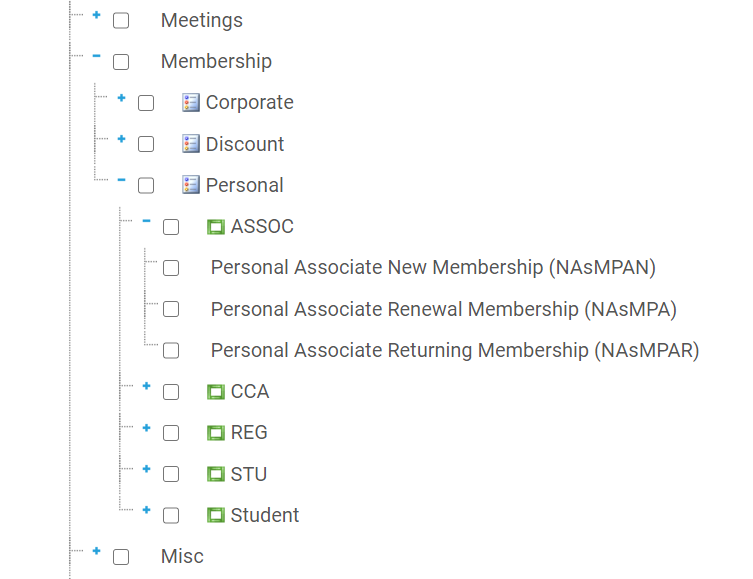
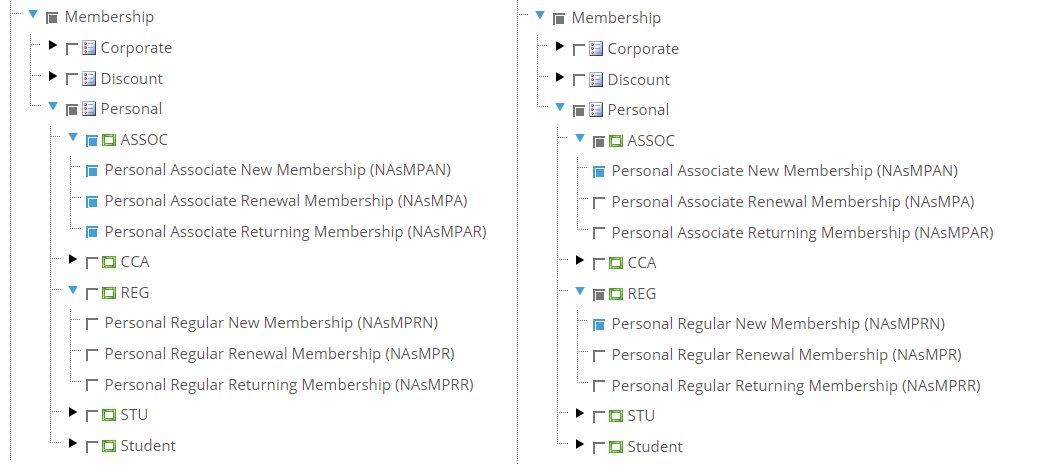
Some check box trees drill down to three levels, such as the example here for Money criteria, where you can access the Program, Category and Type for Program Codes. In this example, “Membership” has been expanded, the “Personal” category has been expanded, and the “ASSOC” type in that category has been expanded.
If you check the box for “Membership”, the control will check the boxes for “Corporate”, “Discount”, and “Personal” and every program code covered by each of those three levels, even if the tree isn’t fully expanded. If, for example, you only want to select all of the program codes under “ASSOC”, and no others, check the box to the left of “ASSOC”. The control will check the boxes for the corresponding program codes.
You can also select individual program codes, as in the example here where only the codes that apply to “New” memberships are selected within the “ASSOC” and “REG” Types.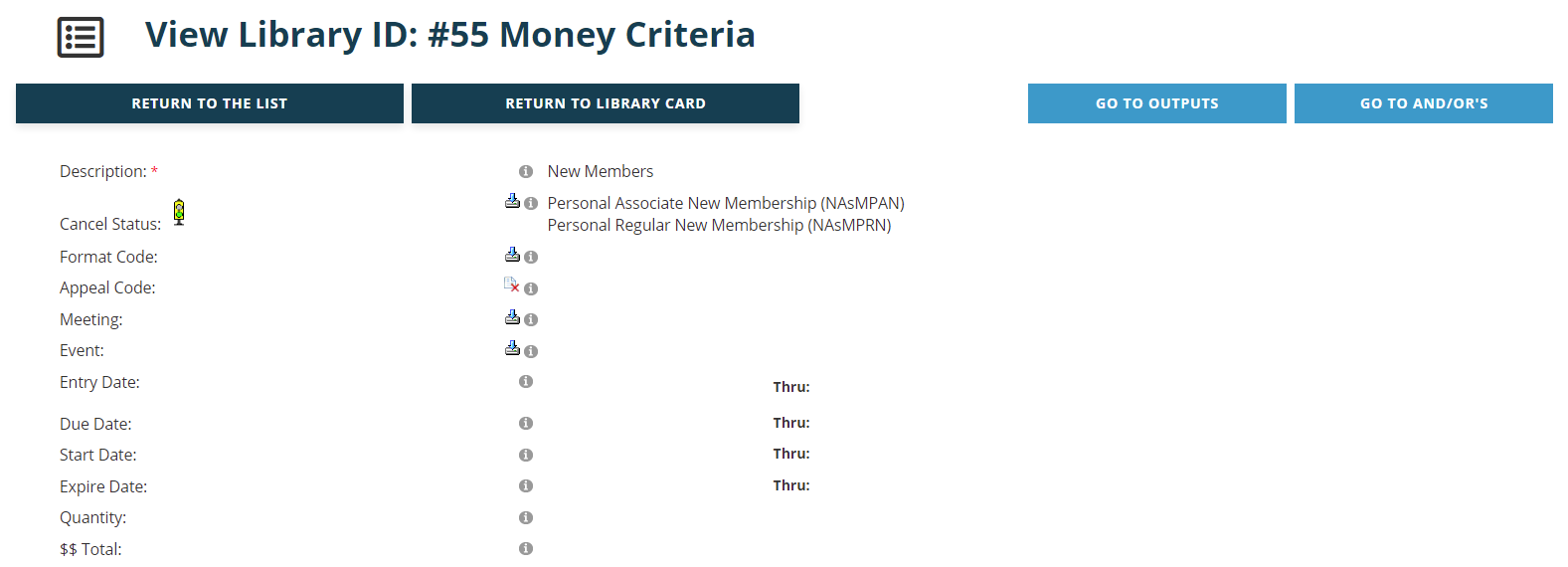
It is strongly recommended that you double check your check box tree selections for accuracy, and when you save a new or edited criteria, the page reloads in View mode. The View page includes a list of any items you have selected in check box trees. If you are missing any, or need to remove any, go back into edit mode, expand the tree, make your corrections, save your changes, and check the list again to confirm your changes are correct.
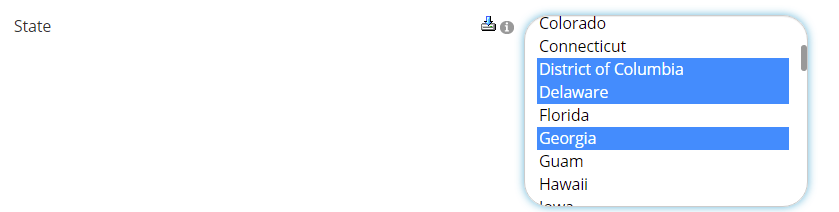 Controls that have this blue arrow
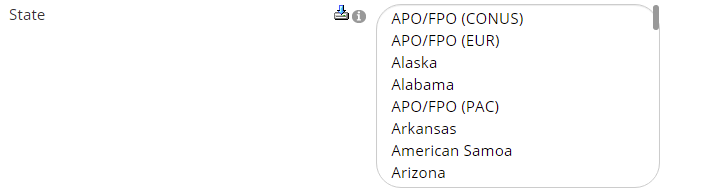
 to the left of the top of the field allow selection of multiple answers. Hold down the Ctrl key as you click each item when you want to include more than one option, as in this example for the State field in Address criteria. This control is used in combination with drop down menus, list boxes and some check box trees.
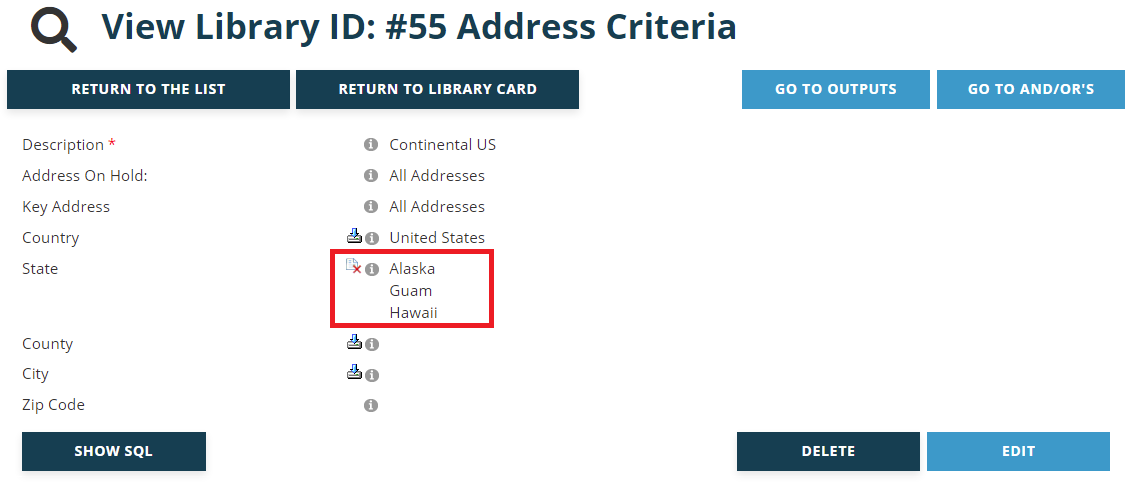
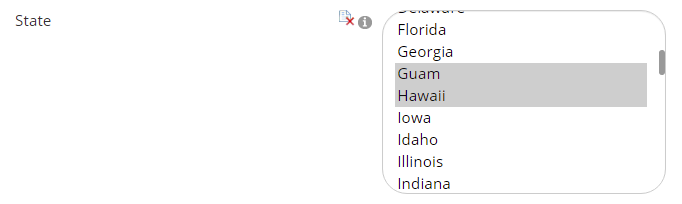 You can also deselect particular options via the blue arrow. If, for example you need a criterion that limits the contact records to those with addresses in the continental United States, you can deselect those few states and territories that must be excluded instead of taking more time to individually select the 48 continental United States. After holding down the Ctrl key and clicking on Alaska, Hawaii and any U.S. territories in your state list box, click on the blue arrow to change it to this icon
 , which deselects your choices from the criteria, and includes those you did not select.
Once you have saved or edited criteria using this control to select or deselect items, check your results in View mode, where anything listed alongside the select icon WILL be included in your search results. Items listed alongside the deselect icon WILL NOT be included in your search results, which in the example from above is contact records with addresses in those states and territories listed in this screen shot.
The List Box control lets you type a list that you want to include in your criteria. For example, there is a Zip Code list box in Address criteria. If you wanted to limit the query to contact records with addresses in the zip codes 22150, 2231 and 22207, enter them as a comma delimited list, as seen in the next screen shot.

NOTE: there is a limit of 170 items that you can add to this list. If you need more, create multiple criteria and use the OR operator when Setting AND/OR Operators.
Drop down menus can also be used in combination with other fields. In most cases the drop down menu appears alongside another field. For example, you could create Money criteria for contact records with any Amount Due based on this combination of fields.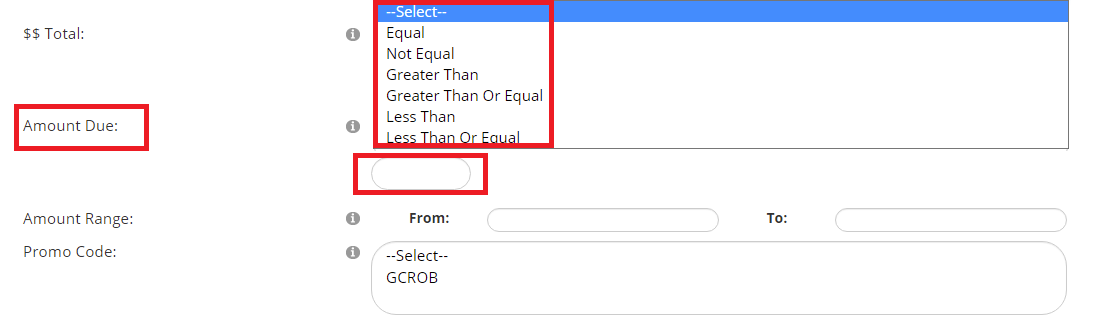
Select Greater Than from the drop down and then enter 0 in the box below. This criteria could be paired with other criteria to narrow the search to those with money due for a registration, membership, or any other kind of transaction that your association allows to carry balances due.
There are calendar controls for some fields, like these for Money Criteria. 
You can type dates in these fields or click on the calendar to the right of a field and use the arrows in the header to find the right month and year, and then click on the date you need.
A blank date in the first of the two fields causes any search on that field to start at the beginning of time in your database. A blank “Thru:” date causes the search to go until the end of time. If a date is entered as a start or end date, the search includes that date. To search one particular date, enter the same date in both fields. To search on a date range, enter the start date in the first field and the end date in the second, bearing in mind the search will include the dates entered.
Only use these date fields for criteria that have the corresponding date related data. Entry Date will always reference the date something was entered in NOAH, such as the date a transaction was processed. Start and Expire Dates should only be queried on criteria that also select items that have start and expire dates in your system, such as entitlements, committee assignments, or terms of board membership.
Some controls trigger the appearance of other fields that were previously hidden, using a cascading effect for selections. For example, in Addresses Criteria, there is a radio button field you can use to specify in which country the contacts’ address is located. For example, if you select United States, the page reloads and now you have the option to drill down and select or deselect certain States and U.S. territories.

Currently Active is a check box field only found in Folder criteria. This control applies to the type of folder for which criteria are being set. For example, if this box is checked for Membership folder criteria, it will trigger the return of all contact records that have a current membership folder, regardless of the contact or membership type. In another example, you could check this box for Governance Folder criteria, and the system will find contact records that are currently on a committee. This gives you a quicker way to find these records than setting up more complicated Money criteria that involve transactions and date ranges.
You can still set any other criteria, even within the same folder type, to further expand or winnow the final results of your query. In this manner you could more easily build a query to find currently active members that have other attributes, such as a conference registration or a bad email address, or both.
The buttons at the bottom of each criteria page will be discussed in each of the sections on types of criteria.