
The Education tab in contact profile records is used to track the events attended and courses taken by a contact when education credits are defined for the event. Those associations using these features in NOAH can also create Education Courses Criteria for Library Cards. The typical fields available for setting Education Criteria are seen in the next screen shot. 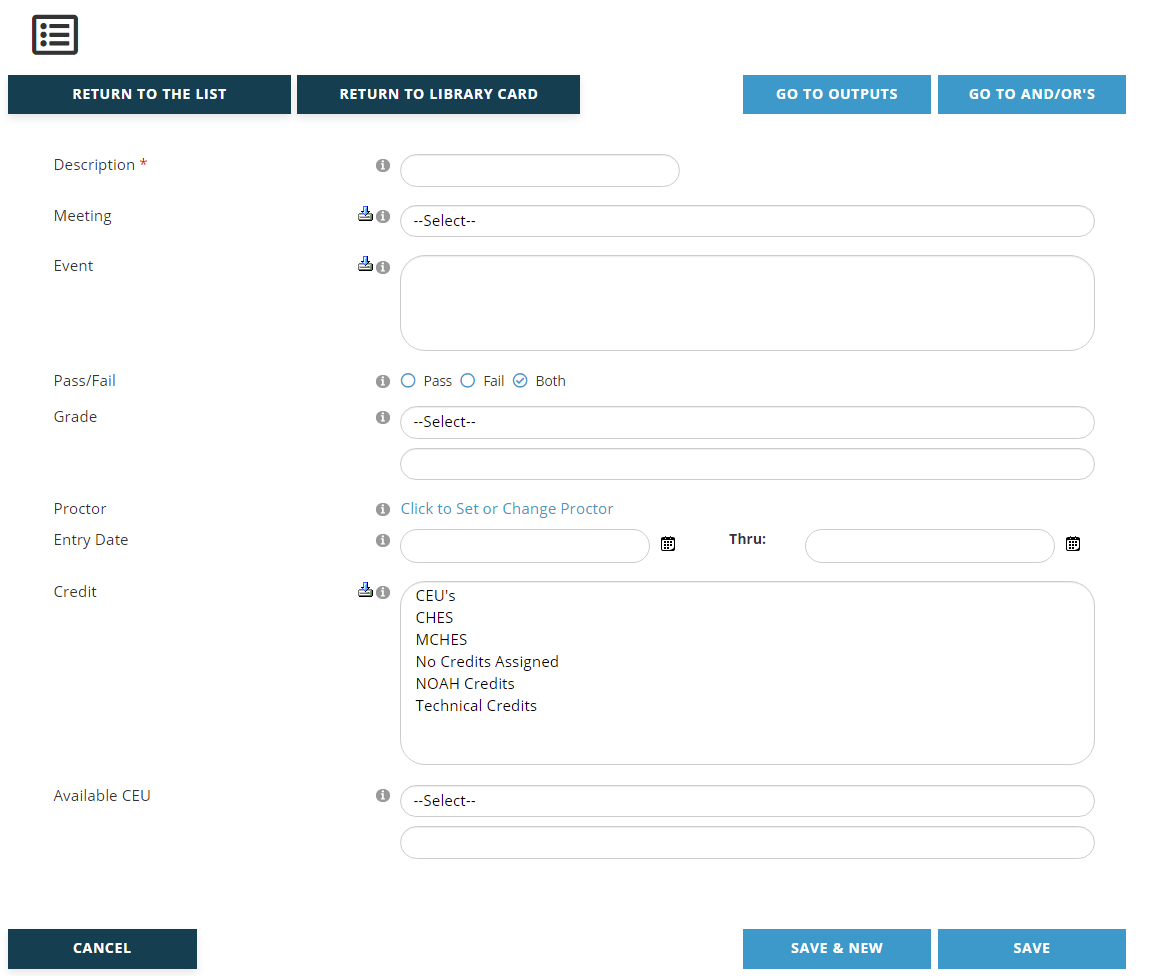
A Description of the purpose of the criteria must be entered in the first field, which is a mandatory text box. Enter this value before entering any criteria. This description should match the exact criteria you are creating. For example, if your Education criteria targets people who passed a particular course, you would want the description to be “Students who Passed Course AB1220” or something similar. Descriptions become important later when you are applying the And/Or logic to your criteria, where each criteria being named for their exact filter makes it easier to set up the logic to be applied.
The Meeting field is a drop down menu of meetings from which only one can be selected per Criteria. But you can create as many Education Criteria as you need to include/exclude more than one Meeting on the same Library Card.
Once a Meeting has been selected, its corresponding Events will populate the Event field, which is a multi-select list box. You may select as many as you wish, or none at all if you want to define the criteria only at the Meeting level.
The Pass/Fail field is a radio button field that defaults to choose “Both”. You can alternatively select “Pass” or “Fail” instead. This field is only relevant for education events created in the AMS for which data has also been logged by association staff as to which attendees passed or failed.
The Grade fields combine a drop down menu of qualifiers with a textbox where a grade can be entered. So, for example, criteria could be set to find contacts that attended an education event and were graded as “Less Than” a “C” in order to find those who should take the course over again. This field is only relevant for education events created in the AMS for which grades have also been logged by association staff for each student.
The Proctor field refers to faculty assigned to an event in the event’s setup. If you assign faculty you can search for a person to filter on in your query. You can only filter on one person at a time.
The Entry Date fields let you search on a date, or within a date range, where the entry date is the date the education credit was processed in the AMS.
The Credit field is a drop down menu of the types of Education Credits set up in your AMS. You may select as many as you would like to include within the same criteria.
The Available CEU fields combine a drop down menu of qualifiers with a numerical textbox where a number of Available Continuing Education Units, or CEUs, can be entered. So, for example, criteria could be set to limit the courses to include only those with available CEUs that are “Greater Than or Equal” to “4”.
Remember that to get a list of contacts who have paid or still owe money for an education course that confers credits, a Money Criteria should be used.
Click on the Save button to save any changes made. Click on the Cancel button to exit the page and discard any changes made. Click on the Save and New button to save the Education Courses Criteria you have been working on and immediately start creating another Education Courses Criteria for the same Library Card.
Clicking the Save button brings up a View page for the new criteria. The same process applies when an existing Education Courses Criteria has been edited. Double check the criteria to make sure the fields were set correctly. If you need to make changes, click on the Edit button below the summary. If everything is correct, click on the Go to And/Or’s button and set your And/Or preferences. That process is described in the Setting And/Or Operators section.
More information on Education Courses can be found in the Profiles and Meetings sections.