
Folders are assigned to track the participation and entitlements of all of your members and constituents. They are typically used to manage memberships, committees, presenters, exhibitors, certifications, speakers and more.
Setting Library Card criteria for Folders requires an extra step. The usual page displays after you click on the blue Folders button in the Library Card, but there is a drop down menu at the top left, as seen in the next screen shot.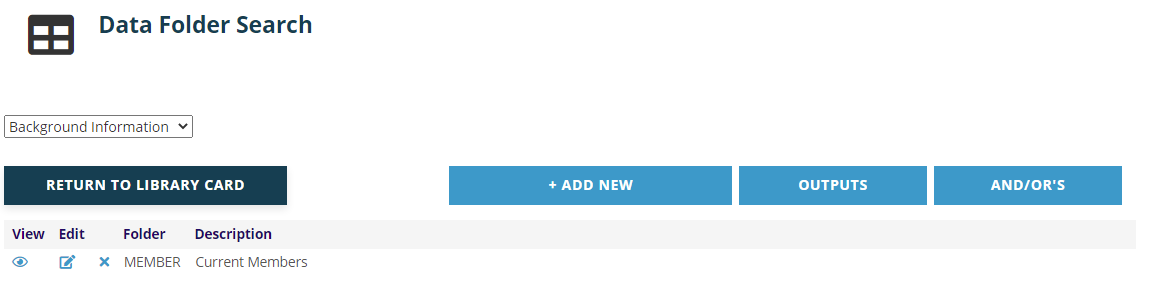
The drop down defaults to the first type of Folder in a list sorted by alphabetical order, which in our example is “Background Information”. You can click on the down arrow to the right of this field to bring up the list of all available Folders. If you have more than twenty folders, use the scroll bar to the right of the list to see all of them. Click on the folder type you need and then click the blue Add New Criteria button. The resulting page displays the data fields that are turned on in your system for the selected folder type.
The data fields for a sample Memberships Folder Criteria page are in the next screen shot.
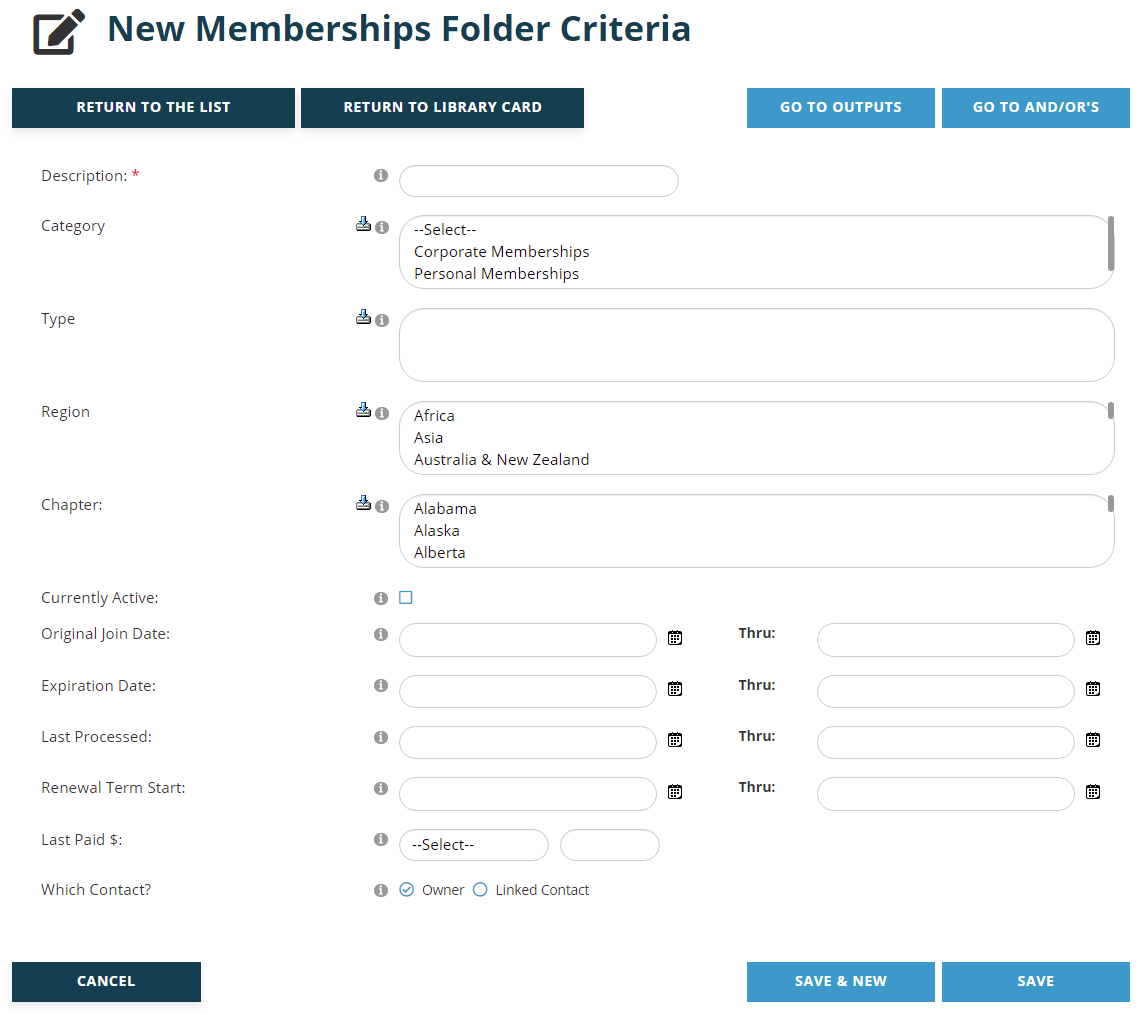
A Description of the purpose of the criteria must be entered in the first field, which is a mandatory text box. Enter this value before entering any criteria. This description should match the exact criteria you are creating. For example, if your criteria is targeting members who have joined within the last five years, it should be named “Members Joined Last 5 Years”, or something very similar. This becomes important later when you are applying the And/Or logic to your criteria, where each criteria being named for their exact filter makes it easier to set up the logic to be applied.
Then the next two fields for every Folder type have a parent/child relationship. In the example above for membership, “Category” is the parent and “Type” is the child. Only one parent at a time can be chosen for any Folder Criteria, but more than one Criteria of the same Folder type can be added to the same Library Card as needed. Multiple children of the same parent type can be selected within one Folder Criteria.
Since the Membership folder is commonly used for multiple Library Cards throughout the year, this section will keep this particular folder example and describe the relevant fields for our sample Membership criteria page.
In the sample seen above for Membership Criteria, you may first make one selection from the parent Category box and then optionally choose from the corresponding child Membership Types in the Type multiselect box, as seen in the next screen shot. If you don’t select any values you will include all membership types.
Our sample Membership Folder criteria fields include multi-select fields for Region and Chapter, but your page will not have these options if they are not part of your system setup.
The Currently Active check box is available for most Folder types and is always relative to the Folder type of the criteria you are setting. In our Membership Folder Criteria example, this check box applies to currently active memberships. For Committee Folder Criteria it refers to active committee assignments, and so on. Please note, this does not include any Grace Period setting but is based on the literal expiration date of the folder.
Note that if you check the Currently Active check box, the results of future queries run on the corresponding Library Card will be based upon the time you run the job in order to include up to the moment data.
Also note that contact records without dates in a folder’s first and second date fields will be excluded from the search results even if you have checked the Currently Active box when setting criteria for that folder type. The AMS won’t allow blank dates within active memberships, but other folder types such as committees or award nominations may or may not allow blank dates depending on your system setup. Make sure it is the practice in your system to enter dates in the first and second date fields for a folder type before you check the Currently Active box to be included in criteria for that folder type.
There are four calendar control field options for Membership Folder criteria. Original Join Date is the date the contact first became a member. The Expiration Date is an active membership’s expiration date. The Last Processed date is the date a contact last paid for a membership. The Renewal Term Start date is the date a contact’s current term started if their current membership was processed as a renewal.
The Last Paid fields combine a qualifier in the first drop down menu field and a dollar amount to be typed into the second numerical field to search against the last Membership transaction for a contact. For example, these fields could be set to search for contacts that last paid more than one dollar by selecting “Greater Than” for the first field and “1” in the second field. Do not include a “$” dollar sign in the second field.
The Which Contact field is a radio button field that defaults to “Owner” that can be changed to “Linked Contact” when you want the results of your search to be limited to those that are linked in the system to another contact.
Click on the blue Save button to save any changes made. Click on the blue Cancel button to exit the page and discard any changes made. Click on the blue Save and New button to save the Folder Criteria you have been working on and immediately start creating another Folder Criteria for the same Library Card.
When you are finished adding any new Folder Criteria, not just those for Memberships, click the blue Save button, which brings up a View page for that criteria. The same process applies when an existing Folder Criteria has been edited. Double check the criteria to make sure the fields were set correctly. If you need to make changes, click on the blue Edit button below the summary. If everything is correct, click on the blue Go to And/Or’s button and set your And/Or preferences. That process is described later in this chapter.
More information on Folders is found in the Profile section.