
Once you have the Program Code setup, you will then create the related Inventory Item, setup of which is found in the Money Dictionary. To open the Money Dictionary, click on the AMS Menu, Money, and then Dictionary.
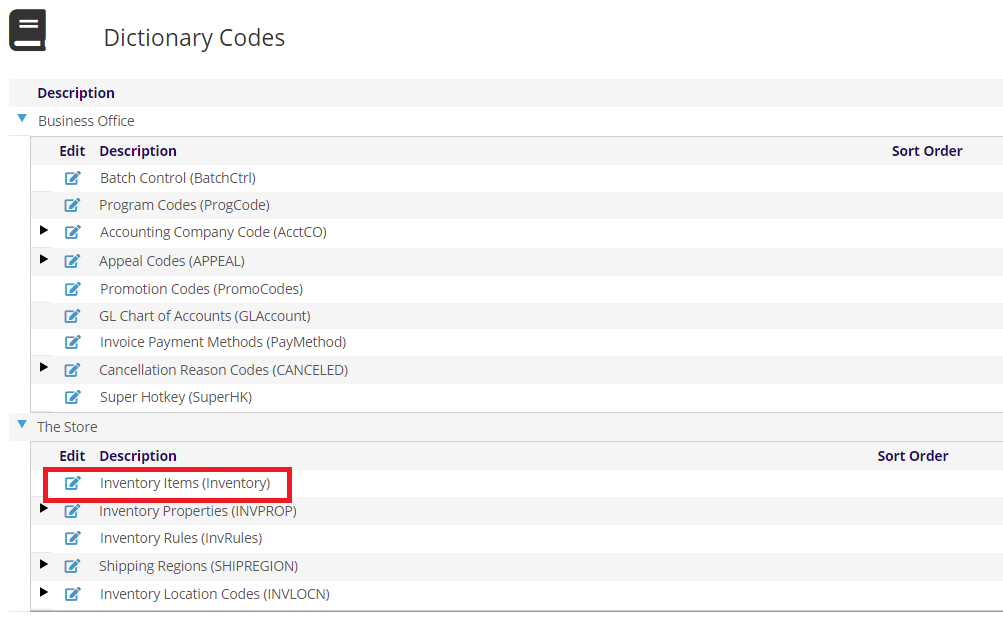
Once the Dictionary page opens, click the  edit icon next to the Inventory Items (Inventory) under The Store area.
This will open a search page to find existing items. You can use the Tree on the left to navigate to the items you are interested in, or use the SKU Search at the top.
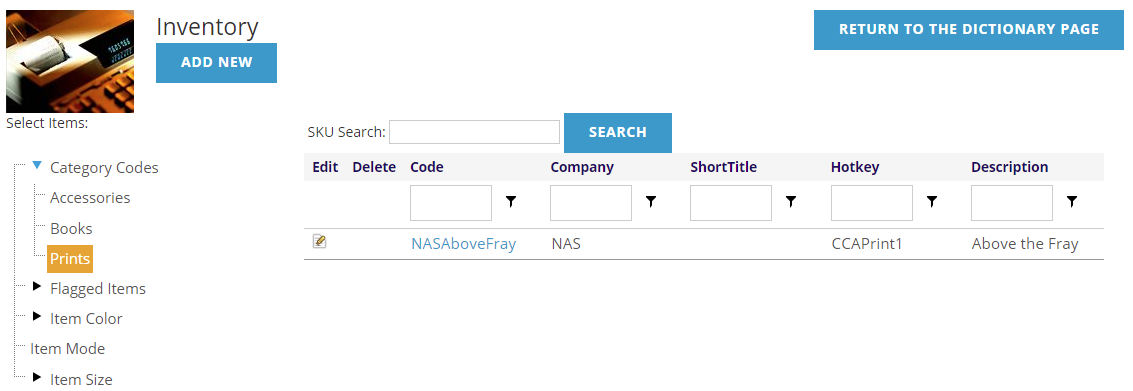
Use the blue Add New button at the top to add a new item, or use the  edit icon to edit and existing item.
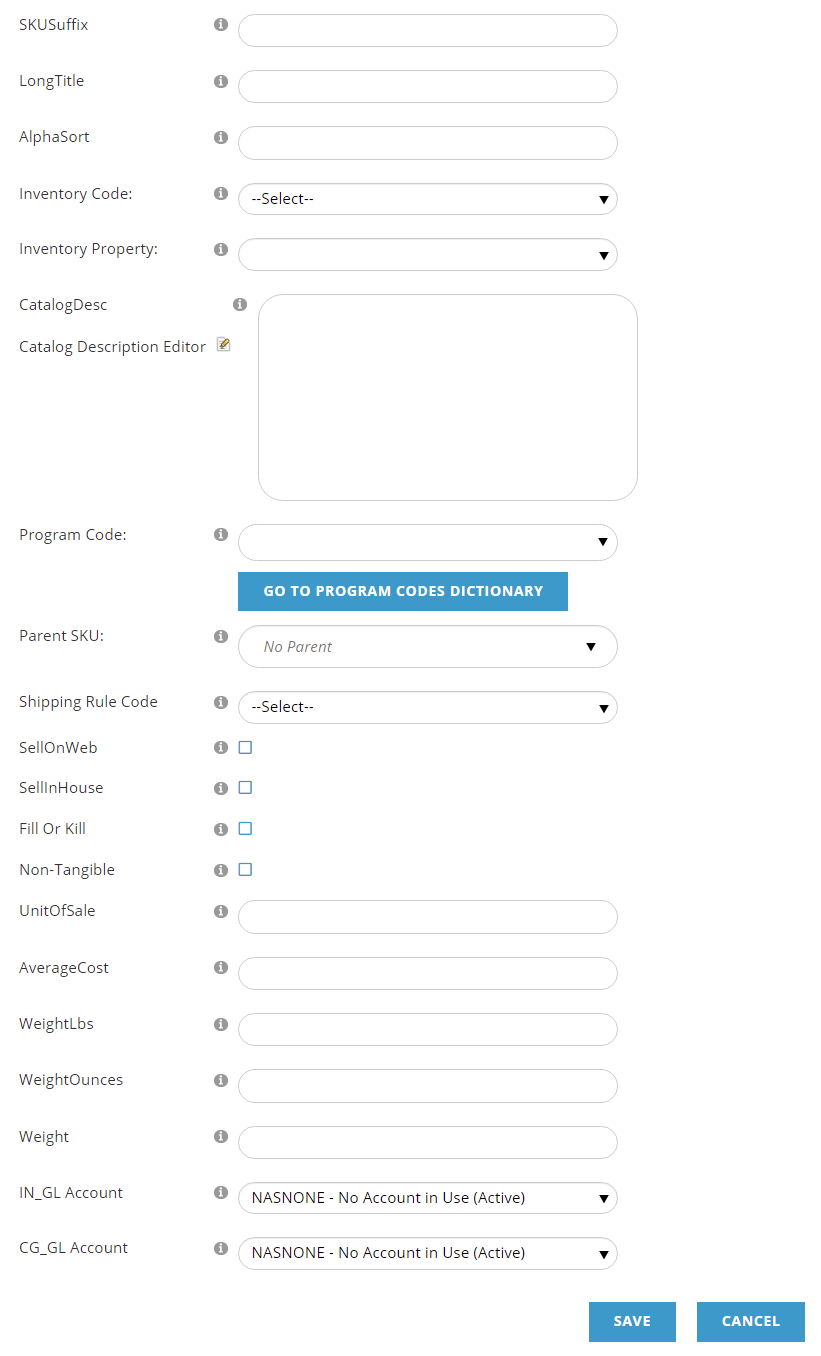
The SKU of your item will need to be unique, and will start with your organization's three letter acronym. The SKU Suffix will be what comes after your acronym in the SKU. Most organizations will use the Program Code here, and this can be up to 10 characters.
The LongTitle is what will be shown on your website for this item , and AlphaSort determines how this item will be sorted with the other item there. They are generally the same, but if your LongTitle begins with a word like The, you might want to remove that from the AlphaSort. For example, if the LongTitle is "The Big Book" then the AlphaSort could be "Big Book."
CatalogDesc is an HTML field that is also used on the website. You can edit this using the edit icon next to the Catalog Description Editor.
Next we have the Program Code that will be connected to this SKU. The drop-down will show Program Codes with the Format Code of Online Store. When editing the item, the blue Go To Program Codes Dictionary button will take you to this Program Code in that dictionary.
The Shipping Rule Code allows you to pick from the available shipping fee schedules. See the Shipping Rules section for more information on these.
The Discount Rule Code allows you to pick from the available shipping fee schedules. See the Shipping Rules section for more information on these.
The SellOnWeb check box denotes if this item is available for sale on the website.
The SellInHouse check box denotes if this item is available for sale internally (in the AMS).
Fill Or Kill is a check box to determine if someone can purchase this item on backorder. If unchecked and the inventory is not available, the invoice will be backordered. Checking the box is generally used for items you will stop selling, and when they are gone, you are no longer selling this item.
Non-Tangible denotes if this is a physical product or not. Downloadable items should have this checked.
UnitOfSale denotes how this item is sold. Generally, it would be EA for each.
AverageCost is used if you are calculating COGS.
WeightLbs, WeightOunces, and Weight are used to show the weight of this item when shipping. You can enter the WeightLbs and WeightOunces and the Weight will be automatically calculated; or just enter the Weight.
IN_GL Account and CG_GL Account are Inventory and Cost of Goods account codes.
Click Save/Update to save your changes, or Cancel, when you are done. Once you have created your Inventoried Item, you will see other buttons at the top of the screen of other areas related to this item that are described in the following sections.
