The Dictionary includes a page where you can Manage Committees, and you can access it by expanding the Governance header and then clicking the  edit icon to left of the row.
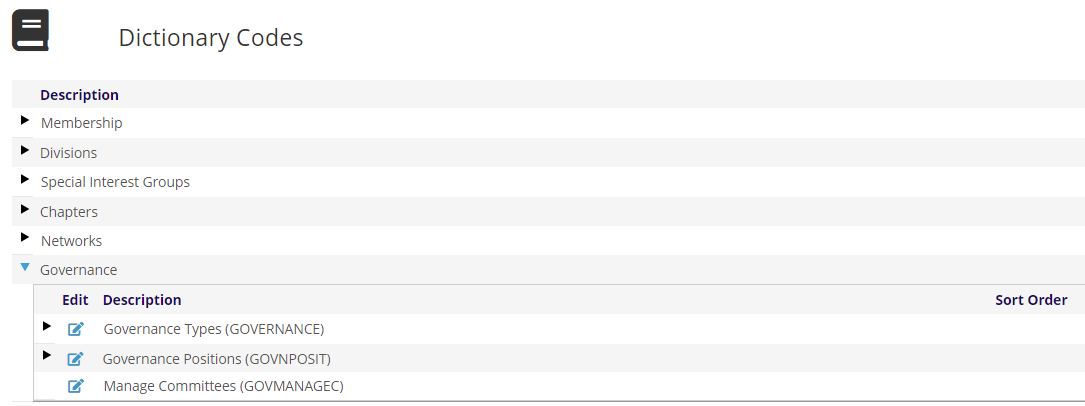
The page will reload, as seen in the next screen shot.

Once you have selected a Committee Group and Committee from their respective drop down menus, the page will reload.
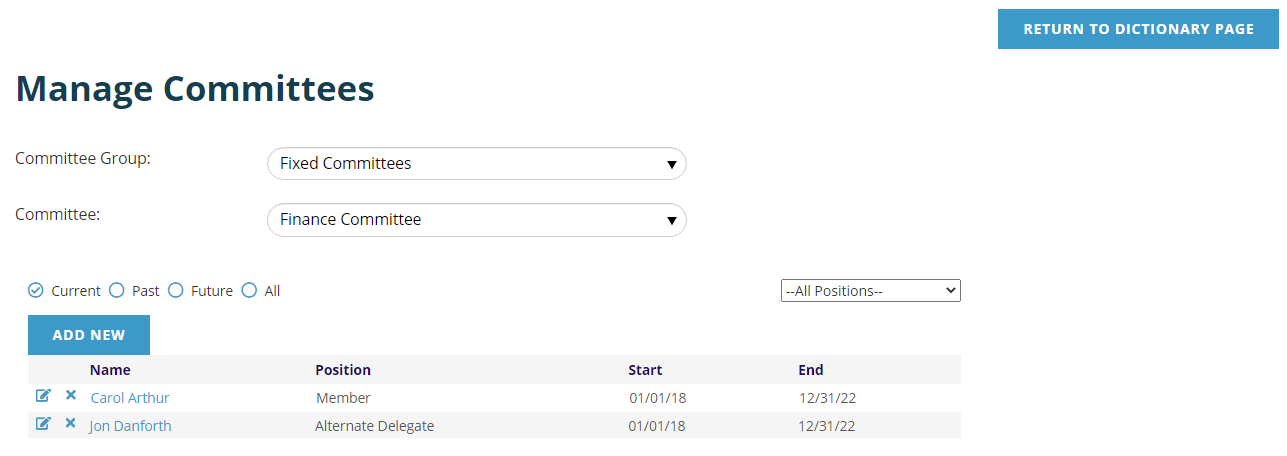
The page will display a grid that contains all current members of the committee. You can use the radio buttons above the grid to toggle the list to include Past, Future or All members.
You can also filter the grid by position by using the drop down list above the grid on the right, which defaults to --All Positions--.
You can sort by any column in the grid in ascending or descending order by clicking on the column heading.
You can click on the contact’s name to go directly to their profile.
You can Edit an existing member by clicking on the edit icon at the beginning of the row of the record you wish to edit. You can delete the committee folder for any member by clicking on the  delete icon. Generally, you would not delete a committee assignment, but would add an end date to terminate the members term on the committee. Please note: there is no undo, if you delete the folder it is permanently deleted. You can refer to the log file if you wish to view the data that was deleted in case you did so in error.
When editing an assignment here, you can move the person to a different committee if they were initially placed on the wrong committee. Keep in mind, if you move them and return to the list they will no longer be showing for the committee you first selected in the drop down menu. Similarly, if you are viewing Current members and terminate the term of a member by changing their End date to a date in the past, they will no longer be showing in the grid of Current members. If you toggle to Past members you will then see the record.
You can add a new person to the committee by clicking on the Add New button. You can then search for the person to be added and set their position and term dates. You can only add a person to the committee you have selected. If you wish to add people to a different committee then change the committee you have selected at the top. The person you are adding must already be a contact in your database, so be sure to create their record ahead of time to then be able to add them using this page.
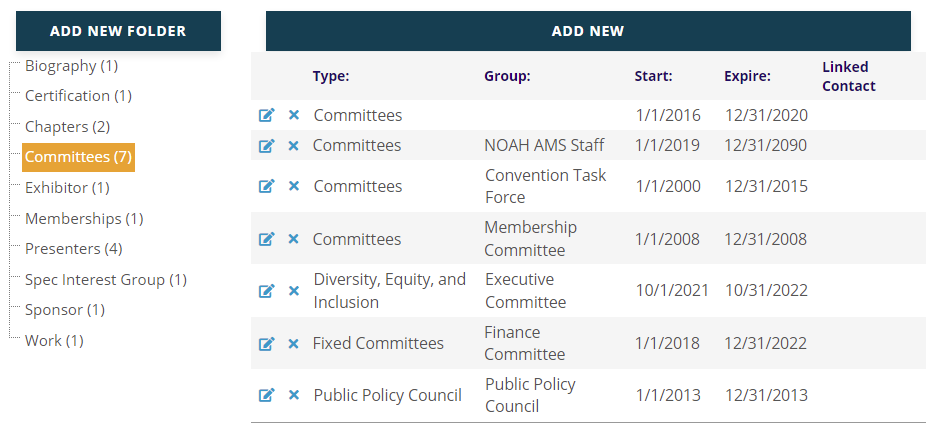
To see how many and which committees a particular contact is on, go to the Folders tab in the contact record and click on “Committees” in the folder tree.