
After you have created your Questions, you will want to define the answers where there are choices. When the Type Code is Question to be Answered, and the Format Code is Multiple Choice check Boxes or Multiple Choice radio buttons you will need to define the responses allowed. If this is to scored/graded you will also flag a correct answer. These are entered in the next section: Responses.
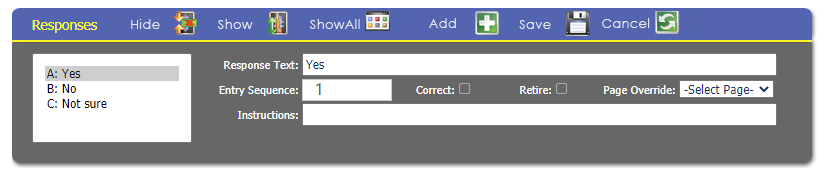
First you will need select the Question in the area above Responses (see the previous article). Click the  white and green plus button to add a new Responses, or click on the Response on the left that you want to view/update. NOTE: make sure you save your changes using the
 Save button in the Responses area (not in another area) before moving to a different response or your changes will be lost.
Each Response has several properties:
- Response Text- This is the Response the user sees and selects and can be up to 255 characters.
- Entry Sequence- the order of the Responses; 1 corresponds to A, 2 to B, and so on.
- Correct- one or more of the Responses can be flagged as correct. This is used when grading, or scoring, a test. This Response will be shown with an asterisk (*) next to its letter in the list of responses on the right.
- Retire- flag to retire this Response.
- Instructions-optional instructions to add functionality. As with all instructions, the parameters are separated by a single space, and their values are not.
- LIST- This response corresponds to a List Code on the contact and should be set there; for example, LIST=MEETINGS|NEEDS|VEG would update a list Code under Meetings, Special Needs, Vegetarian.
- HKEY- If the item may be purchase then the HKEY= command points tot he Program Code HotKey that controls the sale. It is this hotkey that is placed in the shopping cart and purchased.
- ENDS- If the instructions contain a HKEY command, use of ENDS causes setting the start date in the shopping cart to today and the expiration date to today’s date plus the number of months specified in the command. For example, ENDS=3 will set the start date to today and the expiration date three months from today.
- LINK- A HotKey in the shopping cart may be a stand-alone entry. Examples are a T-shirt, a book from the store or a meeting
registration. The registration, however, may be a PARENT of many CHILD entries that document the selection of sessions,
workshops, banquets, sporting events, tours and the like. Use of the LINK command binds the children to the parent. Children
cannot be removed from the shopping cart but if the parent is removed, then it also removes all the children rows.