
When a contact has duplicate records in the AMS, you can combine, or merge, them using Merge Contacts under System, Database Utilities. This will open the Database Utilities page, and clicking the Merge Contacts button at the top will open the Merge Contacts page.
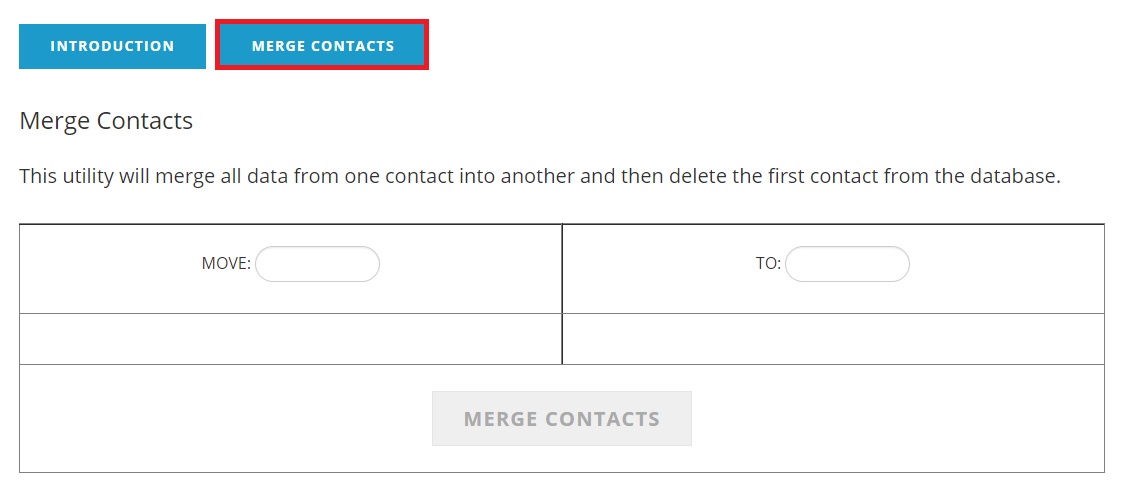
NOTE: Before you come to this screen you should know which record you want to keep, and which should be merged into it. Once two contacts have been merged, this can not be undone.
The duplicate's Contact ID you want to be merged, or removed, should be put in the MOVE box on the left, and the Contact ID that will be retained with the duplicate's related information appended should be put in the TO box on the right. After entering each ID, the page will update to show address of each contact so you can verify you have entered the correct ones. Once both MOVE and TO fields have been entered, the Merge Contacts button in the last row of the table will be activated and you can click it to start the merge process. Remember, once two contacts have been merged, this can not be undone.
What's merged? The name and other information that is stored on the contact record is not combined, so make sure this information is correct on the contact you are retaining. Other information that is stored in separate tables (addresses, communications, demographics, list codes, invoices, folders, etc) are added to the retained record. Shopping Carts are not merged, and any items in the merged contact's cart will be deleted.
Duplicate contact records can be found using the Edit Checks utility for the Duplicate Individual Check.
Edit Checks also has a utility to check for those with Multiple Memberships. Contacts may only have one membership folder entry, and when two contacts are merged who both have memberships, this contact will then have multiple memberships, which will need to be manually combined to one with the correct information.
If you have merged 2 contacts and need to "un-merge" them, you will need to look at the log file and manually move/recreate items under the correct contact. You may want to look at your the contacts in your QA instance, if it is a recent copy of your live site, to see how the 2 records where set before the merge.
Cached Search Results To improve performance, the search screen is searching (and displaying) cached data. This data is refreshed nightly. This means that changes in the database are not always immediately reflected in a search and related results. The data in the database is updated, and current everywhere else. New contacts and name changes are added to the cached search data when the occur, but merged contacts, and other data changes may take time to show in the search. If you try an open a record that has been merged from the search results, it will not open as it doesn't exist any more.