
Note Pad is a way for staff to assign and track internal tasks. When viewing profiles, you can use the Note Pad on a Contact to add notes on a given contact, which can be assigned to staff members. NOTE: the staff user account must be attached to a contact in the AMS.
The Note Pad button at the top right of the screen is where you can access items assigned to your staff user account. A number on the button represents the number of your assigned tasks still to do. Clicking that button will open the Note Pad page where you can see your tasks.
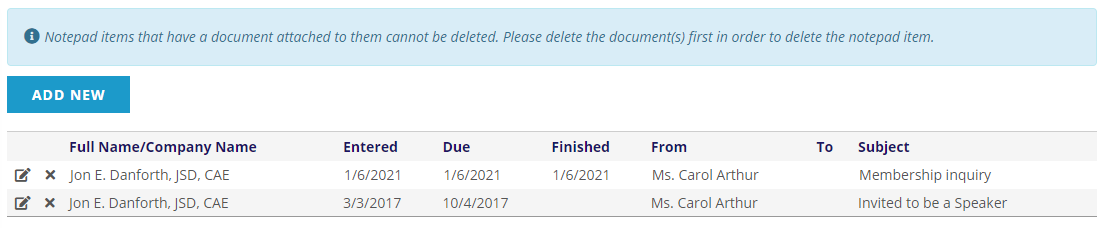
The buttons above the grid will allow you to filter the list in different ways and are greyed out when being used and are used in combination. For example, the screen shot above shows items in the Inbox that are still left To Do.
- Inbox- shows tasks that are assigned to your user
- Outbox- shows tasks that you have assigned to other users
- To Do- shows items that have not been finished
- Finished- shows items that have been completed (have a Finished date)
- Show All- shows all tasks, finished or not
Clicking the edit icon next to a row in the grid will open that task so you can take action. The
 delete icon will delete the task, but you usually want to update the task with a Finished date and not delete it. Also, you can not delete items that have documents attached to them.
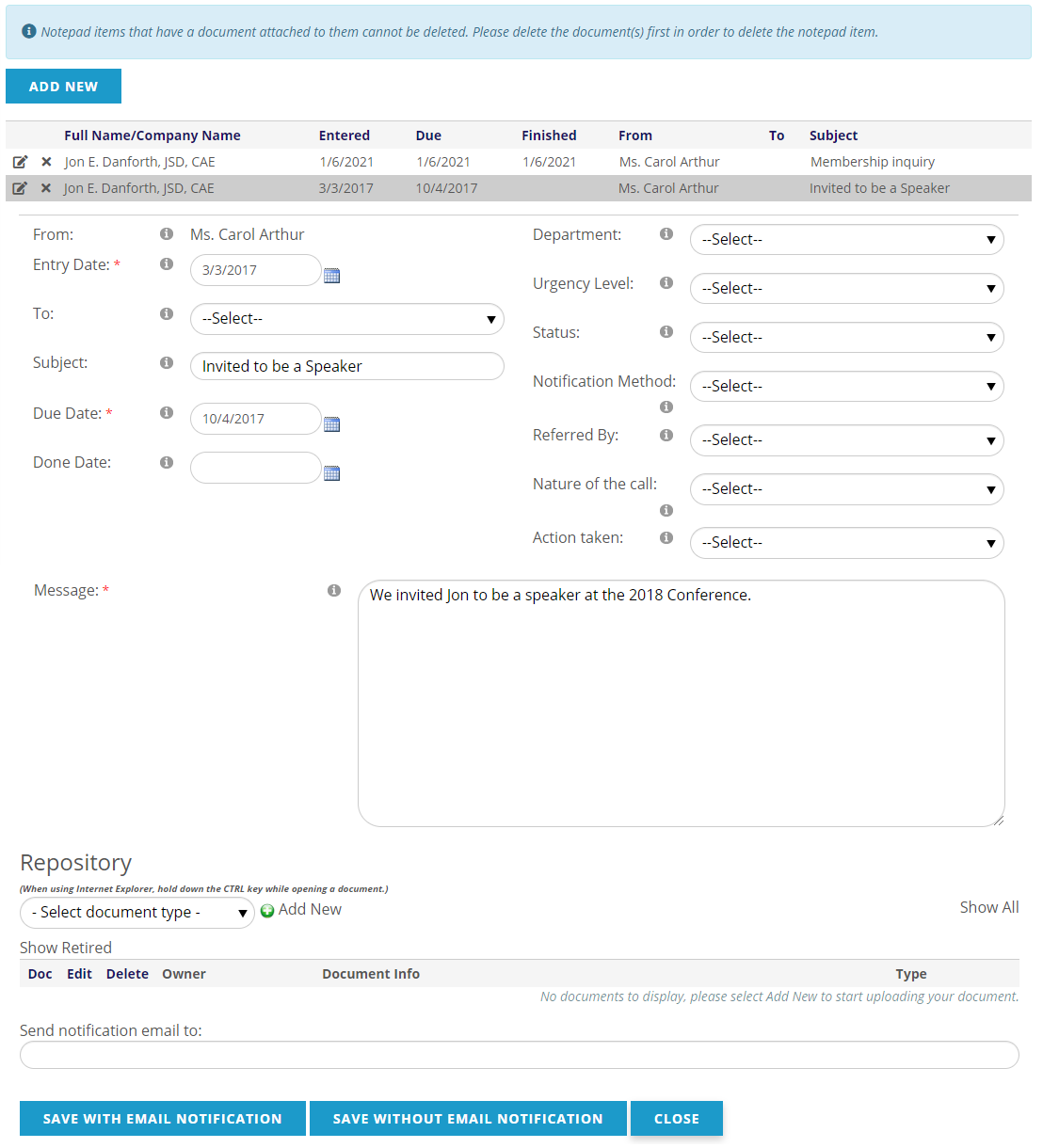
The fields on the top left include the Entry Date, Due Date and Done Date, as well as a To field to assign this task to a staff person. NOTE: the staff User Accounts must be tied to a Contact record to appear in the To drop down.
The fields on the top right of the task are for categorization, and the values available in the drop-downs are from the Dictionary. The Done or Finished Date denotes that this task is complete. You can attach related documents using the Repository, however once a document is added this task can not be deleted.
There are buttons at the bottom to Save With Email Notification or Save Without Email Notification. Saving with email notification will send an email to the email address in the Send notification email to field, which will default to the person whom this task is assigned. This is a simple notification that the task has been updated.
The Delete button will delete this task, which you will generally not do; adding a Done or Finished Date denotes that this task is complete.
The Close button will close the task without saving your changes.