
The Note Pad control is used to record all correspondence and action items for a contact. All Note Pad entries can be assigned as tasks to any member of your staff, with due dates, completion dates, and notes. You can also assign up to seven different codes to each entry to indicate the urgency level, department, follow up task, resolution level or any other category you wish to create.
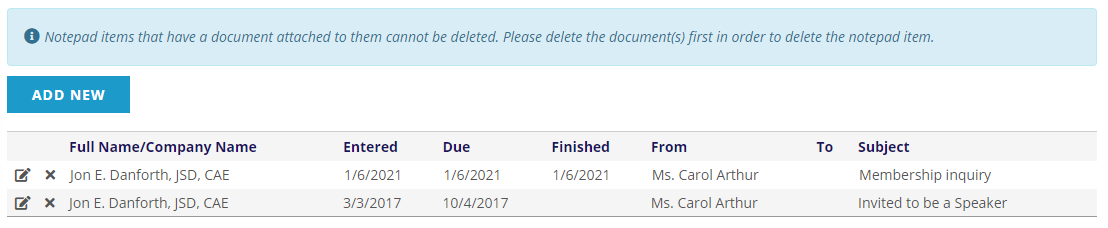
To add a new note, click on the Add New button found above the grid of Note Pad entries. To edit an existing note, click on the  edit icon to the far left of the entry to be edited. The next screen shot shows the screen for editing the second note seen in the above screen shot. The fields for the Add New function appear in the same manner.
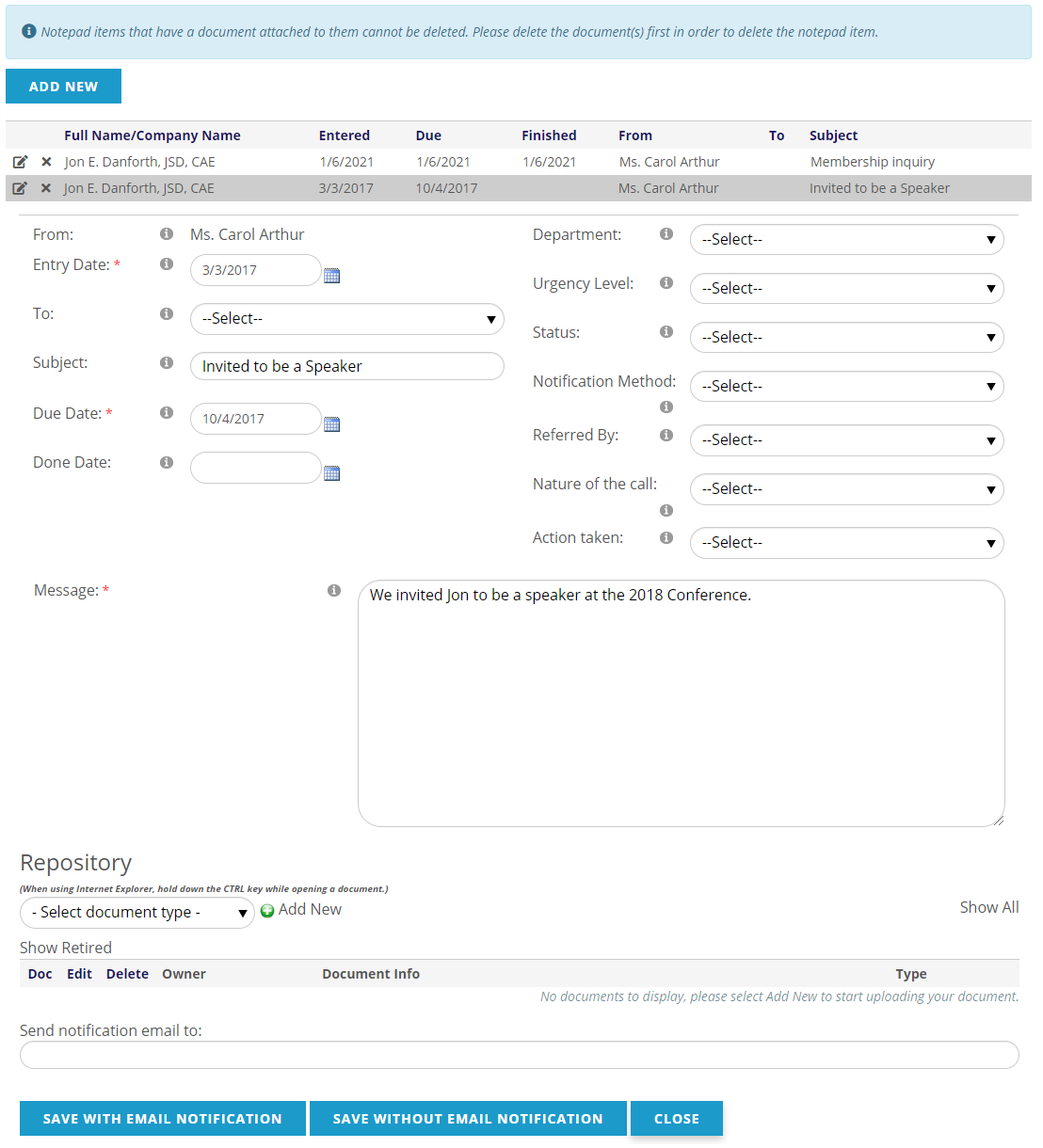
To assign a note as a task, select the desired staff member in the To: drop down box seen near the top right. These staff accounts must be tied to a contact in their User Account. You can optionally enter a due date as well.
The optional drop down boxes on the right side of the screen are used to code a note with specific categories you want. Each drop down has its own dictionary, managed by a Client Admin.
When you are saving a new note, you can elect to email it to any email address you enter in the text box above the Save buttons. If you have selected a staff member to assign it to as a task, that person’s email address will automatically be entered in that box. To save a note that will trigger an email, click the button labelled Save With Email Notification. Click on Save Without Email Notification to save a note if no email will be sent.
Once a note is saved, if you have configured the Repository for the Note Pad, you can upload attachments to the note. This allows you to include supporting documents as needed for any note. Note Pad items that have a document attached to them cannot be deleted. You must delete the document first in order to delete the Note Pad item.
 Each staff member has their own inbox and outbox for managing Note Pad tasks, and all entries can be queried in order to send a blast email, export or simply list tasks assigned to or from any staff member. The list of notes assigned by or to you can be accessed in the Main Menu under Contacts, Note Pad, or by using the Note Pad button at the top right of the page. A number on the button represents that you have assigned uncompleted tasks.