
When sending emails to contacts, via the Reporter or using a 3rd party email service provider (ESP) like Informz or Real Magnet, it is helpful to include a link at the bottom of the message for recipients to update their preferences, or subscriptions, to select the type of email messages they would like to receive. When these preferences are managed using Opt In/Out list codes in the AMS, you can add a related control to a web page on your website to allow recipients to update their Opt In/Out preferences without logging in.
To create the web page that is linked to in emails that recipients do not have to login to use:
- Create a page named Email-Preferences, or whatever you like on your website.
- Turn off Display in Menu on the Page Settings to make it a hidden page so only those following a link in an email will find it.
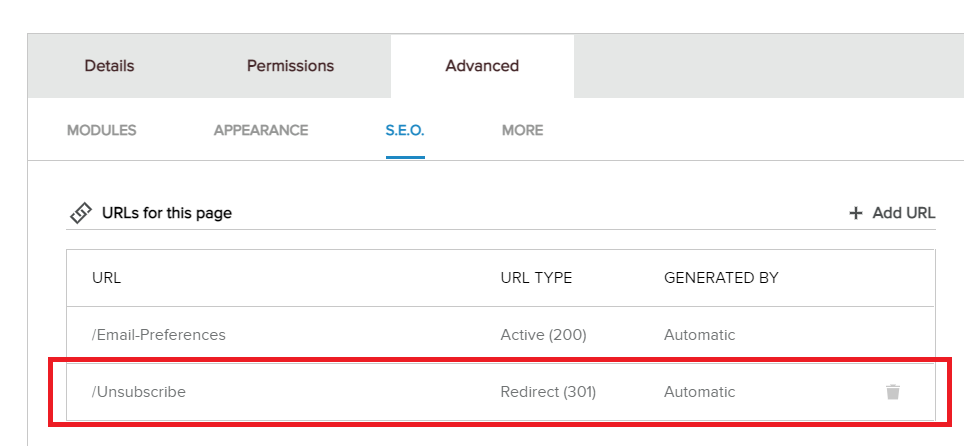
- Add a redirect to that page for Unsubscribe (unless this is what you named your page).
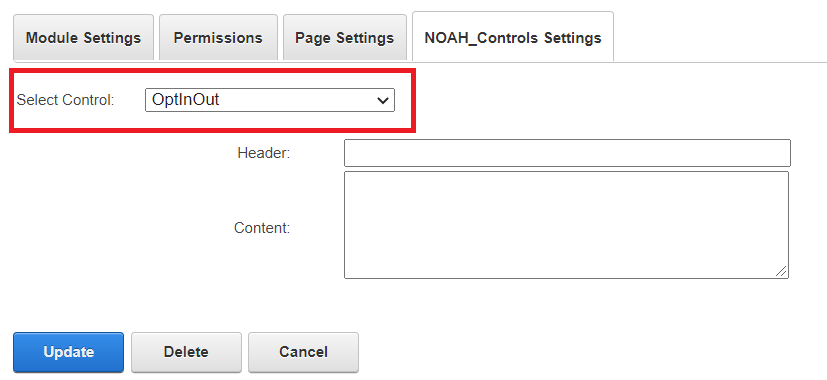
- Add the NOAH_Controls module on the Email-Preferences page, with OptInOut as the Selected Control.
Once you have created the page, you may add links to it in your mailings. The link would have a format of
Enter your link text here.
The values in square brackets ([...]) are tokens that will be merged into the email for each recipient so no login is required for the recipient to use the Opt In/Out form:
- KeyEmailEntry- the recipient's key email (the email address the message was sent to)
- ContactToUse- the AMS Contact ID of the recipient of the email message
- Enter your link text here can be any text you like, for example Update your Email Preferences
If you are using a 3rd party ESP to send email messages, the same format is used. Make sure your account with the ESP is set up to use the above code instead of their standard, merging in the email address and AMS Contact ID of the person receiving the message.
When the recipient follows this link from an email message they receive, they will be taken to the Email-Preferences page and see their existing Opt In/Out selections, which they can update and save.
When using this, you must make sure that the Library Cards creating the mailings are respecting these preferences. For example, if you have an Opt In/Out to receive mailings on upcoming conferences and events, any mailing you send related to upcoming conferences and events must have List Code Criteria to include only those that have selected that Opt In/Out.
NOTE: this control does not contain the OK to Broadcast check box for global opt outs. If you want to (and you should) have an option to opt out of all mailings, you can create that as an Opt In/Out list code. However you then must include this flag in your criteria for all mailing lists you generate.