
A complete Sales History, whether complimentary or for a fee, is displayed at once in this control. The default sort order is by date of sale, with the most recent at the top. There are many other sort options for the list including Invoice Number, Batch ID, Description, Canceled, Quantity, Actual Price, Total, Discount, Paid and Due amounts. Clicking on any of those bold words at the top of their respective columns resorts by that category. Clicking a second time reverses the sort list to be reverse chronology for Date, reverse alphabetical for Description and Canceled, and low to high for Invoice Number, Quantity, and all columns pertaining to dollar amounts.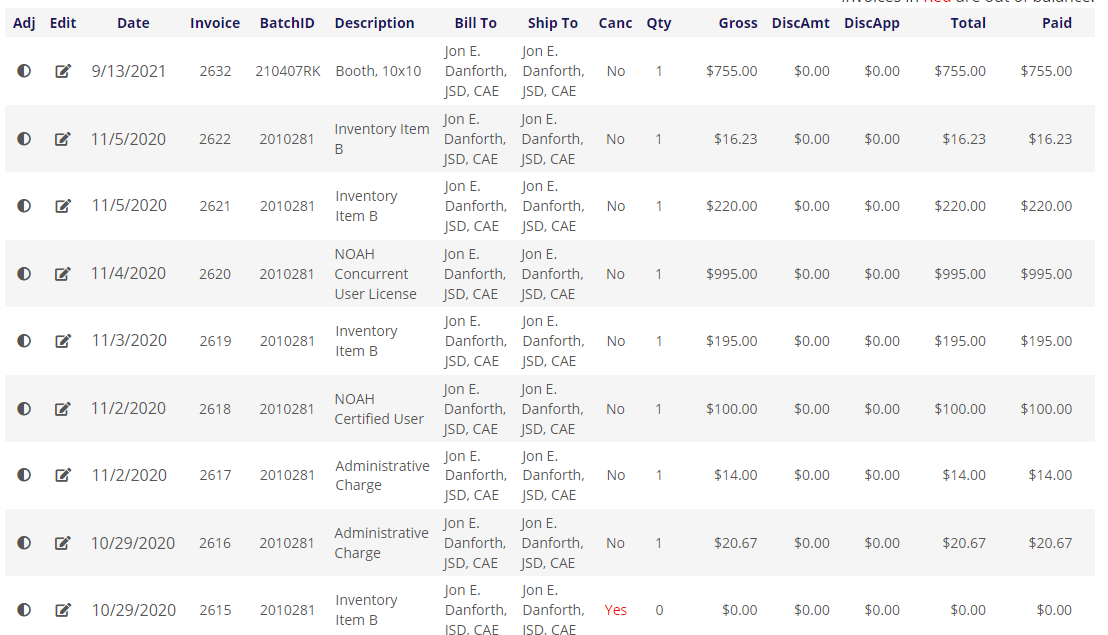
When viewing a company's Sales History, there will be an additional filter above the grid to Show or Hide purchases from current employees, based to the Work folder.
At the bottom of the list are options to bring up other pages of the list, and to change the number of page listings in the Page size box.
Invoices listed in red across most columns are out of balance and need to be adjusted. This  circle icon to the far left in each row launches the Adjustment Wizard for the item in its row. This function is available to those with authorization to change elements of an item that do affect accounting.
If there is an outstanding credit to the account, a note appears in the Profile Header, placed below the Contact’s Communication data no matter which control is selected in the Profile Navigation Toolbar.
If there is an outstanding balance on the account, an alert appears above the Profile like the one in the next screen shot.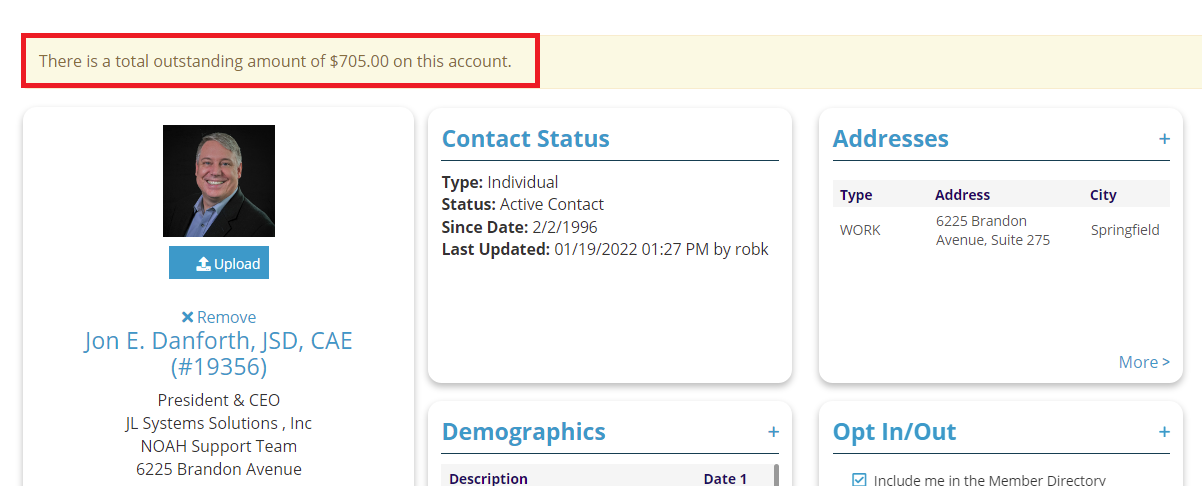
Note that if you need to enter a payment on a contact’s existing and unpaid invoice that should be done in the A/R control, not in Sales History.
You can click on the  edit icon in the same row of an item you wish to change. For example, clicking the edit icon for the first item in the Sales History screen shot, Invoice Number 2632, takes you to the edit form shown below:
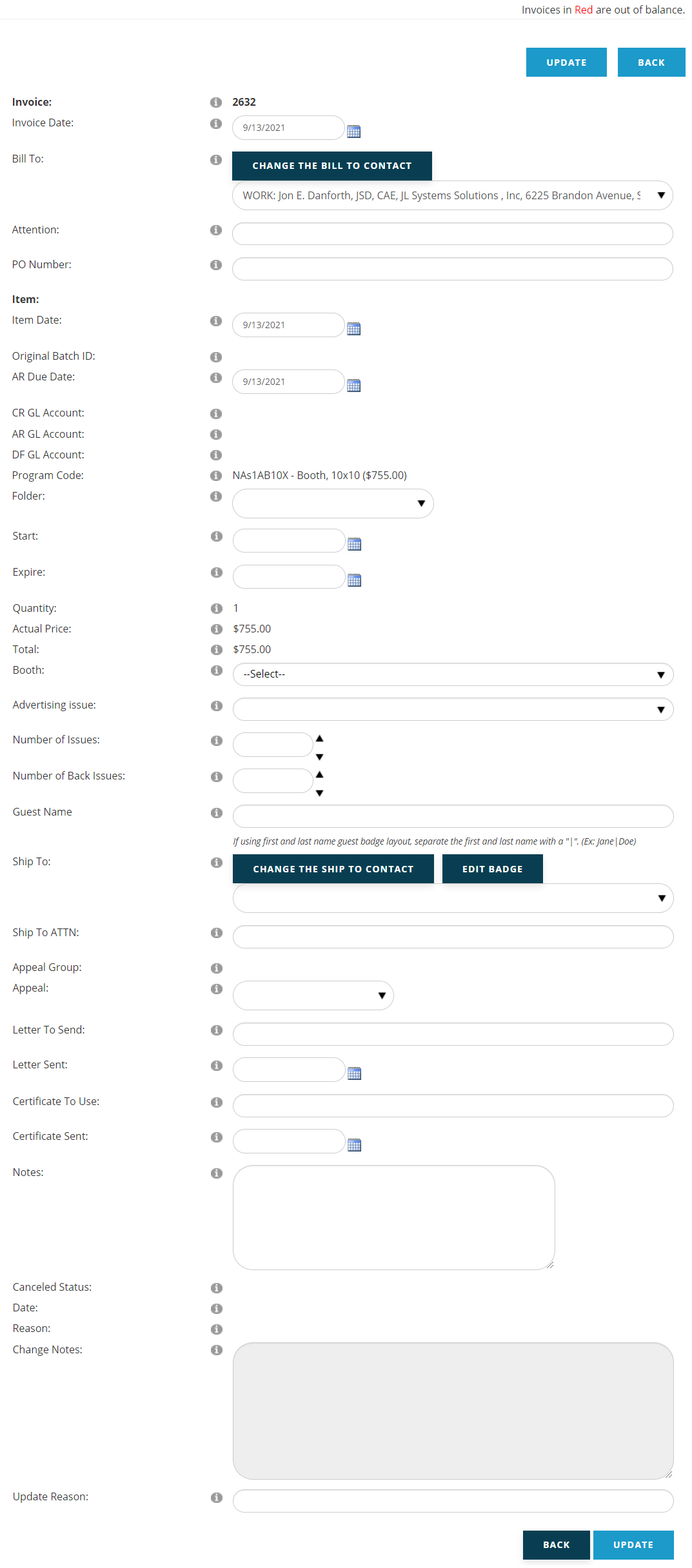
On this form, you can edit fields that do not affect accounting in an invoice item such as Invoice Date, the Bill To or Ship To contact, entries under Notes, and any other field that has an edit box available. In the same view, you can see the data for accounting fields, such as GL Account, Program Code, Quantity, and Price, but you can’t change them. Once you have finished entering your changes, click on the Update button at the top or bottom of the form. If you decide not to make edits, you can click on the Back button instead to return to the full Sales History list for the selected contact.