
The Payments control displays a chart of all payments received from the selected Contact, along with each item and invoice to which they were applied. Thus, complimentary items will not appear here, but they can be viewed in the Sales History control.
Each entry lists the payment’s BatchID, Entry Date, Payment Method, Card/Check Number, Card/Check Date, Audit Type, Reason, and amount Applied. The list displays transactions by Entry Date, with the most recent at the top.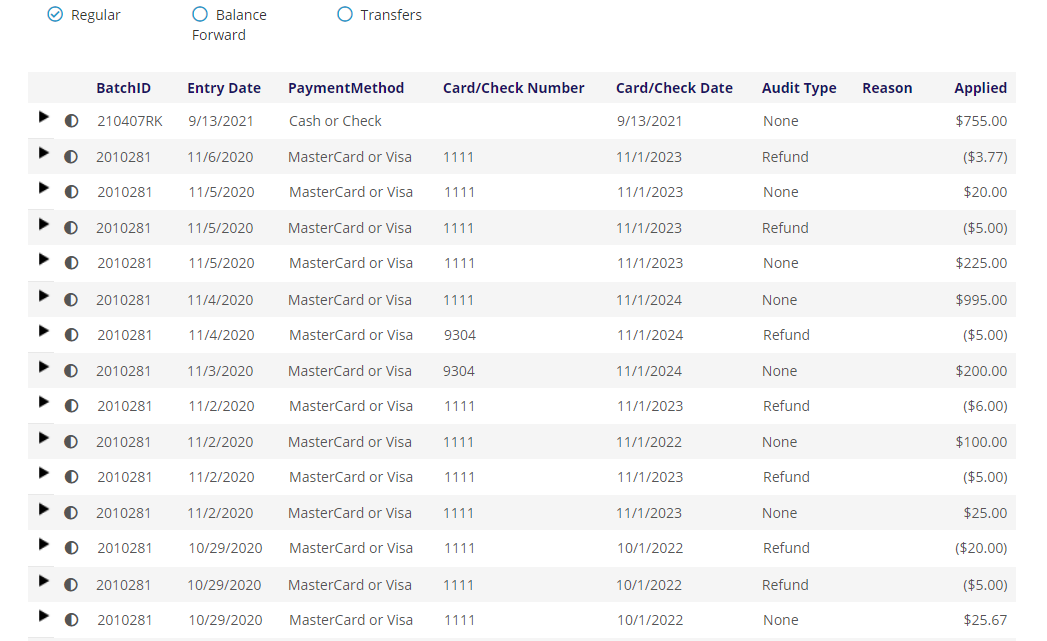
The list can be resorted by BatchID, Payment Method, or Reason by clicking once on the underlined column heading. Clicking again on the same heading reverses the sort order, and a third click returns the list to default sort order.
Also note that immediately above the table to the left there are radio buttons that allow you to display just the payments that resulted in a Balance Forward or that are Transfers.
Note that there are two separate date fields, for cases when the date the transaction was processed, the Entry Date, and the date the contact authorized payment, the Card/Check Date, are not the same.
Audit Type is None for payments, but where applicable it identifies a transaction as a Refund or Void, as seen for an entry about halfway down the list in the most recent screen shot.
To view more data for a payment, click the black arrow all the way to its left, which keeps the full list in view, but drops down information specific to the selected payment. Then you will see, as in the example in the next screen shot, the invoice number(s) to which the payment was applied, descriptions of the item(s) on said invoice(s) and the shipping contact.
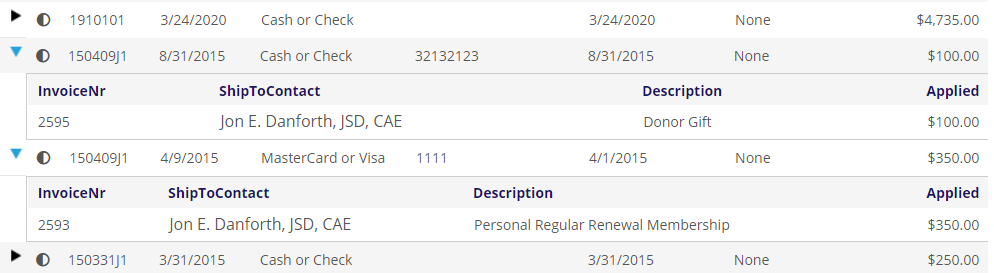
To hide this info, click the now light blue arrow  , which faces down while the additional info is in view.
Those who have permission in the AMS to do so can adjust a payment by clicking the circle icon immediately to the left of that payment’s Batch ID number. The procedures for using the Adjustment Wizard are covered in a section of the Money section of this knowledge base. Not all users are authorized to make adjustments, thus this option will not be displayed for anyone who is not authorized.