
The QuickBooks Online (QBO) Integration updates the GL Journal with summary GL entries for each selected posted batch in NOAH. It does not create customers, invoices, payments or any detail, only total debits and credits for each GL account in each batch in NOAH. The integration is based on NOAH calling the QuickBooks Online API to send data to your GL. Classes and sub-accounts for GL codes are not supported. QuickBooks associates these with transactions and the integration sends summary data for batches, not transactions.
Once setup, it is accessed under Money, Business Office, QuickBooks Online API. This will open the screen below where you can select the batches you want to send to QBO. You can select batches using the the check box in the left column or select the check box at the top left to select all the batches shown on the screen.
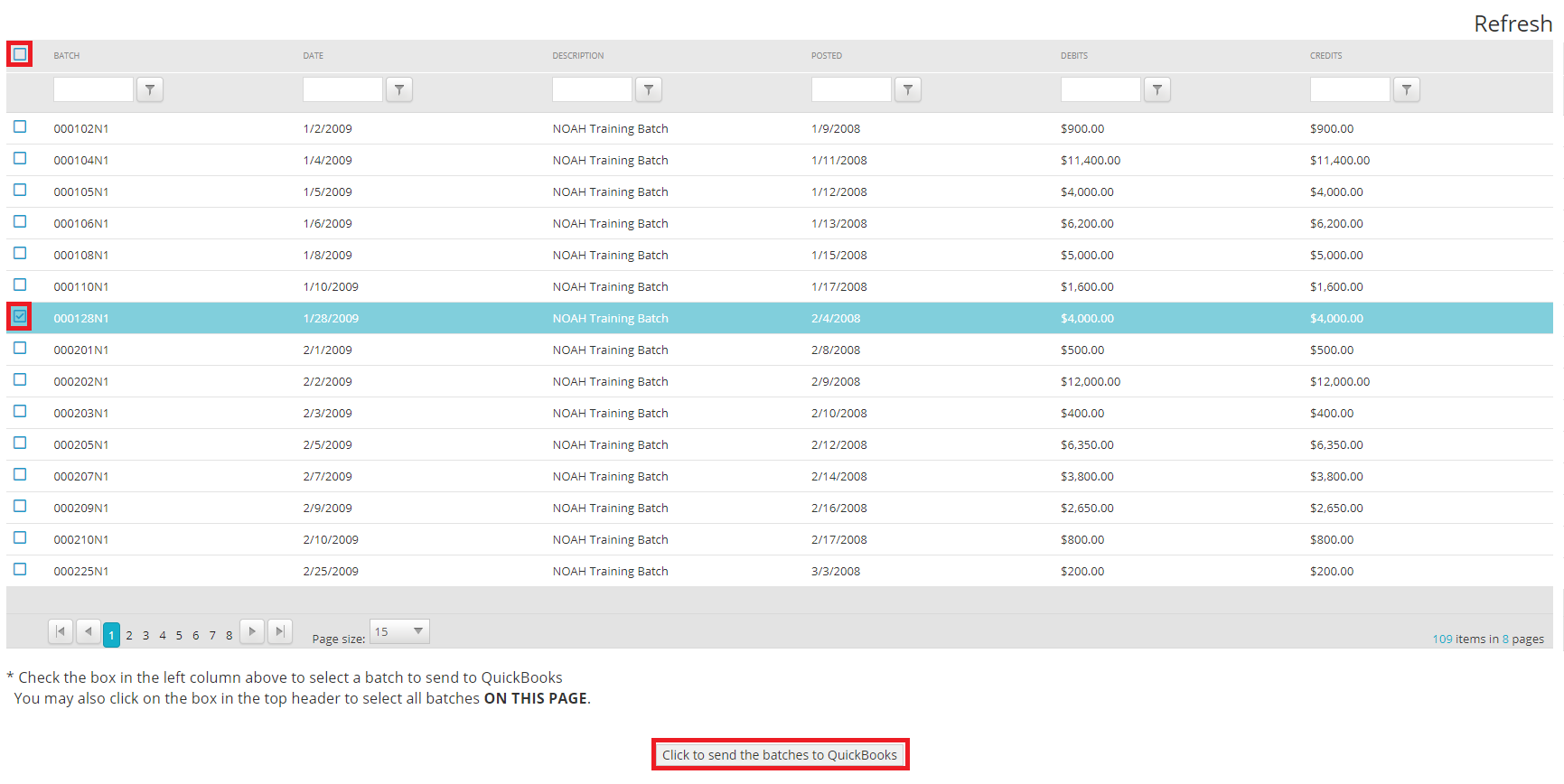
Once you have selected the batches, click the button below the grid to send the selected batches to QuickBooks. You will need to login to your instance of QBO so it knows where to send the selected batches. You will receive a confirmation message on the screen when the selected batches have been successfully sent.
You can view the Journal entries within QuickBooks by running the Journal report for the time period represented by the batches you selected. Please note, if any GL accounts were found in NOAH that did not exist in QuickBooks then QuickBooks automatically created GL accounts for them. So be sure all GL accounts reflected in NOAH's Batch Audit Journals match the accounts exactly in QuickBooks, and keep in mind that QuickBooks considers the account name to be the primary key. They do not consider the account code to be key, so they must match on name including all punctuation and spaces. This may also create issues if you change the name of any GL accounts.
If you wish to enable this integration for your association please contact support. There is no setup that you need to perform, and there is no fee for enabling or using the integration. Once enabled, there will be a new menu option under Money, Business Office for this integration and a Client Admin will need to grant the User Roles to the appropriate User Accounts so they may access it.