
The System Emails area of the NOAH System Configuration allows you to edit email messages sent out from the AMS, accessed using the System Emails button. 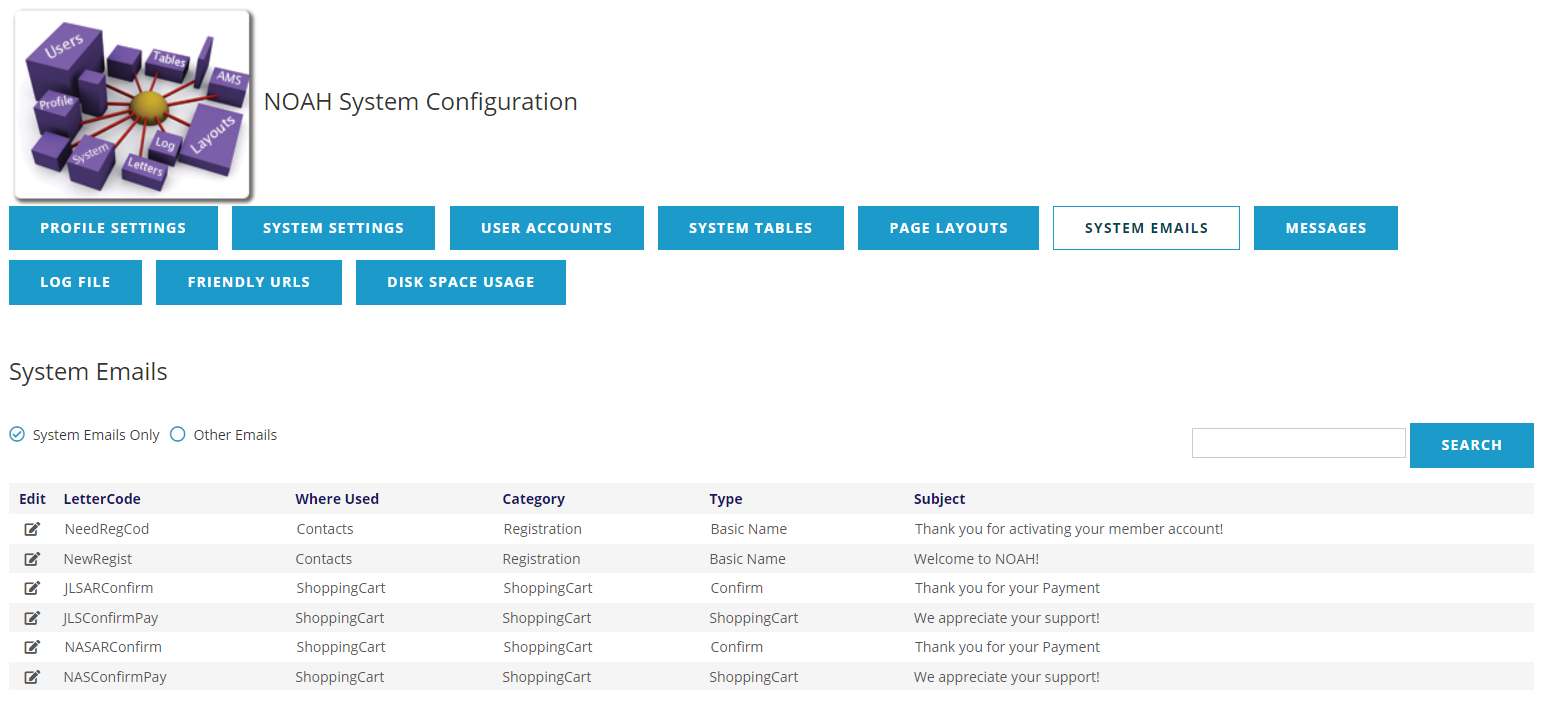
Email messages are divided into two types:
- System Emails - these are messages that are automatically sent by the system around account registration and payments.
- Other Emails - these are messages that are used by processes or sent for specific Program Code purchases.
The radio buttons above the grid can be used to show one type or the other. If you have many email messages defined, you can use the Search on the right, however, this only shows results from the selected type.
To edit a message, click the edit icon next to the message you want to update, which will open a new page.
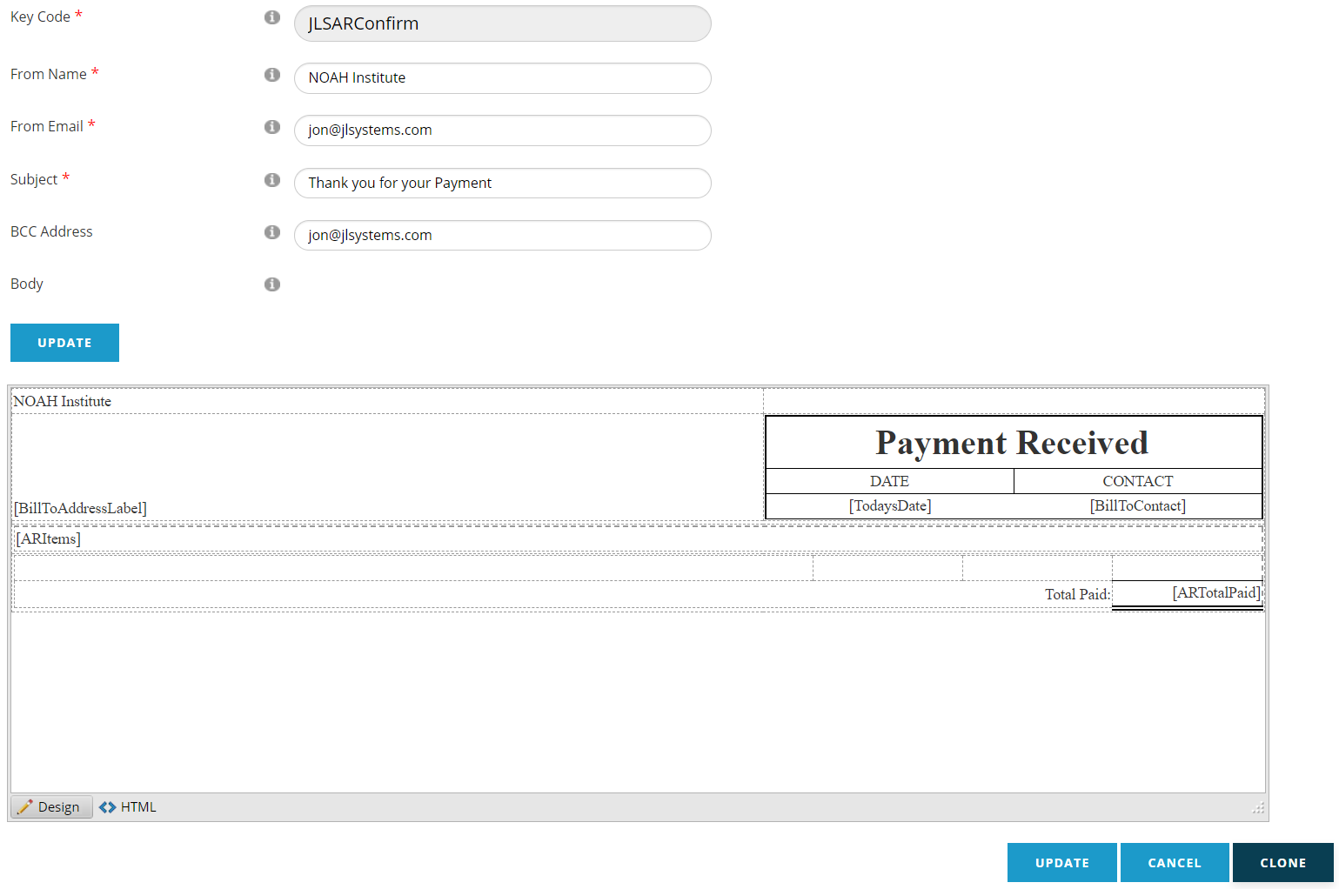
At the top you can edit the header information of the email message, for example the Subject of the message or whom the message is from. Click the blue Update button to save your changes. The Key Code is the unique identifier for this message.
Below that is the actual text of the message. Clicking inside of the message will open the editor menu.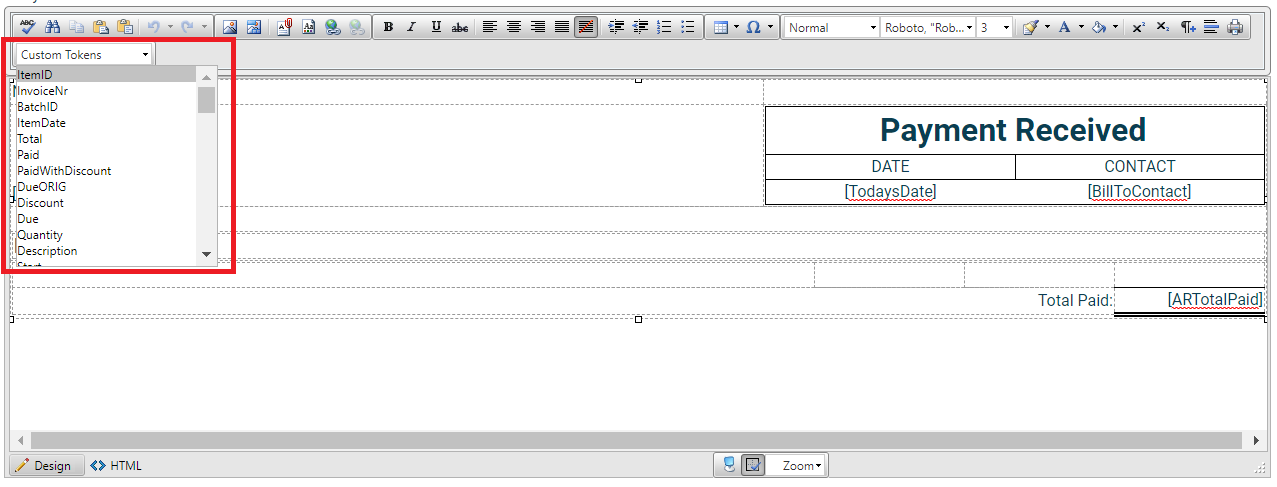
At the top, you will have your standard HTML message editor buttons. The bottom of the editor has buttons to toggle between Design and HTML modes on the left, and to zoom in towards the right.
There is also a Custom Tokens drop down to insert related fields from the database. For example, in a message related to an invoice, you would want to include information about the contact, items purchased, and payment information. PaymentInfo is a common token that is added to invoice emails to show the type of payment and an identifier like the last for digits of the credit card.
NOTE: When working with Custom Tokens make sure the ones you are using appear in the drop down. The available ones can vary between messages depending on where used. Also avoid using brackets ([ & ]) in your message as these are reserved for Custom Tokens and will be interpreted as such; these can come from content pasted from Word and other programs.
Click the Update button to save your changes, or the Cancel button to discard them.
There also is a Clone button to make a new message based on an existing message.