
 The Add Company button invokes a wizard to create an organizational record and then leads you through adding new or attaching existing individuals to that company. Use this wizard every time you wish to both add a new organization record and then affiliate individuals with that organization in a single process.
The form to add a new company loads based on the configuration settings you have set for this particular form. The configuration settings are managed via the System Configuration module.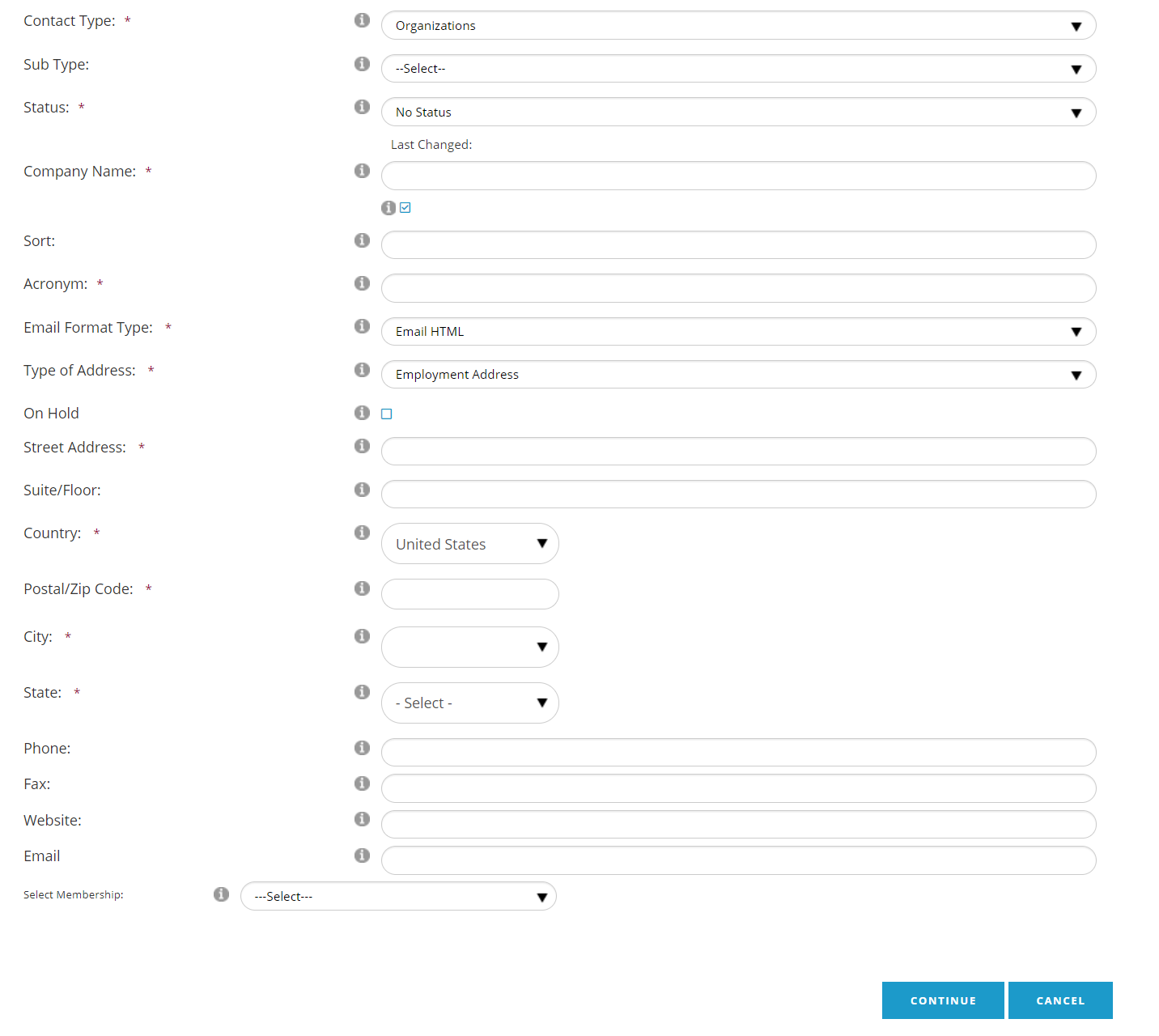
All fields with a red asterisk (*) are mandatory and many of the fields, including the drop down values, can be set to default values.
Contact Type will appear with a default selection, such as Organization, but has a drop down menu populated with standard and, where applicable, customized types. Make sure the correct contact type is selected before proceeding, as the form fields are not the same for each type.
Sub Type allows further definition of an Organization contact that also belongs in a category such as Universities, Hospitals, Companies, or Vendors.
The Status field is for administrative aspects of a contact record other than membership, benefits and entitlements. For example, Active Contact, To Be Purged, Accounting Hold, and Deceased are standard options for an Individual contact record’s status, and customized options can be added as needed to the Contact Status dictionary by a Client Admin.
If there are no administrative issues with the contact, which is usually the case when adding a contact for the first time, the default setting, in this case Active Contact can be selected. Note that standard reports will not include records with the status of Deceased and To Be Purged.
Company Dept. or Organization Dept. helps as needed to direct mail to the contact more easily in bigger companies, or universities.
Sort or Organization Sort is a field you can use to enter something other than the official, legal company name when needed, to make sorts and reports that incorporate Company Name more efficient. For example, if the company name has been entered as “The ABC Company,” you can add “ABC Company” to this field, thus factoring out “The” in future sorts.
Acronym is a good field to use when a company’s name is too long to easily fit onto badges and other printed materials. You can also search for a company’s record by acronym if that data has been entered.
The On Hold check box should be checked off when the contact’s address has been deemed to be a bad address, or when entering a new record with an incomplete address. An alert message appears on the contact’s profile upon subsequent logins to your website prompting the contact to update their address. If either the contact or your staff updates the address, it is automatically taken off of hold.
Country is usually set to United States as a default, but has a drop down menu for other options. Depending on the country selected, different rules for state/province and postal codes may apply.
The Postal/Zip Code field comes next because the AMS is programmed to automatically populate the corresponding City, State and County fields once a U.S. zip code has been entered. That pre-filled data can be overwritten when necessary.
Phone, Fax, Email and Website are, when entered, auto set to be the key of each respective communication type.
Select Membership allows you to add a membership fee (with the option to generate an invoice and/or process a payment) to the contact’s shopping cart as part of the Add Contact process. To process them as a joining member, select the fee from the Select Membership field’s drop down list. Upon saving the contact, you will be redirected to the Shopping Cart to proceed with processing a member invoice for the contact. If the contact is not adding a membership, then skip this field. The membership fee drop down can be hidden in the configuration settings if desired, so if you are not viewing this on your screen then it has been disabled by your association.
Once you have entered the contact’s information and clicked on the Continue button, the database is scanned to look for a duplicate entry already in your database. This duplicate check can be made up of as many different rules as you wish to create, and can contain compound information. For example, the system could first look for the company name entered and if a match is found, consider the corresponding record a duplicate. If an email match is not found, the system could then look for the company name along with the city and state or city and zip code.
If a duplicate is found based on your system’s rules, there is no override. You will receive a message that the record appears to be a duplicate and you will not be able to add the record. You can then run a search for the contact based on the data you entered in order to find the record already on file. Keep in mind, it may be marked To Be Purged but still exists in your database. If you wish to modify the rules in place for verifying duplicate records, please contact support, as this is an area of the system can not be modified by a Client Admin.
If the new organization is not a duplicate, it is added to the database along with any address and communications information you enter. You are then brought to the Employees screen to add or attach individuals to the organization. If you wish to add a new individual to the database that you know is not already in your database, click on the Add New Employee button. If you think that an individual is already in your database and you wish to attach them to this organization, then click on the Search Existing button to search for and then add them to this organization.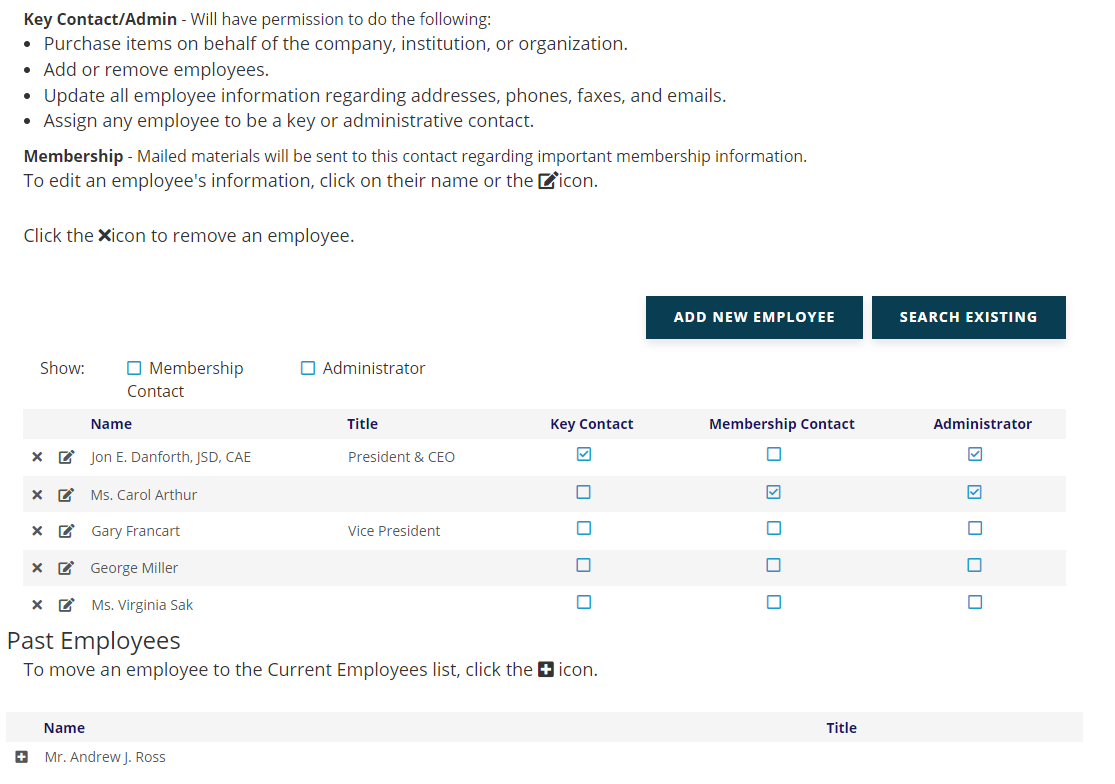
The Add New Employee function is the same as the Add Contact function, which is explained in that section. You can continue to add as many employees as you wish, setting their roles as you go, and you are inside that organization’s record with the ability to modify any data for it as needed.