
As invoices and payments are generated for your organization, they are placed in a Batch. One payment may be applied to multiple invoices and one invoice may have multiple items and adjustments. Each item and payment can be placed in any open batch desired.
In the AMS, batches can be created in the Money Dictionary under Batch Control (BatchCtrl). Whenever a staff user enters a payment, refund or adjustment, they must have a batch open, and all financial transactions entered will be recorded with that batch.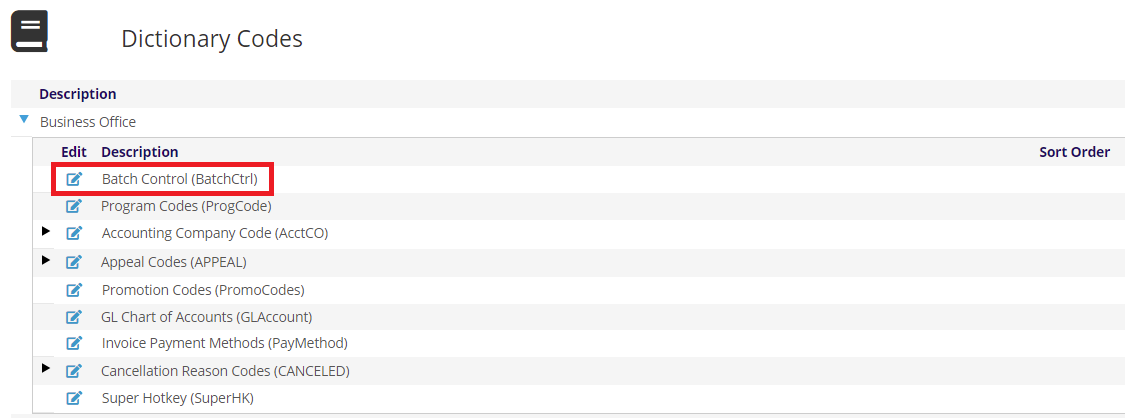
Clicking on the edit icon  will open the Batches page where you can edit and create batches.
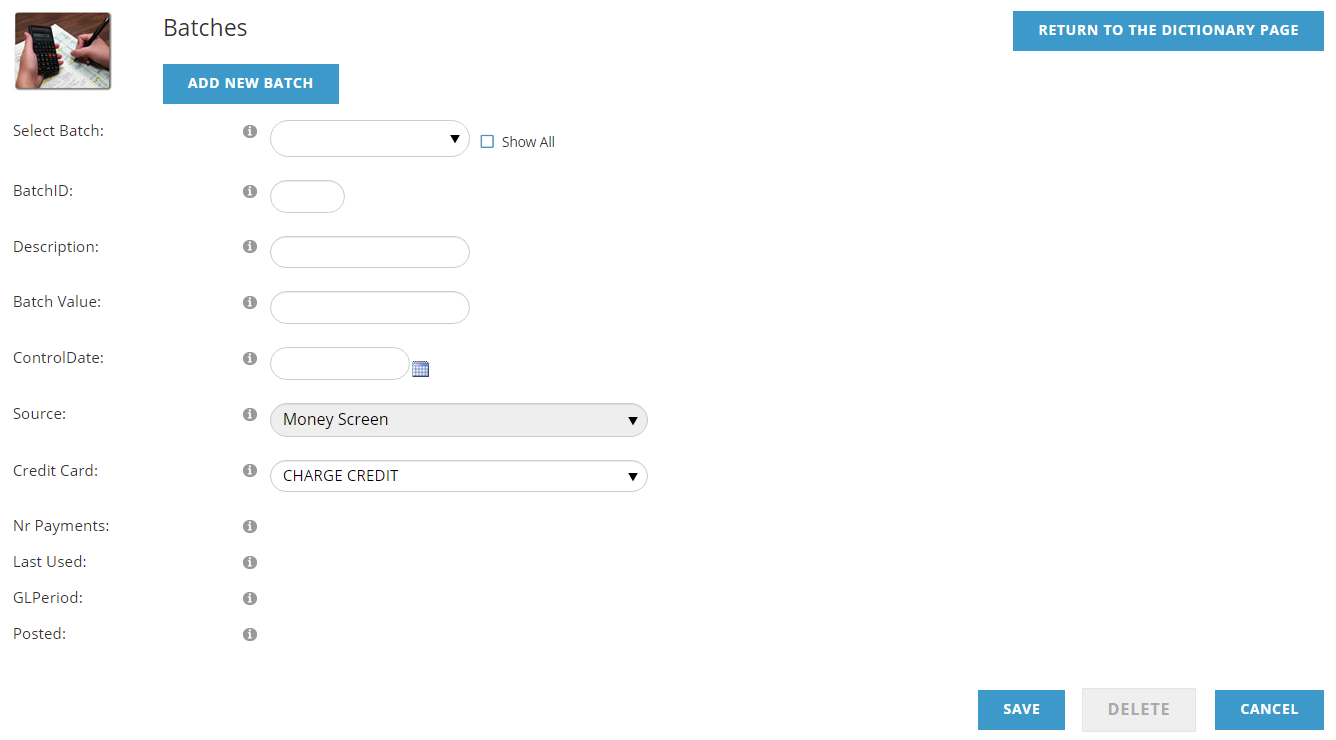
To look at an existing batch, start typing the batch name in the Select Batch area. For performance, the drop down is populated with only unposted batches. Check Show All on the right to include posted batches. When you have found the batch you want to edit, click on it in the drop down.
To create a new batch, click the Add New Batch button at the top left.
The Batch ID is the name of the batch and will be seen in financial references. A Batch ID can be a maximum of 10 characters long and limited to letters and numbers. When creating new batches, your organization will want to have a standard naming convention.
The first 6 characters define the date the batch is to be used, yymmdd format, and these are prepopulated when creating a new batch. The remaining 4 characters are generally used to define the purpose of the batch, typically the staff user's initials are included. A consistent naming convention helps users find the correct batch for the associated financial transactions they need to do.
The Description can be used to give more information about this batch, and usually has the staff user's name. When adding a new batch, some sample text is defaulted in.
Batch Value is used as a control amount. If this batch is for a group of specific transactions, say payments for five $100 invoices, the control amount would be $500. When the batch is posted, the total sales amount needs to match this amount. This is optional filed an is not required. If this batch was for a staff person to use as they took orders over the phone, the total value of their transaction in this batch would not be known so it would be left blank, which is the default value.
The Control Date represents when payments associated with the batch should be applied to invoices. Generally, this will be the current date, however, if the transactions should be applied on a different date, for example checks that came in last week, this date will denote when the transactions should be applied.
Source is the screen this batch was created from, in this case the Money Screen.
The Credit Card is the probably most significant field on this screen. There are 2 options for how credit cards will be processed in a batch:
- CHARGE CREDIT- the credit card transaction in this batch need to be collected from the contact and the card will be verified and charged for the related amount thru Authorize.net.
- DO NOT CHARGE CREDIT CARD – the credit card transaction in this batch have already been charged elsewhere and do not to be charged again. Any credit cards applied using this batch will not be processed by your Payment Gateway (Authorize.net, PayPal, etc.), but the funds will be applied to invoices in the AMS as if they were.
The final four fields are informational:
- Nr Payments- the number of payments applied using this batch
- Last Used- the date this batch was last used.
- GLPeriod- the period this batch is associated in the Accounting Company's General Ledger
- Posted- True/False; denotes if this batch has been posted, or finalized. Unposted batches can still be edited and adjusted. Posted batches are closed and can not be used anymore.
Batches are automatically created when needed daily for eCommerce thru the Web Shopping Cart and the name of the batch starts with the date (yymmdd) followed by W000. After a set number of transactions (this is a System Setting), a new batch is opened, and the number would increment: W001, W002, etc. These are commonly referred to as "woo" batches.
Batches, when created in error or unused, can be deleted, until transactions have been applied to them.
Batches When in the AMS Cart
To process payments in the AMS Cart, staff user must have a batch open. If a staff user has not already opened a batch, when on the Payment page, they will be presented with an open to Select an Open Batch or Add a New Batch. The drop down will show open batches, or they can Add a New Batch in the form.
This is a speed form with less information meant to allow a user to quickly open a batch to process a credit card payment.
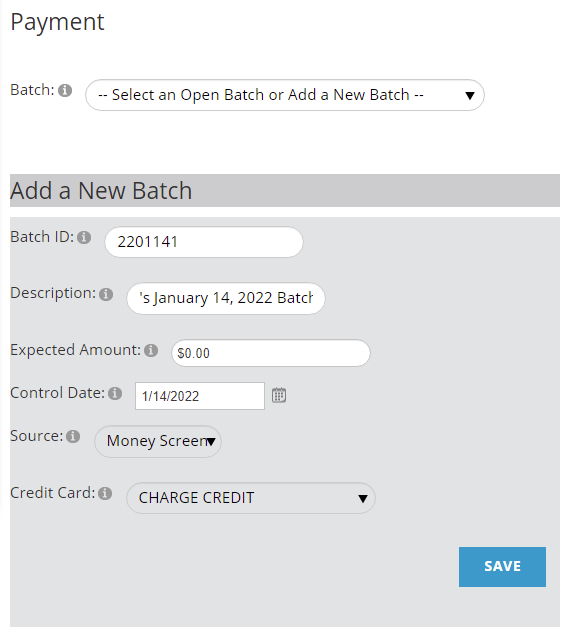
If the staff user had already selected a batch, the Batch drop down would show that batch and any payments would be applied to that batch. The staff user will continue to use that batch until they close the browser session, or they use the drop down to select a different batch.
Batch Management
Different organizations manage their batches differently. Some will have a different batch for each user every day; some will have everyone use the same batch every day, or have different departments use different batches. Having more batches means it's easier to isolate issues, while having few batches means fewer need to be posted.
Batches are typically posted (or closed, or finalized) regularly. However, batches do not need to be posted– nothing will “break” in the AMS if batches are not posted. Those organizations that close batches on a regular basis often do so on a set pattern (daily, weekly, monthly, whenever they make a bank deposit) but you can also close them whenever you feel like it. Your Credit Card Processor will typically settle card charges nightly, however this settlement is done outside of the AMS.
Running the Batch Audit Journal will evaluate a batch and will let you know if there are any errors. Errors can happen if manual changes are made to a transaction or if Program codes are not created properly (incorrect format code, deferment not set up properly, program code is modified after an invoice is created but before closing) among other reasons. You will generally see errors when the debits and credits in a batch don't match up.
If the Batch Audit Journal has no errors, you may then run the process to post the batch (Scan the Batch for Errors and, if none, Post).
Once a batch has been posted, it can no longer be used to enter payment against or adjusted. If a batch is posted in error, there is an Un-Post a Batch utility that can be used.
Typically, an organization will post all the batches for a given month before exporting them all to their General Ledger.
Pro Forma Batches
Pro Forma Batches are a special kind of batch, generally used with price quotes to keep them from transferring to the accounting system as a receivable. This is sometimes used with membership renewals where entitlement dates may change based upon when an Invoice is paid.
The Batch ID should begin with PROF and you will never post or apply payments to a Pro Forma Batch. When a payment is received for an invoice created with a Pro Forma Batch, a new batch would be used to apply the payment, and that would become the batch associated with that Invoice.