
There are variety of reports under the Money menu. Below is a listing, by menu grouping, with descriptions of those various reports. For more information about running reports, refer to the Report Wizard section.
Daily Batch Control:
Daily Batch Control is a grouping of commonly performed tasks in the AMS Menu, under Money, dealing with the collection and processing of financial transactions. The five steps in processing are shown here and may be selected from the menu. The options to print the Batch Details and Payments Proof List and Batch Shippers are optional and usually associated with online store sales.
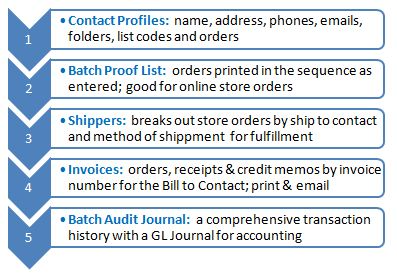 The Batch Audit Journal is a mandatory step and you cannot post your transactions to the accounting system without having printed this journal. If you change a transaction after printing the journal, the AMS knows and will not let you post until you re-print the journal. Once a batch has been posted to accounting, the transactions in the batch are locked and the Adjustment Wizard is required to make any changes.
NOTE: A Sales History report will not correlate to a Batch Audit Journal GL Summary because the batch may include adjustments to invoices created in prior batches and time frames outside of the date range entered when running the Sales History report.
Contact Reports
This page prints the reports specific to contacts. Many of these can be emailed directly to the contacts. If the report can be emailed the option to do so will appear when the report is selected. If you select the option to email the report the
- Invoice- prints an selected invoice number.
- Invoice with a Stub- prints an selected invoice number, with a stub to be returned with payment.
- Invoices for a Contact- prints all (or due) invoices for a selected contact.
- Invoices for a Contact with a Stub- prints all (or due) invoices for a selected contact, with a stub to be returned with payment.
- Statement for a Contact- statement for a contact for due items.
- Activity Report for a Contact- shows all order and payments for a selected contact and date range.
- Notes for a Contact- Note Pad items for a selected contact.
- Standard Transcript- standard transcript for a selected contact and date range.
- Transcript with Credit Type- standard transcript, with credit type, for a selected contact and date range.
- Transcript by Credit Type- standard transcript, grouped by credit type, for a selected contact and date range.
Batch Invoices
Please select an Open batch from the drop down list, and click the journal button of your choice. Invoices are printed and addressed to the Bill To Contact of the order. The Invoice lists each of the items and if the ship to contact is different than the bill to contact, the ship to contact's address is printed along with the item they are to receive. If you select an email body the AMS will bulk print the invoices for contacts without emails and then send out individual emails with the appropriate invoice attached.
Once a batch has been posted to accounting the transactions in the batch are locked. The invoices are still available by selecting the Posted radio button and selecting the batch.
- Invoices for a Batch- prints all the invoices from a selected batch.
- Invoices for a Batch with a Stub- prints all the invoices from a selected batch, with a stub to be returned with payment.
- AV5160 Labels for a Batch- prints Avery 5160 (1" x 2 5/8" and 10 by 3) labels for the Bill To contacts in a selected batch.
- AV5162 Labels for a Batch- prints Avery 5162 (1-1/3" x 4" and 7 by 2) labels for the Bill To contacts in a selected batch.
Batch Audit Journal
- The full Batch Audit Journal- a multipart report that may consist of any of the following sections:
- Transaction Details
- Payments on Prior Transactions
- Adjustments
- Payments
- Voided Payments
- Refund Register
- Balance Forward Added Register
- Balance Forward Payment Register
- Refund by Check Register
- Backorder Register
- New Sales Summary
- Sales Reductions Register
- HotKey Summary
- Summary by GL Account.
- The GL Journal Only- Summary by GL Account as a stand alone report
- Batch HotKey Summary- HotKey Summary as a stand alone report
Store Fulfillment
This page processes orders for inventory items.
- A list of Items Across All Open Batches- is a list of items awaiting processing across all batches
- Batch Details and Payments Proof List- a proof list where the items are listed in the order entered in the AMS or received on the Website
- Batch Shippers- pulls the items from inventory, box them for shipment and provides the mailing address. If an order contains multiple "ship to" contacts, then a separate shipping document is prepared for each such contact. We recommend you print three copies of this document. One to stay in your office as a suspense copy of shipments in process and two to go to the office or person doing the shipping. They should annotate the shipper with the quantity actually sent, place one copy in the box to be shipped, and return one copy to you to match up with the suspense copy and make any adjustments in the quantity shipped.
- 3" x 4" Shipping Labels
Business Office:
The Business Office (Finance, Accounting Department, or however it is referred to in your organization) is the focal point for financial management and accounting. They establish the accounts used to record deposits, sales, refunds and adjustments. These accounts enable the linking of AMS and Web transactions to the accounting system.
The Business Office has access to all of the Batch Control Records and they control the posting of batches to the accounting system. They manage the deferred income accounts and receivables.
Monthly Reports
These reports show income for a selected calendar month, grouped by Format Code, GL Account or HotKey; each has a detail and summary version of the report.
- Monthly Income by Format Code
- Monthly Income by Format Code Summary
- Monthly Income by GL Account
- Monthly Income by GL Account Summary
- Monthly Income by Hotkey
- Monthly Income by Hotkey Summary
- Refunds
Batch List Report
There are two reports on this page. The first is the Batch Control Sheet which may be printed by the Business Office and placed as a cover sheet on a batch going out to a program area for data entry. If the control total value is entered in the batch control record, it will show on this sheet and provide guidance to the program area the total they must match.
This page also prints a summary level listing of all batches within the date range specified. Totals are broken out by Cash/Check, Credit Card and Inter-departmental transfers.
- Batch Control Record- cover sheet on a batch going out to a program area for data entry.
- Batch List- this report runs for a date range and batch status (all, posted, unposted) and returns BatchID, BatchDescription, AcctCompany, ControlDate, Posted, Type, Payment Method, Count of Transactions, Total Payment Amount, CC Processing. Only those batches with transactions are shown in this report; those that weren't used are omitted.
Print Audit & Posting Journal
- The full Batch Audit Journal- a multipart report that may consist of any of the following sections: (1) Transaction Details (2) Payments on Prior Transactions (3) Adjustments (4) Payments (5) Voided Payments (6) Refund Register (7) Balance Forward Added Register (8) Balance Forward Payment Register (9) Refund by Check Register (10) Backorder Register (11) New Sales Summary (12) Sales Reductions Register (13) Hotkey Summary (14) Summary by GL Account
- The GL Journal Only- just (14) Summary by GL Account
- Batch Hotkey Summary- just (13) Hotkey Summary
Batch Posting
The primary purpose of these reports is to post your daily batch work to your accounting system. The batch is automatically scanned for errors and if any are found the batch will not be posted and you will be presented with a batch error report. If no errors are found the batch is date stamped with the posting date and is no longer available for new transactions and payments. To make changes after posting you must use the Adjustment Wizard.
The posting of a batch makes it no longer available for use. This also finalizes all the credit and debt transactions as well as deferred revenue as a part of the posting process. If a batch is posted in error, there is an Un-Post a Batch utility that can be used.
For your convenience you may also print the full batch audit journal from here or just print the GL Journal found at the end of the batch audit journal. You may also recall and reprint the error report.
Please select a batch from the drop down list, and click the Run Now ! or the Submit Job button.
The optional posting to your accounting system will generate an output file to download. Hold down the Ctrl key while requesting this file in order to override your workstation's security blocker.
- Scan the Batch for Errors and, if none, Post
- Reprint the full Batch Audit Journal
- Reprint the Posting Journal Only
- Reprint Errors found in the Batch
GL Journal Recap
This report is actually three reports in one; all for the same from-thru date range. They are used to balance activities in the AMS with your accounting system's General Ledger.
The first report is a consolidated GL Journal for all posted activity within the date range. Unposted batch values will NOT appear on the report.
The second report is a listing of all the batches within the date range that have not yet been posted to accounting. This is a very important step after each month closes because if there are un-posted batches in the AMS, the financial statements out of the accounting system for the month may be incomplete!
The third report is a repeat printing of each of the GL Journals for batches that have been posted. This is a great journal-by-journal check with the accounting system to make sure all was entered correctly.
You may print the reports one at a time or all together as a group.
- All Reports
- Consolidated GL Journal
- List of Unposted Batches
- Reprint of Posted GL Journals
- GL Journal History
Recurring Batch Reports
These recurring invoice reports list monthly detail or 12-month summary data. The reports will check to see if the given recurring invoice is active for that given month (or 12-month period), as well as limiting the result by the particular month of the recurring invoice item.
- Recurring Invoice 12 Month Summary
- Recurring Invoice Monthly
Balance Forwards
- Balance Forwards- report showing those contacts with a balance forward credit amount.
- Balance Forward Export (Details per Invoice)- Excel file of those contacts with a credit balance; includes contact information.
AuthorizeNET Transactions
- Logged AuthorizeNET Transactions- This report includes all successful and declined transactions, along with the declined messages received. The report can be run for any date range you wish.
Financial Reporting:
Invoice & Statement
This page prints invoice and statement reports. Select a report that you would like to run and enter the filter parameters.
When done you may click on the Run Now button to run the report while you wait or click on the Submit Job button to continue with other work while your report is being prepared.
Many of these can be emailed directly to the contacts. If the report can be emailed the option to do so will appear when the report is selected. If you select the option to email the report the list of available email messages to use will be displayed.
You can edit and create new email messages to be used for these reports directly on this screen. To send the emails simply select the email message to be used from the list.
- Invoice- prints a selected invoice number.
- Invoice with a Stub- prints a selected invoice number; includes a stub to be returned with payment.
- Invoices for a Contact- prints all (or due) invoices for a selected contact.
- Invoices for a Contact with a Stub- prints all (or due) invoices for a selected contact, with a stub to be returned with payment.
- Invoices Due- for a selected invoice number range, prints the invoices, with an option to include those created using Pro Forma batches.
- Statements- prints Statements for contacts with amounts due (with a current, 30, 60, 120 days aging table), based on entry date (between two values), batch date (batches on this date or earlier), with options to limit to those associated with selected Format Codes.
- Statement for a Contact- prints a statement for a contact for due items (with a current, 30, 60, 120 days aging table) for a given contact based on entry date (between two values), batch date (batches on this date or earlier), with options to limit to those associated with selected Format Codes.
- Activity Report- shows all order and payments for a date range.
- Activity Report for a Contact- shows all order and payments for a selected contact and date range.
Accounts Receivable
Accounts Receivable reports list the Bill To Contacts that owe you money. Only posted transactions are included. There are several reports from which to choose.
- Detail Aged Receivables by Program Code- based on a date range, details on those with unpaid items, grouped by program code, and includes a summary table at the top, and 30, 60, and 90 day totals.
- Aged Receivable Totals by Program Code- based on a date range, summary of unpaid items, grouped by program code, and includes a summary table at the top, and 30, 60, and 90 day totals.
- Detail Aged Receivables by Contact- based on a date range, details on unpaid items, grouped by contact, and includes a summary table at the top, and 30, 60, and 90 day totals.
- Aged Receivable Totals by Contact -based on a date range, totals of unpaid items, grouped by contact, and includes a summary table at the top, and 30, 60, and 90 day totals.
- Detail Aged Receivables for Organizational Members- based on a date range, totals of all unpaid items, grouped by organizations with a Membership invoice, and includes a summary table at the top, and 30, 60, and 90 day totals.
- Detail Aged Receivables for Individual Members- based on a date range, and optionally member type, totals of all unpaid items, grouped by individuals with a Membership invoice, and includes a summary table at the top, and 30, 60, and 90 day totals.
- The Call List- based on a date range, a report of those with a balance, the unpaid items, their contact information, and a space to write what the follow up action will be when you've called them.
- Unpaid Recurring Payment Invoices
Sales History
To run a sales history report (other than by Meeting and Event) select a date range with an As Of date on or after the through date. "Fresh" data less than 2 hours old will be ignored.
NOTE: A Sales History report will not correlate to a Batch Audit Journal GL Summary because the batch may include adjustments to invoices created in prior batches and time frames outside of the date range entered when running the Sales History report.
"Sales By" reports are based on the Invoice item's batch control dates. Payment reports are on the "Deposits" page.
- Sales by Program Code (HotKey)
- Sales by Program Code (HotKey) Summary
- Sales By GL Account Code
- Sales By GL Account Code Summary
- Sales by Meeting and Event
- Sales by Meeting and Event Summary
- Sales by Contact Type & Subtype
- Sales by Contact Type & Subtype Summary
- Sales by Contact
- Sales by Contact Summary
- Sales By Promotion Code
- Sales By Promotion Code Summary
- Sales by Appeal
- Sales by Appeal Summary
NOTE: In general, the summary reports are only available with PDF outputs because the summary (sums, totals, groupings) information can not be transmitted to Excel. The detail (non-summary) reports have all the data so you can do summaries in your own way.
Deferred Income
The AMS defers income when instructed to do so by the program code (HotKey). The amount deferred can be from a single lump-sum deferral to a spread of the amount over the days and months of the entitlement. The Deferred Income section of this guide goes into details on the different deferral methods.
There are six reports to assist you in managing deferred income. The Income Monthly pair of reports document the deferral actions to move deferred income to earned income for one, user-selected month. The report is available in detail with individual names and in summary with totals only.
The Income Future pair of reports document the starting balances as of the beginning of a user-selected month and into the future. The report is available in detail with individual names and in summary with totals only. The totals should equal the account balances in your accounting system.
The Deferred Income and Sales pair give you an annual picture of available income by month from actual sales and sales that were previously deferred.
- Deferred Income Monthly Details- Every time funds are deferred, the AMS makes an entry in the database for the contact, item and month of deferral. This information may be selected for a specific user-defined month and year. The purpose of the report is to identify the funds that should be transferred by a GL Journal transaction directly in your accounting system. The detail version of the report lists each item, the bill to contact, and, if different, the ship to contact. The totals are accumulated by GL Account numbers, by accounting company and in total.
- Deferred Income Future Details- The purpose of the future report is to list the beginning balances by a GL Journal starting with the user-specified month and year and into the future. The totals represent what should be found as the beginning balances within the accounting system. The detail version lists each item, the bill to contact, and, if different, the ship to contact. The totals are accumulated by GL Account numbers, by accounting company and in total.
- Deferred & Sale Income by Month Details
- Deferred Income Monthly Summary
- Deferred Income Future Summary
- Deferred & Sales Income Summary by Month
Deposits
Deposit reports are based on the Control Date of the payment batch, not the entry date.
- Cash and Checks- report of cash and check payments in a selected posted batch.
- Cash and Checks by Date Range- report of cash and check payments in a date range; this only includes posted batches.
- Credit Cards- report of credit card payments in a selected posted batch.
- Credit Cards by Date Range- report of credit card payments in a date range; this only includes posted batches.
- Cash Flow History- report of payments in a date range, grouped by Invoice Payment Method (Cash/Check, Visa, MasterCard, Balance Forward Credits, etc.) and shown per batch; includes a summary by Payment Method with GL accounts at the end.
- Cash Flow by Program Code- Excel export of payments in a date range and selected program codes; includes details from the invoice.
- Cash Flow by Program Code Summary- Summary Excel export grouped by payor in a date range and selected program codes
Monthly Reports
These reports show income for a selected calendar month, grouped by Format Code, GL Account or HotKey; each has a detail and summary version of the report.
- Monthly Income by Format Code
- Monthly Income by Format Code Summary
- Monthly Income by GL Account
- Monthly Income by GL Account Summary
- Monthly Income by HotKey
- Monthly Income by HotKey Summary
- Refunds