
The Presenter Center Admin is where staff can manage submissions to the Presenter Center. This is accessed in the AMS Menu under Meetings, Presenter Center Admin. Once opened, the Presenter Center Admin page has several areas.
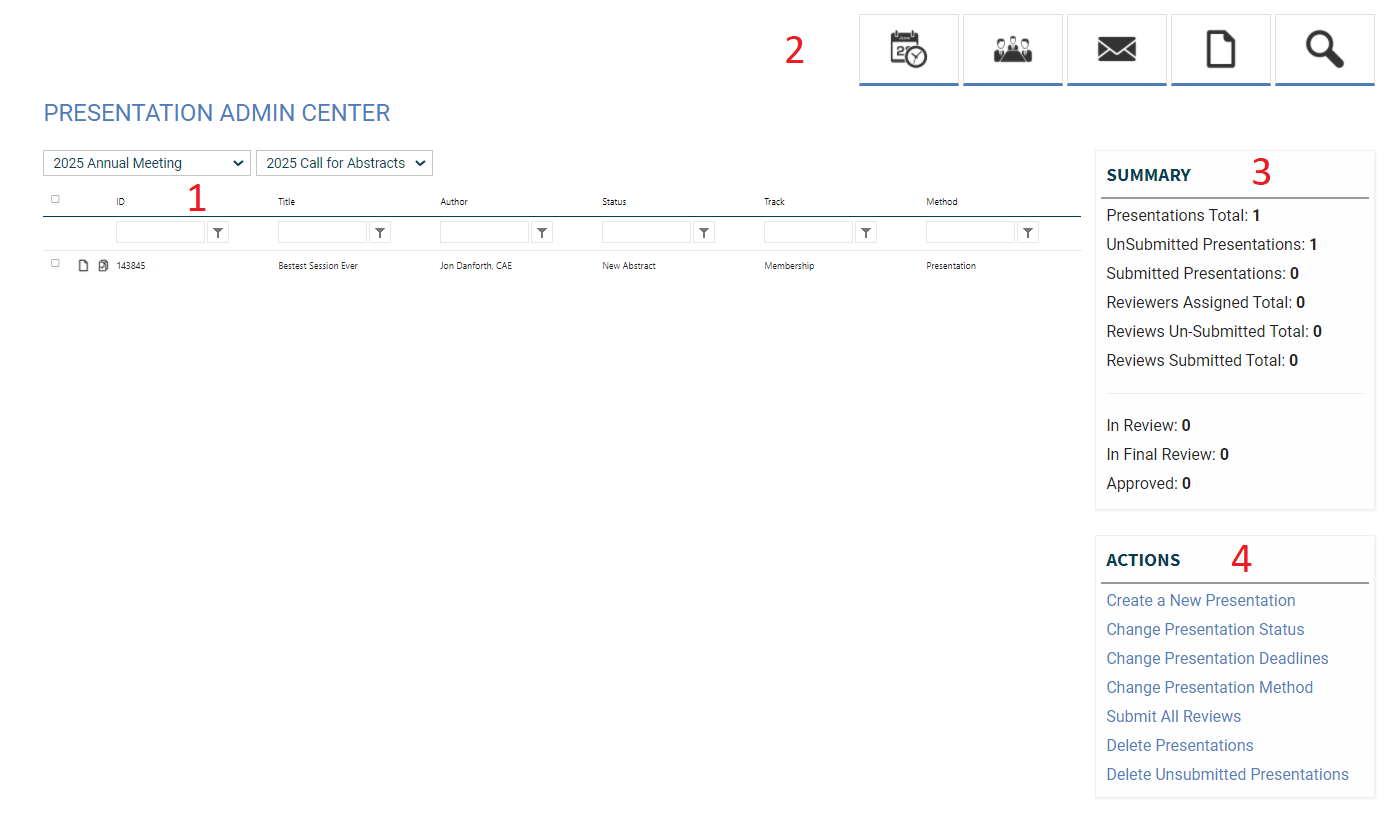
- This grid will show all the submissions for a given event. To select the event, you will need to choose the Meeting and Event in the two drop downs at the top. This will then populate the grid with the submissions for that Presenter Center event. Selecting an event will enable other areas of the screen.
- These buttons will open other pages related to this event and are explained further in other sections:
- Meeting Planner- allows you to manage approved sessions and put them into your meeting schedule.
- Assign Reviewers- allows you to assign reviewers to submissions.
- Notification Emails- allows you to setup email notifications for submissions as they work thru the process.
- Quick Edit- allows you to quickly edit a submission.
- Quick Search- allows you to quickly search for a submission.
- A Summary of the submissions for the event and where they are in the process.
- Actions you can take on submissions
- Create a New Presentation- create a new submission for a contact in the AMS.
- Change Presentation Status- opens a box below the Actions to change the Status of the submission(s) selected in the grid.
- Change Presentation Deadlines- opens a box below the Actions to change the Deadlines dates for the Event.
- Change Presentation Method- opens a box below the Actions to change the Presentation Method of the submission(s) selected in the grid.
- Submit All Reviews- opens a box below the Actions to have all of the unsubmitted reviews submitted for the submission(s) selected in the grid. This could cause corrupt review records if the review forms are not finished. This operation cannot be undone.
- Delete Presentations- opens a box below the Actions to Delete the submission(s) selected in the grid. This operation cannot be undone.
- Delete Unsubmitted Presentations- opens a box below the Actions to delete all unsubmitted presentations past the submission deadline date. This operation cannot be undone.