
The A/R control for Accounts Receivable is used to view and enter a payment on a contact’s existing unpaid invoices. All outstanding invoices will be displayed, with the Invoice number, Invoice Date, and Total, alongside the amounts Paid and still Due.
You can select a single invoice by clicking the check box all the way to the left in that payment’s row. You can select multiple invoices when a payment is to be applied to more than one, so long as you do so before clicking the Pay Selected Invoices button. If you don’t need to see or adjust payment amounts on the individual items on the selected invoices, click the Fully Pay Selected Invoices button to go straight to the Shopping Cart control. To view all open items on the selected invoices before reaching the shopping cart, click on the Show All Items button. If you click that button before selecting any invoice check boxes, you can view all open items on each invoice. All methods except the Fully Pay option will bring you to a screen where you can make the payment.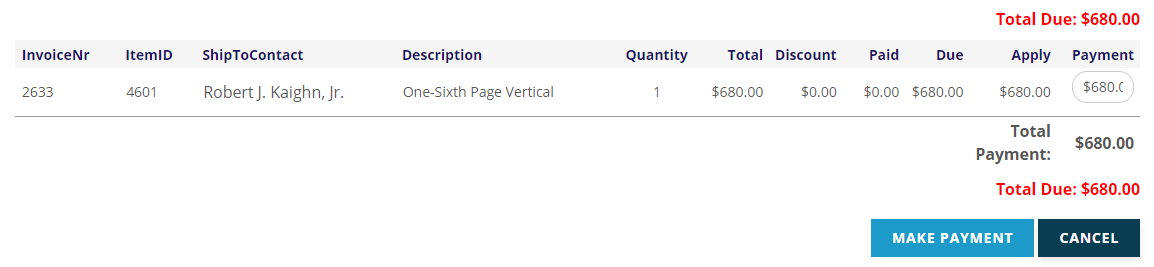
The payment column all the way to the right will default to the amount owed for each item. If the contact is paying less than the amount owed simply override the amount(s) under the Payment column as needed. Once all payment amounts are deemed correct, click on the Make Payment button to proceed in the exact same manner as with the Shopping Cart control, described in that section of this knowledge base.
NOTE: If any of the contact's invoices are out of balance, you will not be able to accept payments for this contact until these issues are corrected using the Adjustment Wizard. You will see a message on this screen stating:
One or more invoices is out of balance for this contact.
Please use the Adjustment Wizard to reconcile.