
The QuickBooks Desktop Connector Integration updates the GL Journal with summary GL entries for each posted batch in NOAH. It does not create customers, invoices, payments or any detail, only total debits and credits for each GL account in each batch in NOAH. The integration is based on QuickBooks calling NOAH through an API to import data.
You do not have to run the QuickBooks Desktop Connector Integration, thus you do not have to update QuickBooks from NOAH. You can manually enter financial data from the Batch Audit Journals in NOAH. You can then enter each customer, item and payment and subsequent adjustments if you wish. Or you can enter just the summary GL entries manually if you wish. The important thing is to continue to do so per batch in NOAH to have a proper audit trail. The Batch Audit Journal is the best report for this for each batch.
The QuickBooks Desktop Connector Integration interfaces with the Desktop version only, not the Online version. It uses the QuickBooks Connector, which is a free utility from Intuit that must be configured to work with NOAH. Information on the QuickBooks Online Integration can be found here.
To setup the QuickBooks Connector to connect with NOAH Web Services:
- Download and install QuickBooks Web Connector (QBWC) from the following URL: https://developer.intuit.com/app/developer/qbdesktop/docs/get-started/get-started-with-quickbooks-web-connector
Select the most recent version of the Connector that is supported by your desktop version of QuickBooks. - Copy NCAQuickBooks.qwc to the local PC.
- Open the QuickBooks.qwc file in Notepad and
- add your NOAH Username in place of the highlighted Your username here
- make sure the highlighted URLs in
& is the correct URL for your instance of NOAH; for example, https://ams2.enoah.com NOAH QuickBooks Connector https://ams.enoah.com/DesktopModules/NOAH_WebServices/QuickBooks.asmx NOAH QuickBooks Connector https://ams.enoah.com/ Your username here {7BAD0442-0B46-4d91-8310-608C5D30FD9C} {9107A966-FAE1-471a-984B-216F69BB942A} QBFS false
- Run QuickBooks Web Connector (All Programs->QuickBooks->Web Connector) and add the QuickBooks.qwc file by clicking on the Add an application button and browsing to the file.
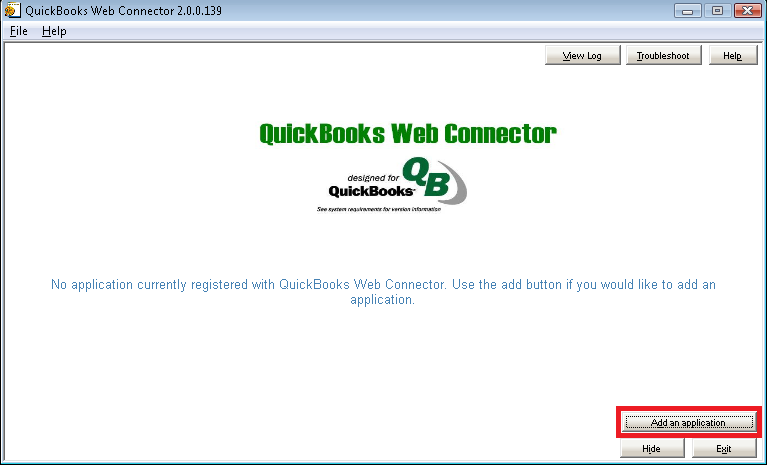
- Before running the import for the first time, be sure you add a Customer to your QuickBooks company file in the exact name of NOAH AMS. This customer must exist in QuickBooks as it requires any data imported to be categorized in this manner.
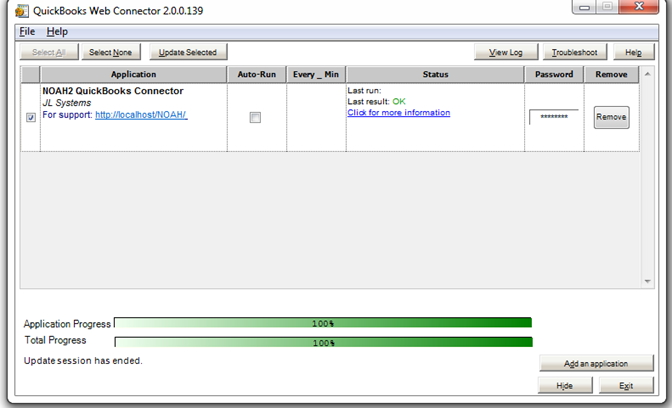
- The above action will add a row to QBWC called NOAH QuickBooks Connector as shown in the screen below. You can specify the frequency with which QBWC can connect with NOAH to update QuickBooks data, by typing in the number of minutes in the Every _Min field. Also, key in the password to connect with NOAH in the Password column. The password specified here will be stored in an encrypted format.
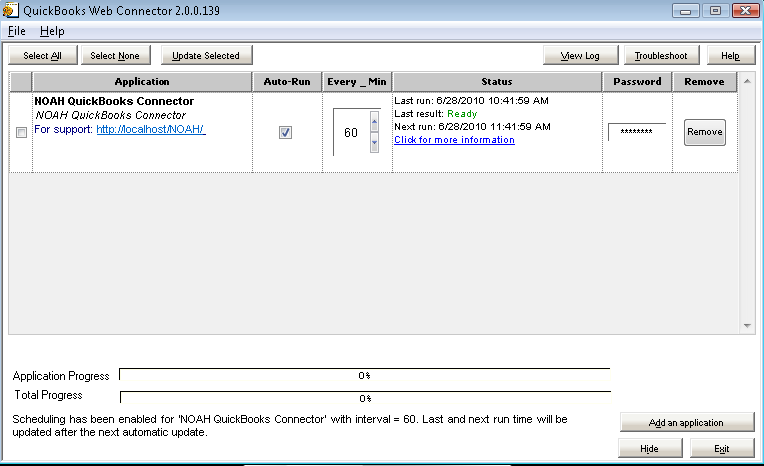
- To run the import manually, click on the Update Selected button. The Connector takes a very long time to run the first time, and typically the first time each day. Just let it run.
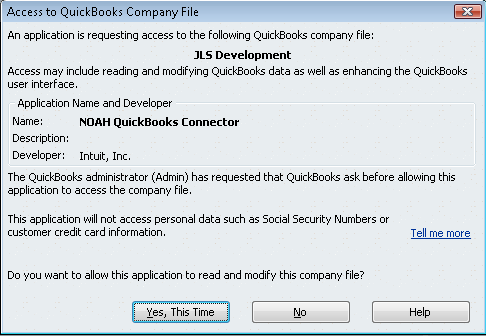
- When QBWC connects to QuickBooks, you will need to grant access by clicking on Yes, This Time in the dialog that pops up in QuickBooks.
- You will undoubtedly run into instances where the GL account names do not match exactly between NOAH and QuickBooks. This is the most common error that occurs, and can occur at any time if someone adds or changes the names of an account in one system and forgets to do the same in the other. When an error occurs you will see the following screen:
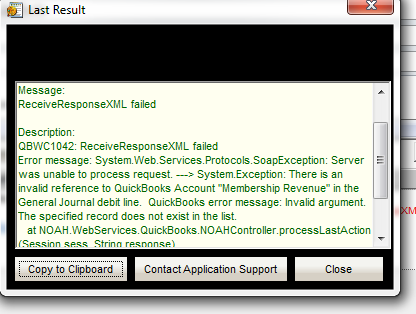 If you look carefully at the text in green in the window, you will see the lines There is an invalid reference to QuickBooks Account “Membership Revenue” in the General Journal debit line. It may also object to an account being credited. In either case, it is saying that the GL account named “Membership Revenue” used in NOAH is not found in QuickBooks. This tells you that you have not matched up the GL accounts correctly in the two systems.
You need to either change the GL account name in NOAH or in QuickBooks, or add it to QuickBooks if it is missing. Then run the Connector again as in step #7 above. - You want to eventually get the screen below, showing the result is OK:
Some things to keep in mind:
- You always want to use the most recent version of the Connector that is supported by your desktop version of QuickBooks . If you have not updated QuickBooks to the point it is supported in the most recent version then scroll down the list of version until your version of QuickBooks is listed. You can always upgrade the Connector any time you see a new version that is supported by your version of QuickBooks, and this is something you should check from time to time.
- The application file contains the username that logs into NOAH, but not the password for that user. If you changed to use a different user account at some point then you need to edit the QuickBooks.qwc file to change the username.
- If you have trouble logging in to NOAH via the Connector once installed it is usually that the password is wrong. Try logging directly into the NOAH AMS with the username and password you think they are. If the password does not work, a Client Admin can reset it for you under User Accounts.
- Classes and sub-accounts for GL codes are not supported. QuickBooks associates these with transactions and the integration sends summary data for batches, not transactions.
- The GL accounts in the AMS must match the name of a GL account in QuickBooks. They must match exactly, with punctuation, number of spaces, etc.