In the modern Internet age, most of your members will interact with your organization by logging into your website. There a several ways to create/update website accounts: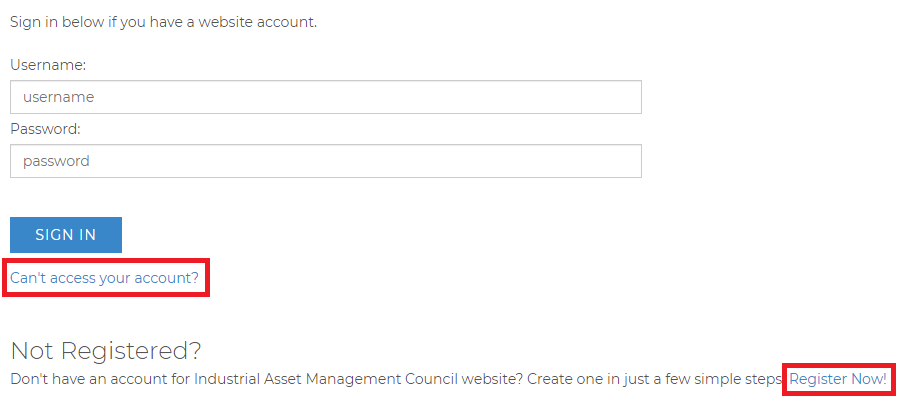 Login
- Reset Password- if a user can't login, the Can't access your account? link will open a page that accepts either their username or associated email address and sends an email to reset the user's login. NOTE: This email is FROM one of the Administrators accounts on your website that is set as the Primary Administrator.
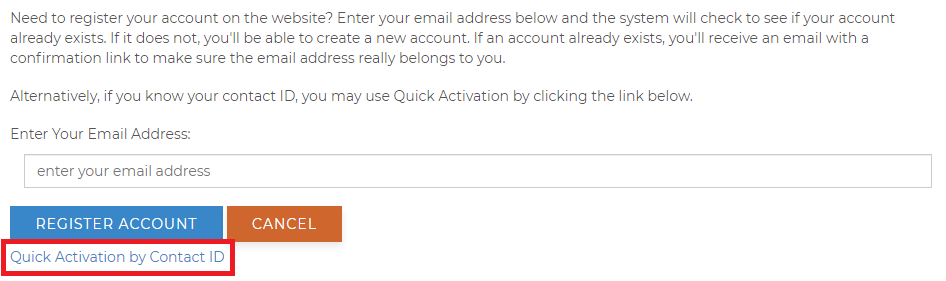
- Register a New Account- new visitors to your site can create an account using the Register Now! link. First, the user enters their email address and the system will check to see if an account already exists. If it does not, they'll be able to create a new account and they'll receive an email with a confirmation link to make sure the email address really belongs to them. If you are concerned about bogus accounts being created, we can implement Google's reCAPTCHA v3. NOTE: when a new website account is created the System Email named NewRegist is sent to welcome the new user.
- Quick Activation by Contact ID- for those who already have a contact record in the AMS, but need a website login and have their Contact ID, the link for Quick Activation by Contact ID is found on when the Register Now! link is followed and the user is asked to enter their email. A link to the Quick Activation page with the Contact ID can be sent in email messages to facilitate account creation, or be used by staff setting up their own website logins (see User Accounts).
 Register- Step 1
NOTE: Because websites can be customized, your site may be slightly different than the images shown above.
As a staff person, you may also update a contact's Username and Password in the AMS, provided the user has already set them up; if not they will need to register their account.
Here are some other items to note about logins to your website. These are DNN system settings and cannot be changed for security reasons:
- Users are logged out from the website after 20 minutes of inactivity.
- Links users are emailed to reset their passwords will expire after 60 minutes.
- NOTE: Every time the user requests this, a new reset link is issued. If they reset multiple times, only the most recent link will work, the rest will be expired.
- NOTE: If the user has Barracuda Link Protection on their email server, this sometimes does not encode & decode the URL in the email correctly and the result is a message on your web site that the link has expired.
- If a user's account becomes locked from too many failed login attempts, they will need to wait 15 minutes for the account to be unlocked. In the AMS when trying to make updates to a locked login, you will see a message: We're sorry! The site could not process your request.
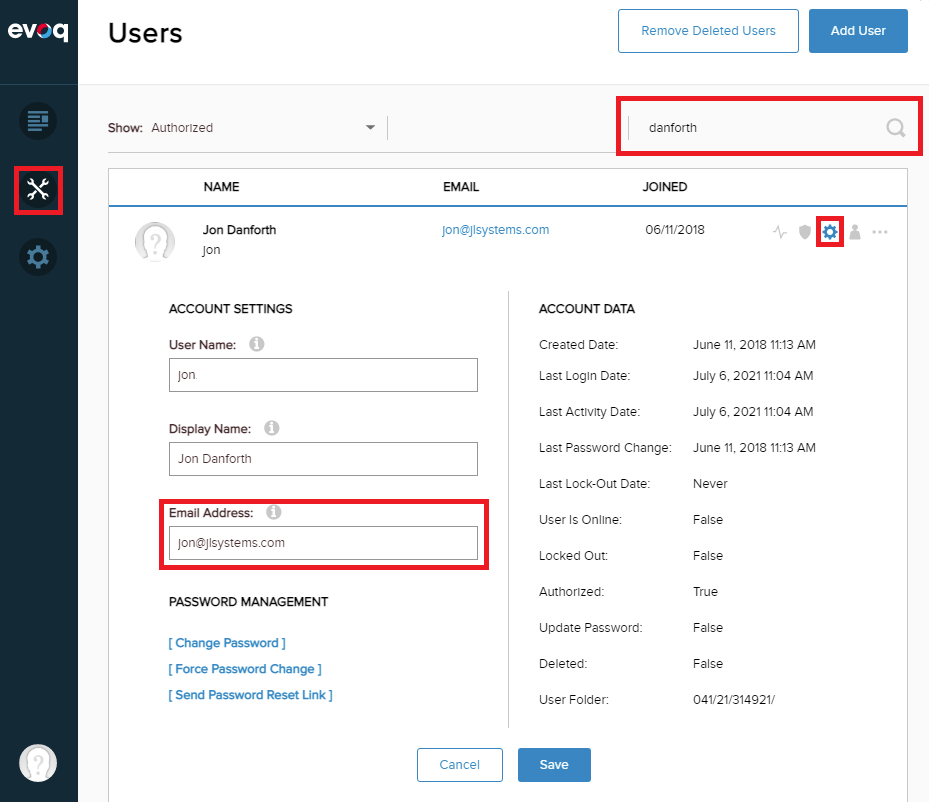
- The email address used to reset a password is the one stored in DNN. Once in a while, these do become out of sync from the email stored in the AMS. To see the email stored in DNN for a user, login an admin and on the black persona bar on the left, hover over Manage (the wrenches) and click the Users menu item. If you search for a user, you can see the email address that is stored. You may update this to match the AMS under the gear icon on the right.
 DNN User
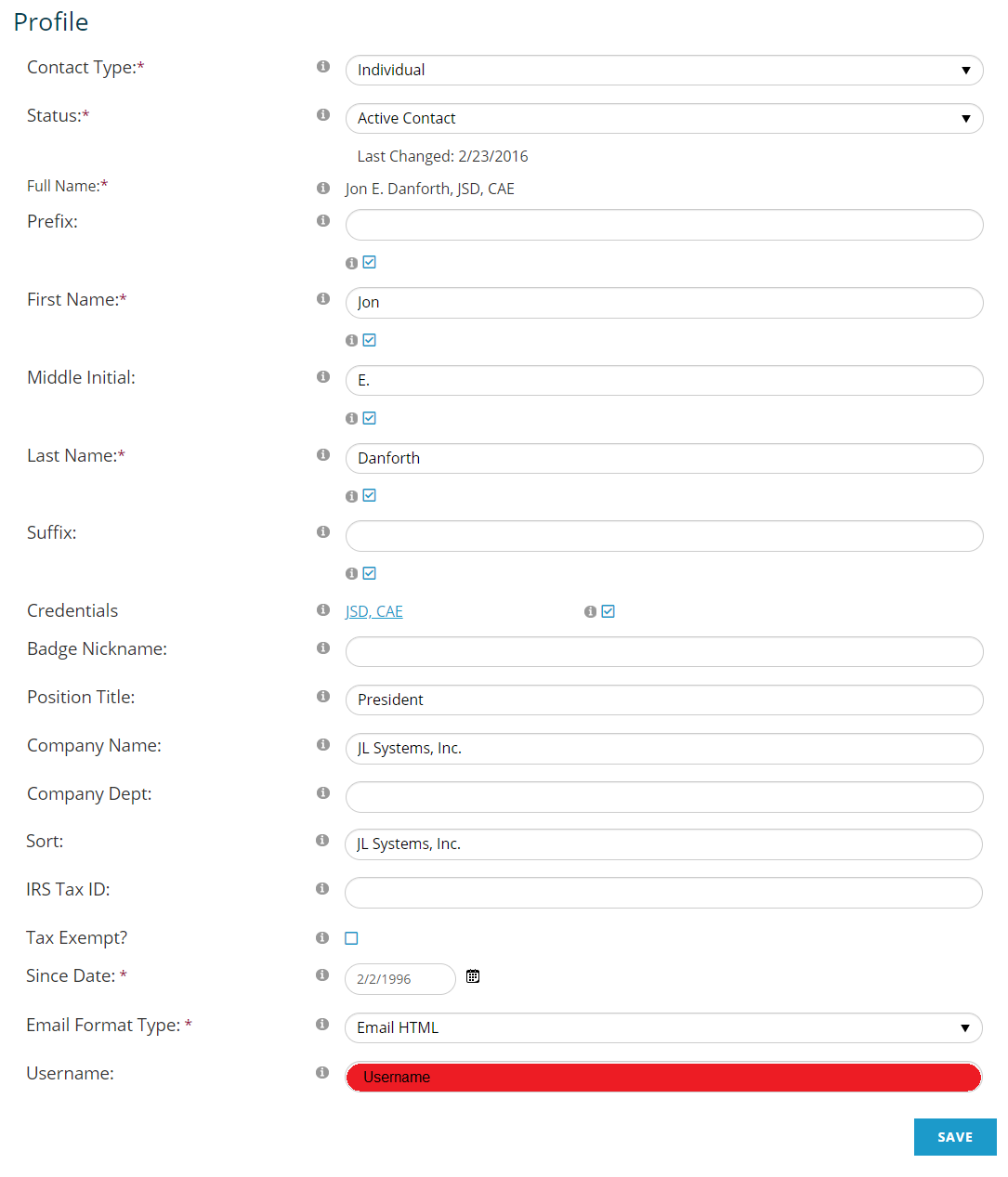
If a user is having issues logging in or registering, you can look in the AMS on the Contact's Profile, under Profile, Profile. At the bottom you will see the Username. If the box is red, that means there is an issue with their account and you will need to Contact Support to get it sorted out.
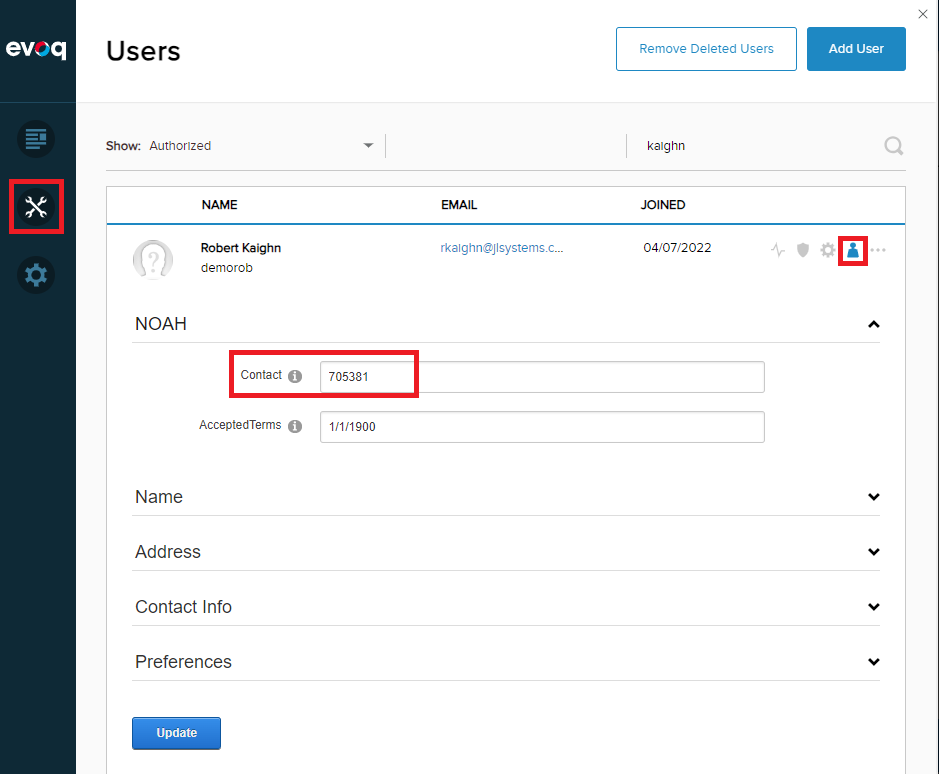
Another place to look is on the User in DNN. On the Persona bar on the left, mouse over the Manage icon (the pair of wrenches) and choose Users. You can search for a user a the top right of the Users screen. Once you have found the user in question, click on the Profile Settings icon (the silhouette on the top right), which will show details of this DNN user. The Contact in the NOAH section should match the Contact ID of this user in the AMS.