
The System Settings area of the NOAH System Configuration allows you to setup many aspects of how the AMS works for your organization's Accounting Company(ies). If you have multiple Accounting Companies, this area will need to be setup for all of them. Changes that affect multiple Accounting Company will need to be updated for each Accounting Company. Switching the Accounting Company is done using the Acct Co: drop down at the very top of the screen.
Since this is a large screen, it is broken into several images below.
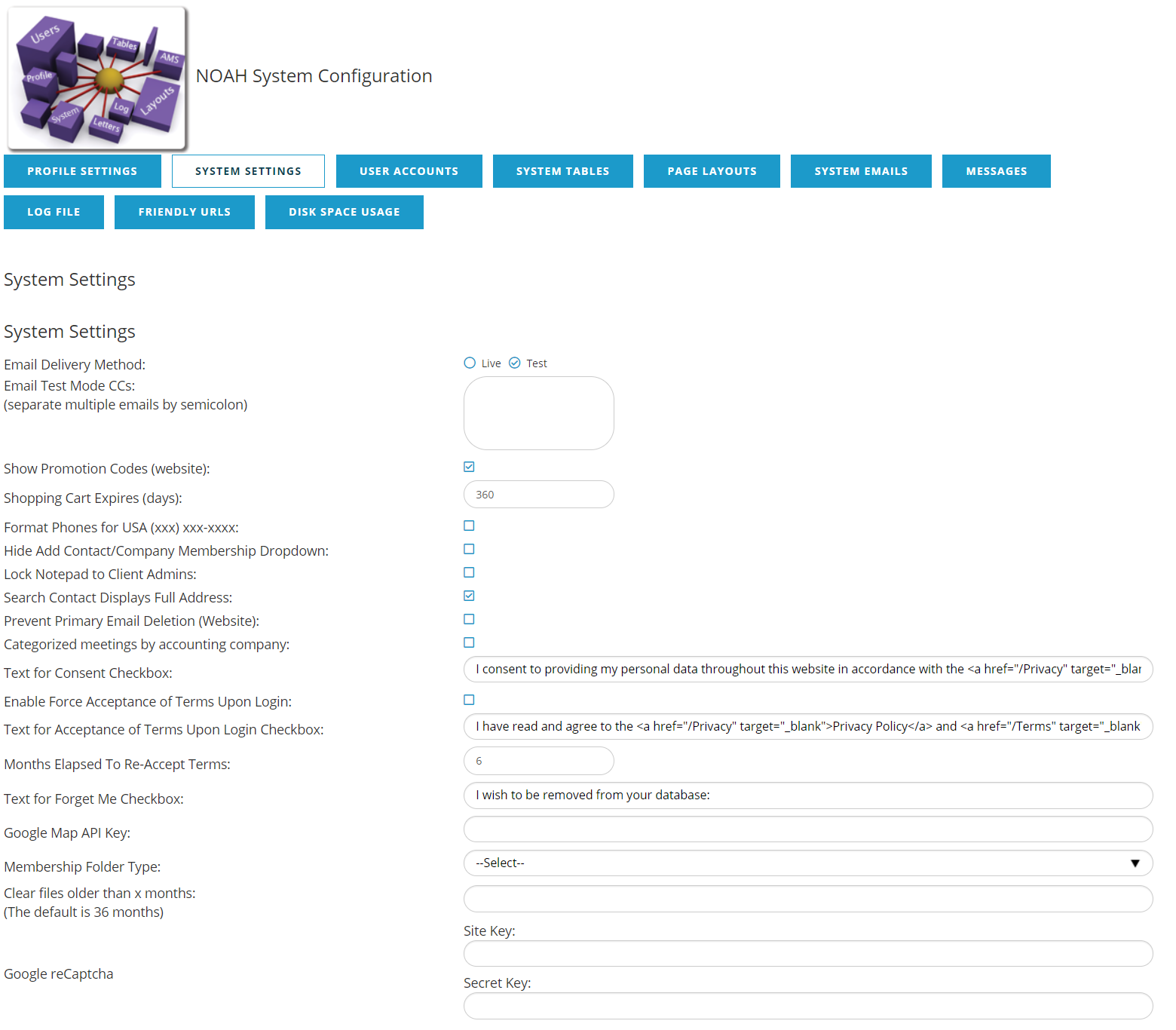
Email Delivery Method controls how email messages are sent in the system. Live indicates that email messages will be sent, whereas Test indicates that email messages should not be sent, for example when the system is not live, or this is a testing environment. Email Test Mode CCs is where you can add email addresses (separated by a semi-colon) to cc on any messages sent from the system when Test is selected as the Email Delivery Method.
The Show Promotion Codes (website) check box controls if the text box to enter Promotion Codes displays in the website shopping cart. When checked, this field will show on the website shopping cart.
Shopping Cart Expires (days) determines how many days items will stay in a user's shopping cart before being deleted.
Format Phones for USA (xxx) xxx-xxxx will set a default format for phone numbers in the USA with parentheses around the area code and a dash in the middle of the number; it also allows for extra characters to hold an extension, and applies to both the AMS and the website. 
NOTE: This is done only used when phone numbers are created or edited; changing the format here does not automatically update existing phone numbers in the AMS.
Hide Add Contact/Company Membership Drop down allows for turning off the dropdown of membership fees used to load the shopping cart at the same time as creating the new contact or company.
The Lock Notepad to Client Admins allows only those User Accounts set as Client Admins to create and update Note Pad items when checked. These items may still be visible to other users, but the buttons to take actions are only shown to Client Admins. To control visibility to Note Pad items, use the permissions on the User Account.
Search Contact Displays Full Address is used to include the full address when using the Search Contact pop-up. This page is used throughout the system to look up a contact when you need to add a link to a contact. Checking this box updates the CITY STATE column to also include the full address. Unchecking this box can improve performance on this Search Contact pop-up.
When Prevent Primary Email Deletion (Website) is checked, this removes the Delete option for a user viewing their key email address in their profile on the website.
Text for Consent Checkbox is the consent text shown with an acceptance check box when an account is created/activated on your website. This can contain HTML to link to Terms and Privacy statements. An example would be
I consent to providing my personal data throughout this website in accordance with the Privacy Policy and Terms of Use of this website.
The Enable Force Acceptance of Terms Upon Login checkbox forces users to accept the terms of use when logging into the website for the initial login.
Text for Acceptance of Terms Upon Login Checkbox shows the text that a user is agreeing to when the Enable Force Acceptance of Terms Upon Login is checked. For example:
I have read and agree to the Privacy Policy and Terms of Use of this website.
Months Elapsed To Re-Accept Terms sets the number of months after which a user will be required to re-accept the terms when logging into the website.
For GDPR purposes, Text for Forget Me Check box controls the text displayed next to the Forget Me check box when a user is editing their profile on the website. This is found on the Edit Name and Employment Info section of the My Account/User Home page.
Google Map API Key stores the key when Google Maps has been integrated with a Directory on your web site.
The Membership Folder Type drop down allows you to select which Affiliation Folder will be used for Memberships.
Clear files older than x months is a setting to reduce the storage used by your AMS. In an effort to help you reduce your costs, we have created a cleanup routine that will delete old attachments you have created in any automated emails sent through the AMS. These are not bulk emails sent via the Reporter, but are the emails for renewal notices, meeting or exhibitor confirmations, speaker confirmations, membership cards, letters and certificates, certification notices and certificates, and any similar report that was sent via email with an attachment auto-generated by the system. These are almost always .pdf files.
These attachments are stored in the event you wish to send them again via a re-send of the email from a contact/member's email history in their profile. That way if you re-send the email the attachment(s) will be re-sent along with it.
While these attachments are typically very small, they do add up over time and some clients have been sending notices such as these for many years. All of these add up to the disk space you are using, and if over your allotment, are adding to your monthly costs. Thus, we have built a routine that will automatically delete these attachments that are older than a certain threshold number of months that you can set. The default setting in the system is 36 months. The routine will run every night, and any files older than the specified number of months on a given date will be deleted. You can set this to any number of months you wish. If you wish to save 5 years of attachments, set it to 60. If you only want to save 1 year, set it to 12.
The emails themselves will still be retained in the contact's email history. You can still resend the email, however it will be missing any attachments that were associated with it once they are deleted after the number of months specified.
Google reCaptcha is for those sites using Google's reCAPTCHA v3 on their website to prevent bogus accounts from being created. The fields for Site Key & Secret Key are provided by Google when you create your account with them.
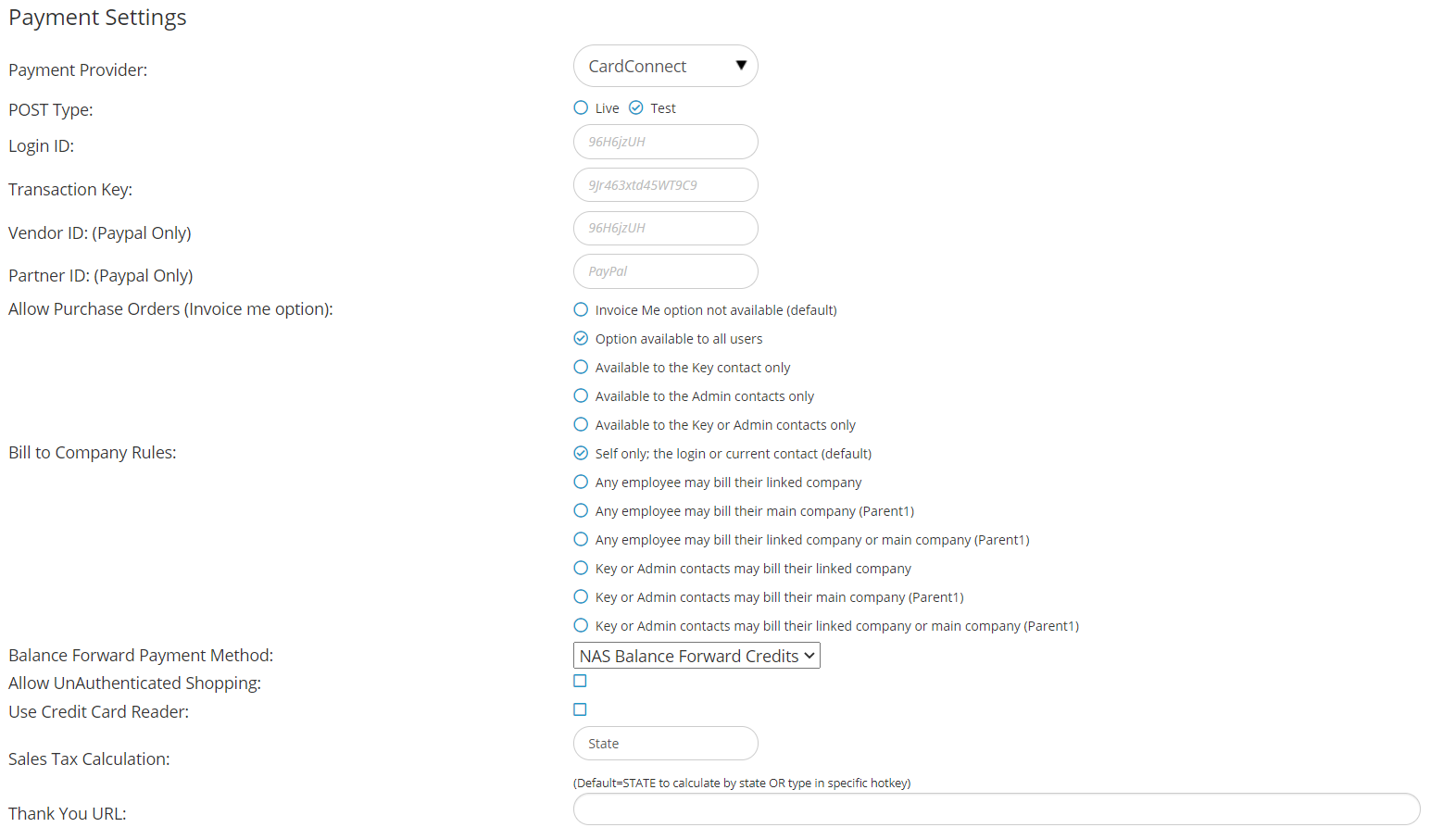
Payment Provider allows you to select the Payment Gateway to use when processing Credit Cards and eChecks. The current options are
- AuthorizeNet- https://www.authorize.net
- PayPal- https://www.paypal.com/us/webapps/mpp/payflow-payment-gateway
- Stripe- https://stripe.com
- Clover Connect (formerly CardConnect)- https://integrate.clover.com/
- More information form for NOAH- https://integrate.clover.com/partner/noah-ams
- More information form for aarwin- https://integrate.clover.com/partner/aarwin
The Post Type determines if transactions are Live (payments processed are real and should be collected) or Test (transactions sent are only for testing purposes and are not collected). NOTE: in the QA AMS, this setting is reset to Test mode every night. If you are testing to a live server in QA over multiple days, you will need to set this to Live on every day you want to test.
Login and Transaction Key are connectivity variables to connect with the Payment Provider. Vendor ID & Partner ID are only used with PayPal. NOTE: PayPal has several products so please let support know which product you are using so we can direct you as to what goes in each field.
The Allow Purchase Orders (Invoice me option) radio buttons control when a contact is allowed to be billed later on Invoices:
- Invoice Me option not available (default)- No one is allowed to use this option
- Option available to all users- Everyone can use this option
- Available to the Key contact only- Only the employee flagged as the Key Contact for a company may use this option
- Available to the Admin contacts only- Only the employees flagged as an Administrator for a company may use this option
- Available to the Key or Admin contacts only- Only the employees flagged as the Administrator or Key Contact for a company may use this option
The Bill to Company Rules radio buttons control when a contact may have a company be the bill to contact on an Invoice.
- Self only; the login or current contact (default)- only the person may be the bill to
- Any employee may bill their linked company- an employee can have their linked company (via a Work folder) be the bill to
- Any employee may bill their main company (Parent1)- an employee can have their main parent company, if they work for a subsidiary (via a Work folder), be the bill to
- Any employee may bill their linked company or main company (Parent1)- an employee can have the subsidiary (via a Work folder) or main parent company be the bill to
- Key or Admin contacts may bill their linked company- the Administrator or Key Contact can have their linked company (via a Work folder) be the bill to
- Key or Admin contacts may bill their main company (Parent1)- the Administrator or Key Contact can have their main parent company, if they work for a subsidiary (via a Work folder), be the bill to
- Key or Admin contacts may bill their linked company or main company (Parent1)- the Administrator or Key Contact can have their linked company or the main parent company, if they work for a subsidiary, be the bill to
The Balance Forward Payment Method is where the Balance Forward (i.e. credit balance) Payment Method is selected from your existing Invoice Payment Methods.
The Allow UnAuthenticated Shopping checkbox allows website shoppers to add items to the website shopping cart without logging in. They will need to login or create an account for any purchases.
When using the AMS for Point of Sale (POS), check the Use Credit Card Reader check box to enable this functionality so cards don't have to be manually typed in when you have the card in hand. When checked, on the Payment screen put the cursor in the card number field and swipe the card thru the reader. The AMS will enter the card number and expiration date in the form, just as if you typed them in. It can't read the CCV, so you'll need to type that in. This does requires additional equipment that passes the data from the magnetic stripe on the card in the standard format. It does not work with card chip readers. Clients have had success with the ID Tech MiniMag, and similar magnetic stripe card readers.
The Sales Tax Calculation determines how the AMS should calculate State Sales Tax. The default value is STATE to calculate by state, but you many have a specific HotKey setup for different calculations.
The Thank You URL is the URL that is displayed on the shopping cart confirmation page after a person completes the entire checkout process. This allows you to link to a secondary page as a way of confirming the transaction in addition to the standard confirmation display page.
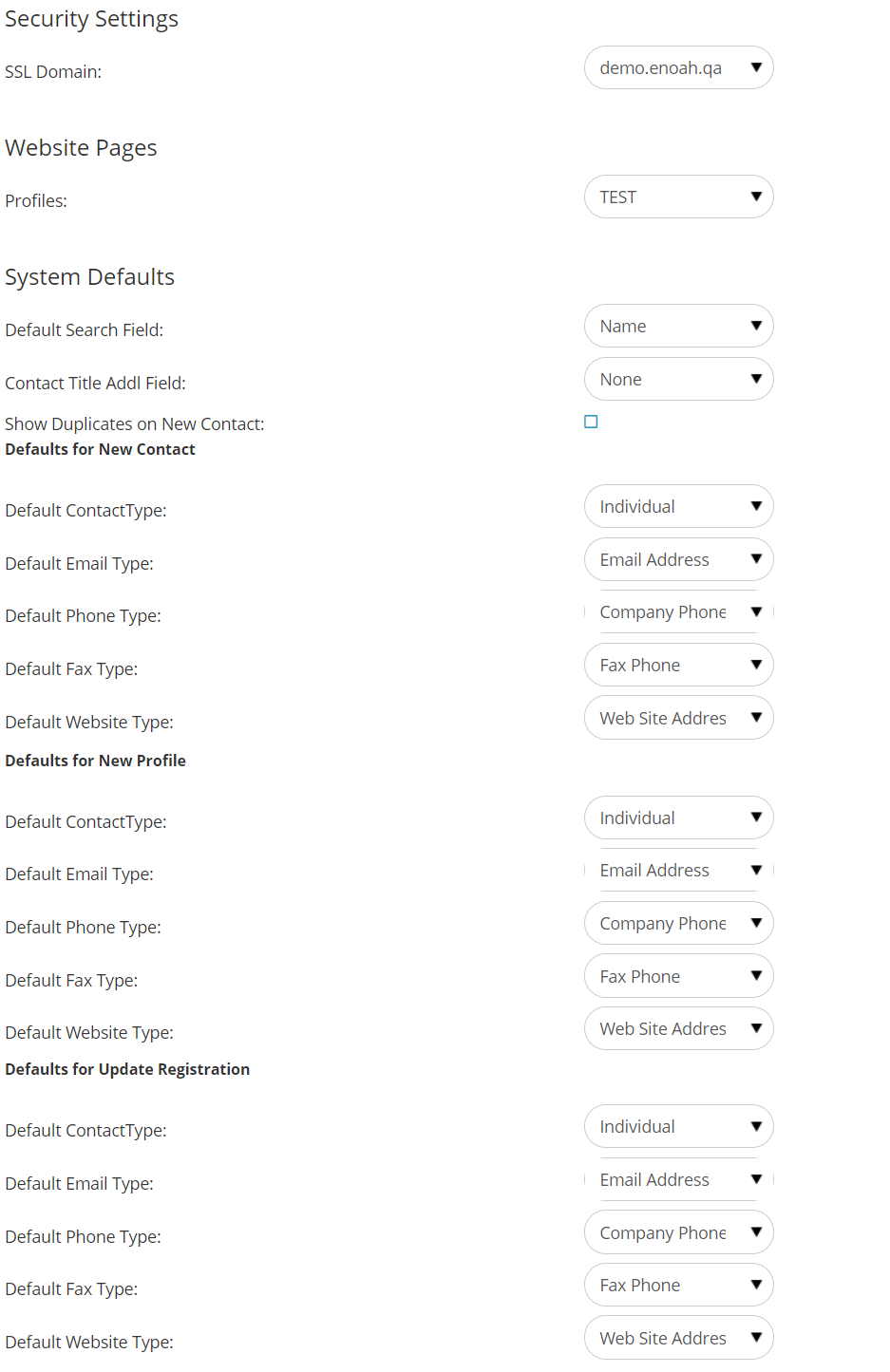
Of note in this section are the Defaults for New Contact which define what the default Purpose is for communication types when a new contact is created. For example, when a new contact is created, a phone number can be collected on the AddIndividual form, and the phone's purpose will be set to what is defined here. Defaults for New Profile & Defaults for Update Registration are generally not used and can be the same values as Defaults for New Contact. If these valued are not defined, the communications will still be created, but with a Purpose of 0.
 Finally we have Shipping Settings where you can enter in your UPS account information to calculated shipping information.