
To view an existing contact’s Profile you first must look them up in the database. Every contact has a unique ID number assigned. If you know a Contact’s ID number, you can enter it in the company name or last name search box, and the system will retrieve that particular contact immediately. Since that number isn’t always at your fingertips, there are many other ways to search for and find one or more of your contacts.
The Search for a Contact control has several fields designed to fine-tune your search.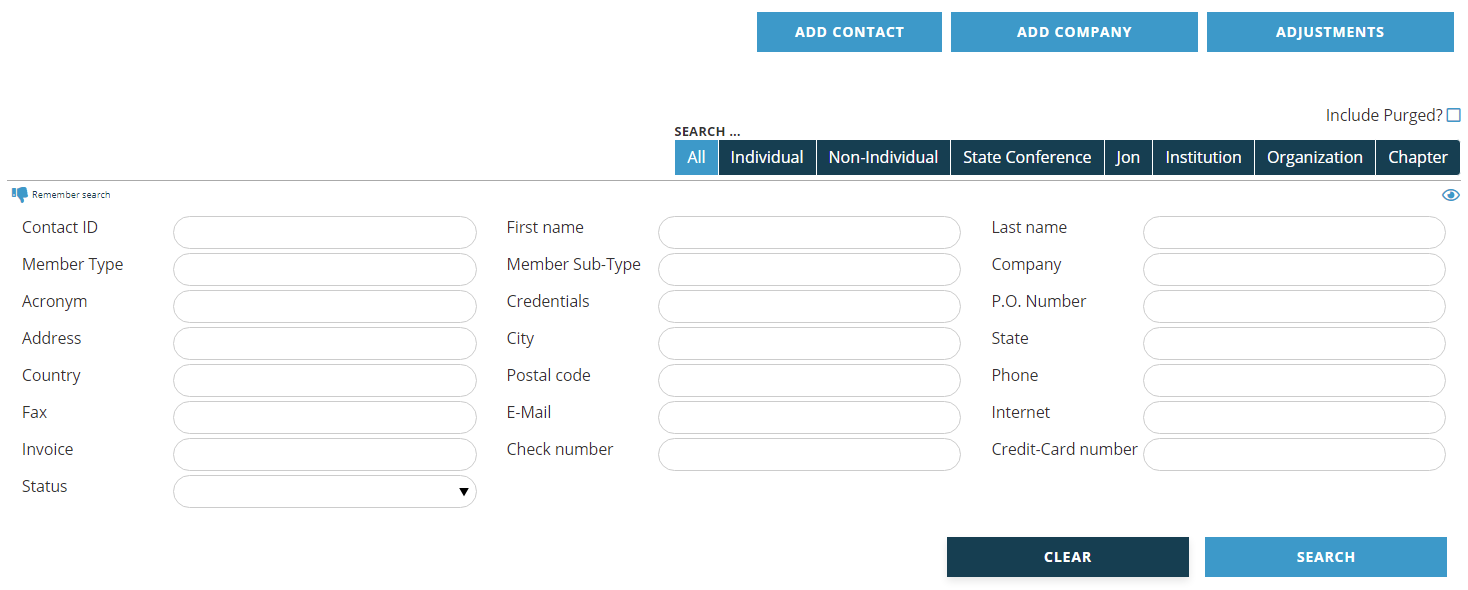
At the top right corner you can limit your search to a specific contact type. For instance, you can choose to search only for organizations, or for individuals. Once set in your web session, the filter will stay in place until you change it or log out. It is common to leave this field as the default, All.
The list of contact types you see in your search display are based on the types you have created in your dictionary, and will often include additional types than are displayed here. If you have multiple organization contact types, such as Company, Hospital or Institution, you can click on “Non-Individual” to search all organization types at the same time, ignoring all individual records.
In order to speed up the search process, he AMS has a feature that lets you set aside a contact record that you want to delete by changing its status to “To Be Purged” (more on statuses can be found under Contact Status). The contact search engine automatically skips over any purged contacts. If you think a contact may still be in the system but it is not appearing in your search, check the Include Purged box and try your search again.
To execute a search enter any values you wish in as many of the search fields as you wish. As you begin typing in a search field, in many cases a list of values will appear. As you type more characters the values will automatically filter down to match only what you have typed. This predictive search will assist you in narrowing the possible values to the ones that exist in the database, thus performing a “pre” search. You can turn this predictive search function on and off by clicking on the  symbol in the top right corner of the search field list display.
In all text field searches, if you precede the search value with a percent symbol (%), it will look for the value anywhere in the target field. For example, %dan entered in the last name field would find any records with the last names of Danforth, Daniels, Giordano, McDaniel and so forth. You can also use and underscore (_) to be a single character wild card; thus searching for D_nforth would return Danforth, Donforth, Dunforth, but not Doonforth.
Some fields, like Phone and Email will search across non-key entries. However, when searching by Phone, you must match the formatting that it is entered in, thus (703) 941-0077 doesn't match 703.941.0077. This is where wildcards are useful and %941_0077 would return either phone entry.
To execute the search, click on the Search button. To clear your search values and begin a new search click on the Clear button.
If you enter search values that are unique to a single contact in your database, that contact's profile will be retrieved and opened immediately. For example, if you only have one contact with the last name of Danforth, and you search by entering that into the last name field, that profile will be retrieved and opened immediately. Otherwise, it will present a list of contacts that match the method and search criteria you have elected to use.
The results list has column headings for Contact, Full Name, Company, City, State Country, Member type with expiration date and Key Email address. 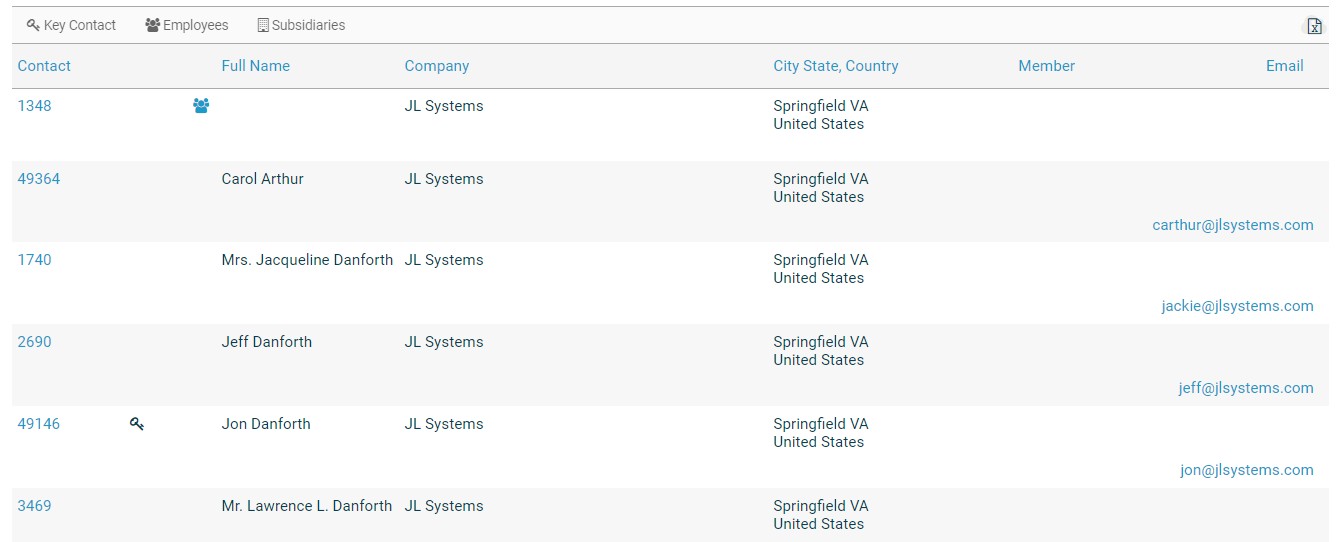
In the header of the list are the column names, which are also action links that cause a change in the list when clicked. If you click on a column name once, the list will be sorted in ascending order by the values in that column. Click again and the list will be sorted in descending order.
After the Contact column, you may see icons representing Key Contacts, Employees and Subsidiaries, as shown in the legend at the very top. For those with Employees or Subsidiaries, clicking on that icon will expand to show those contacts. There is also an icon at the top right if you need to export these results to Excel.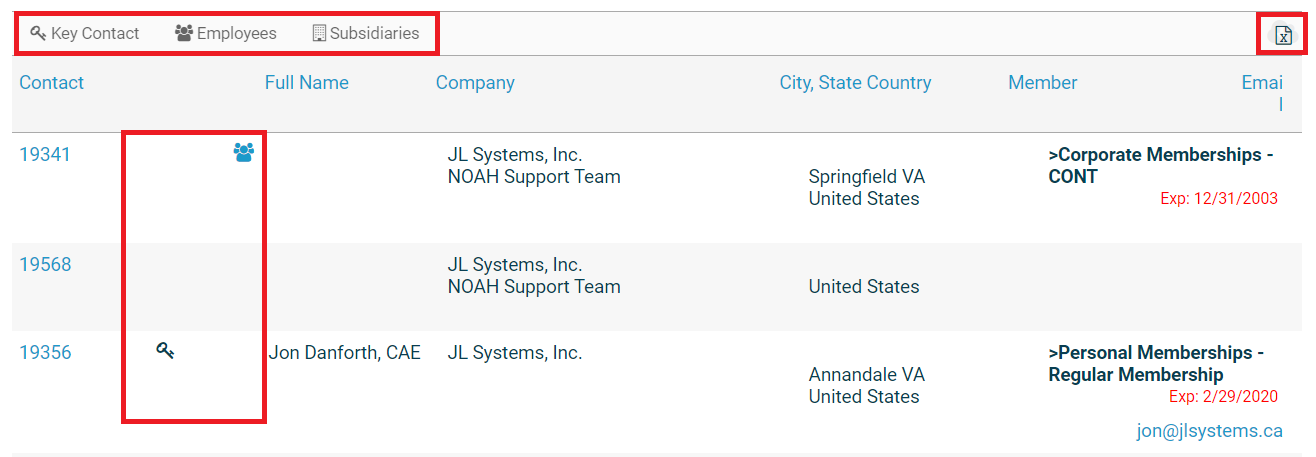
At the bottom of the grid, you will see navigation for the result set.

On the top left and right you will see links to go to the First, Previous, Next and Last page. In the top center, you will see which page of results you are on, and a gear to set how many results are included on a page. Next on the right, you will see the number of records being displayed and the total count of records returned. Finally you will see navigation to go to particular pages.
When you see the contact you want, click the Contact ID in the first column of the row to select and open that contact's Profile. If you do not see the contact in the list and wish to add it to the database, you have two choices, the Add Contact and Add Company buttons at the top of the page.
If you want to initially use the same search parameters when this screen loads, you can click on  at the top left of the search box. This will remember the contact search parameters used and search for them every time this search screen is opened. If the search returns a single contact, that contact's profile will automatically be opened. Clicking the Remember Search button again will clear the saved search parameters.
Cached Search Results To improve performance, the search screen is searching (and displaying) cached data. This data is refreshed nightly. This means that changes in the database are not always immediately reflected in a search and related results. The data in the database is updated, and current everywhere else. New contacts and name changes are added to the cached search data when the occur, but folders, merged contacts, and other data changes may take time to show in the search.