
Program Codes (or HotKeys) document the goods and services you offer, the prices, the letters & certificates to print, the GL Accounts to use and much more.
They have always been called Program Codes, but the term HotKey came about because in the MS Access version of the AMS each entry was a code that had to be remembered. The code triggered the action and so it was called a HotKey.
Program Codes are found in the Money Dictionary. To open the Money Dictionary, click on the AMS Menu, Money, and then Dictionary. Once the Dictionary page opens, click the  edit icon next to the Program Codes (ProgCodes).
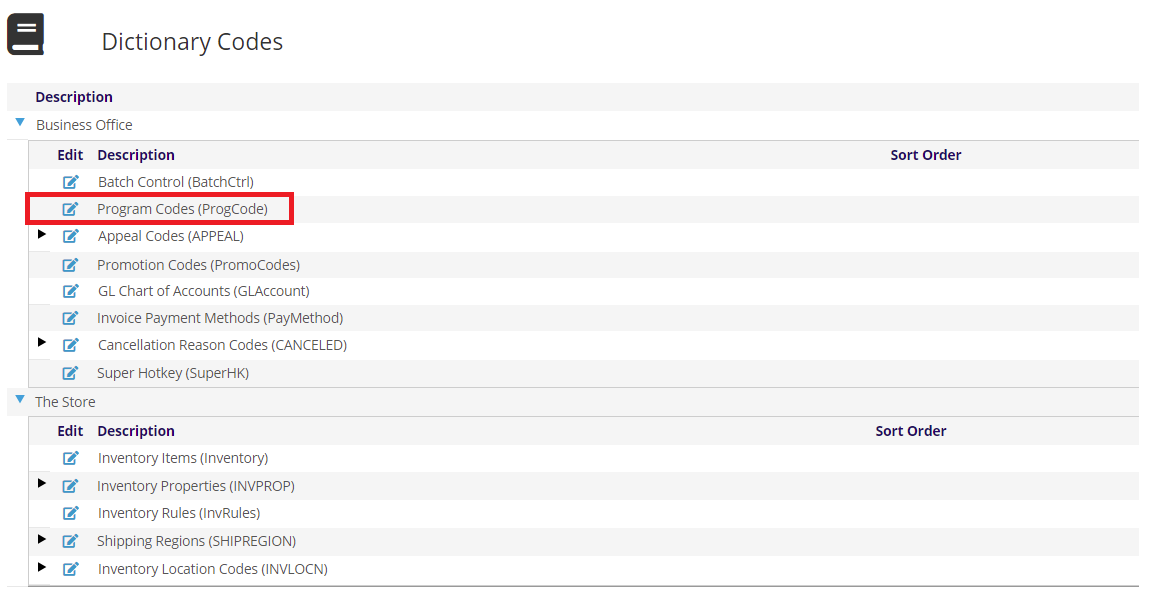
This will open Program Codes page where you can add and edit the Program Codes used in the AMS.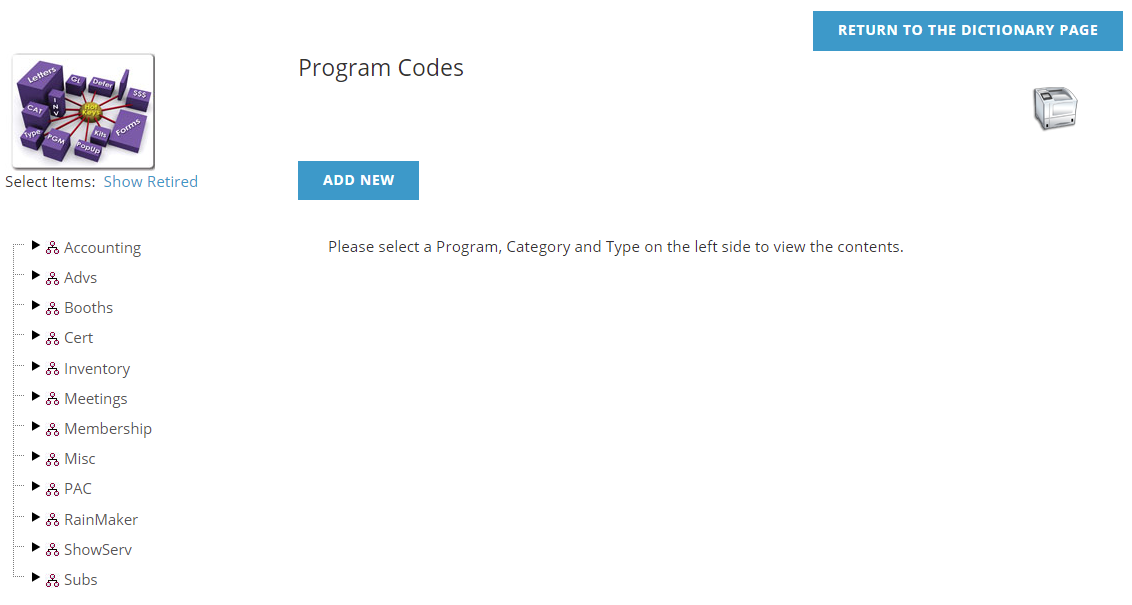
The  icon at the top right of the page opens a Program Code Reports screen to get more details on your existing Program Codes. On the left side of the screen you will see a Tree that is used to organize the Program Codes into different areas. Click the
 plus icon to expand an area.
In this example we are searching for all Program Codes that are in the Membership Program. Expanding that area, we will see Membership Categories for Corporate, Discount, and Personal.
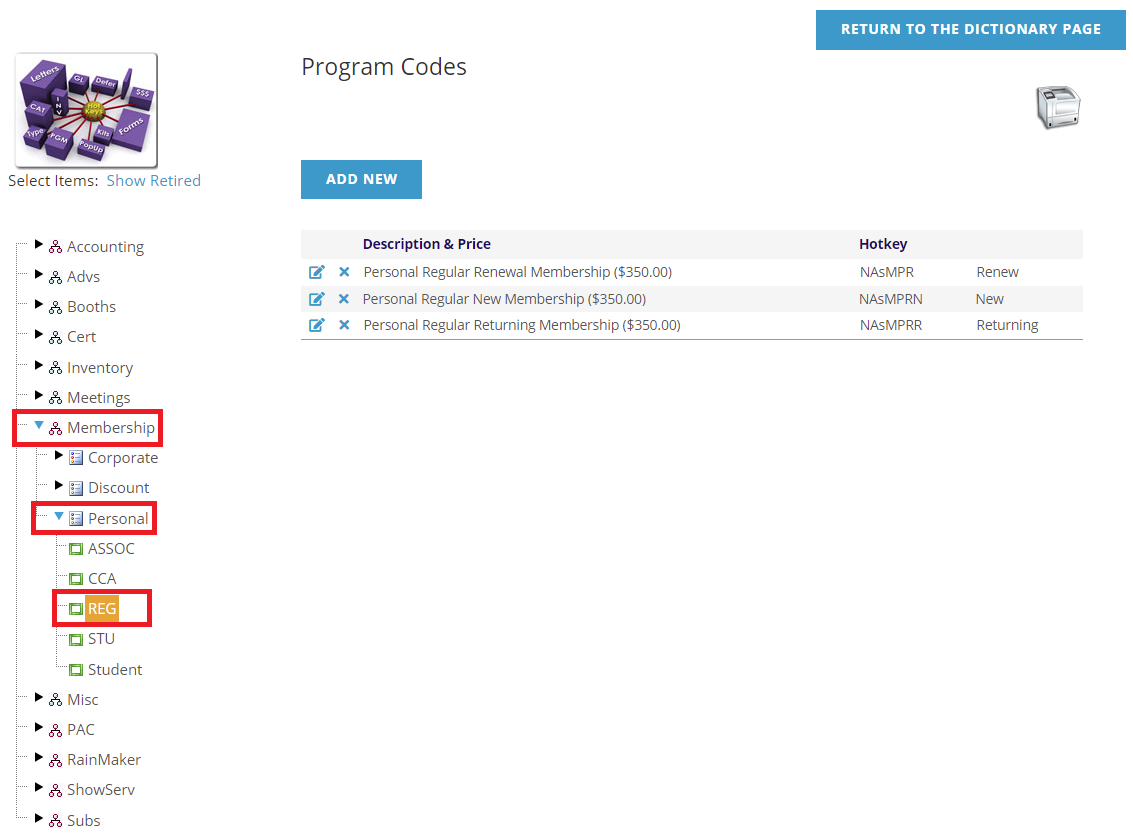 Expanding Personal, we will see different membership types under that. Selecting the Regular (REG) type we will see the three program codes under that in the grid on the right (these are ordered according to the Sort Order on each HotKey). Here we can use the ADD NEW button to add a new Program Code, or use the edit icon to edit an existing Program Code. The grid also contains a
 delete icon, but generally, Program Codes are not deleted, they are retired, which you can do when you edit the Program Code. Adding or Editing open a similar screen. Note that only a few fields are required and they are denoted with a red asterisk (*).
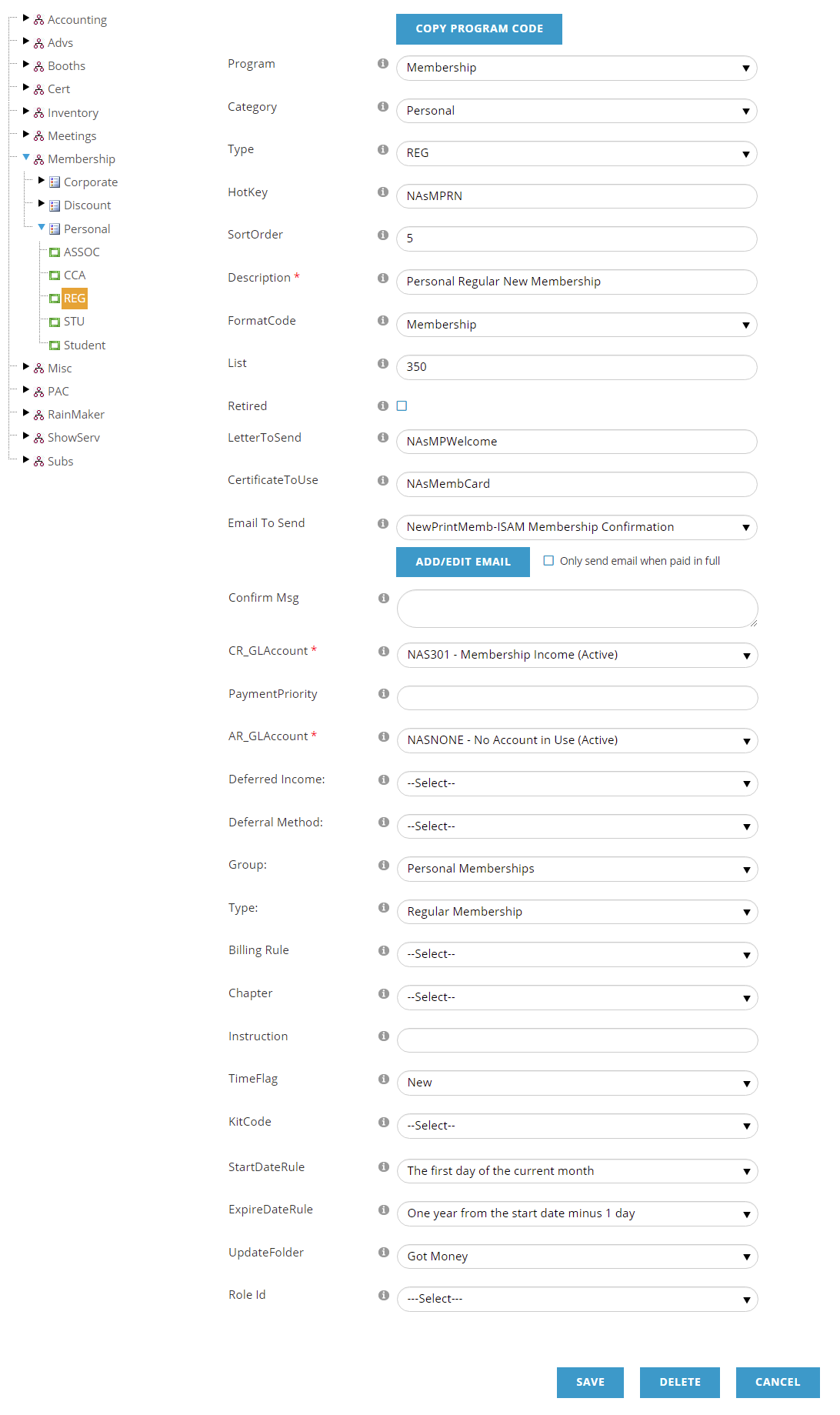
First, there is a COPY PROGRAM CODE, which will allow you to create a new Program Code from an existing one. Generally used with meetings, this can create multiple program codes based on other existing program codes.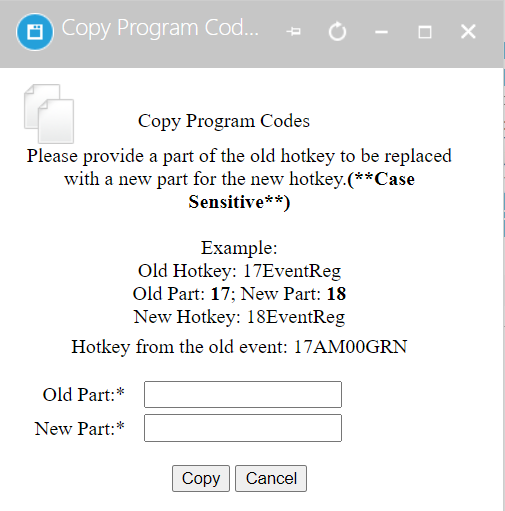
Program is the highest level of the tree on the left, and will define the type of product being sold, like Membership, Meetings, Certification, etc.
The Category is a grouping under Program in the tree to define this Program Code further. These are found in the Membership Dictionary under Member Types (MEMBER).
Next is the Type, which is defined in the Membership Dictionary under each Member Types (MEMBER).
Program, Category and Type can have new entries by choosing --Select or Add New Below-- and then typing in a new value in the box provided. You can also change these for existing Program Codes, selecting new values from the drop downs, and they can be renamed by double clicking on them in the tree, which makes the field editable. These are used to organize your HotKeys so they are easy to find and not presented in one long list. They can be named however you'd like and specific names are not required by other areas of the system (however Promotion Codes can be linked via these). Also, if all the HotKeys in a Program, Category and/or Type are Retired, they will not show in the Tree, unless you click Show Retired.
The HotKey is the unique id that identifies this Program Code, and can be up to 13 characters long (letters and numbers only, so spaces or special characters). Most organizations will have a naming convention to make it easy to determine the HotKey for the item being sold. This coding is also important when using modules like the Conference module, as the values in specific positions define how program codes are presented.
The Sort Order determines how this Program Code is shown in listings. This is an alpha-numeric sorting, and it is typical to include leading zeros so 02 comes before 10.
A meaningful Description is important as this will be used by the shopping cart and will appear on all invoices.
Format Code determines how this Program Code is used and may change the fields on the page. This will guide in asking for additional business rules applicable only to the type of format selected. For example, those Program Codes under the Membership Format Code will show fields for StartDateRule and ExpireDateRule and related information will be put in the Membership Folder on a contact's record. A Client Admin can add and update Format Codes in the System Configuration area.
The List is the price charged for this item. Each Program Code has a single price. If you need different pricing for an item, each pricing would be represented in its own Program Code.
The Retired check box represents if this is still an active Program Code. in general, Program Codes are not deleted, they are retired.
LetterToSend allows you to pick a particular letter to send to contacts that purchase this Program Code. This is the code from the Letter Library.
CertificateToUse is also from the Letter Library and determines which certificate will be printed for use with this Program Code. This could be a certificate of completion, or a membership card.
Emails are sent for all purchased in the AMS, as a receipt or invoice for the contact's records. The Email To Send allows you to select an additional email from your email templates (found in System Emails - Other Emails) to send to contacts that have purchased this Program Code. The ADD/EDIT EMAIL allows you to edit an existing email, or make a new one for this purpose. There is also a check box to Only send email when paid in full so the related email will not be sent to those who have not paid fully for this Program Code.
The Confirmation Message is a bit of text that can be shown on in invoices and web pages for this Program Code. For example, it is one of the Custom Tokens available in System Emails.
The next few fields are around Accounting and which accounts should be used with your GL system for various functions. The CR_GLAccount is the sales account, the AR_GLAccount is the AR account, and Deferred Income is the account for deferred income. The drop-downs are of account defined in your General Ledger Accounts. Deferral Method options are defined in the Deferred Income section of this knowledge base. NOTE: You should not change the GL Accounts or Deferral Method after you have started taking orders for this HotKey.
PaymentPriority determines the priority of this the payment hierarchy. For example, if you have a National membership, but also sell memberships for local chapters, you might decide that your National membership has a higher payment priority than the Chapter memberships, so any partial payments that come in for an Invoice that has both National and Chapter memberships, the National membership would be paid first, and you would not remit any Chapter membership payments until the contact has paid the National membership first.
The Group and Type match the Category and Type previously selected.
The Billing Rule, Chapter and Instruction are other levels related to the Format Code.
Time Flag is related to Memberships and will denote if this Program Code is for
- New- this HotKey should be used for brand new memberships
- Renew-this HotKey should be used for renewing memberships; meaning the contact previously had another membership Program Code with no lapse in time.
- Returning-this HotKey should be used for contacts that were previously members, but there was a lapse in their membership.
- Other- something other than the above options.
The KitCode, or Super HotKey, is a way to tell that this program code is actually a composite of several other program codes. For example, a Users Guide ordered from the store appears as one item in the store but is actually a combination of a binder and a CD.
The StartDateRule and EndDateRule determine when entitlements will begin and end. Examples are memberships, subscriptions and certifications. These options may vary between new, renewing and returning memberships. The Start Date options are
- Blank out the date-
- Enter an actual date- a date is entered on the Program Code for this membership product, for example 1/1/2025, meaning when this HotKey is purchased, that is the Start Date.
- Equal to the membership start date- used when matching a program code to the exact membership dates, like a SIG or a chapter.
- One day after the expiration date- 6/30/2025 => 7/1/2025; usually used with Renewing memberships.
- The entry date set for the payment- use the date the invoice is created, or entered, with our without payment.
- The first day of the current month- 5/15/2025 => 5/1/2025
- The first day of the next month- 5/15/2025 => 6/1/2025
- The first day of the next year- 5/15/2025 => 1/1/2026
- The join date (date1) from the corresponding type folder-
- The last start date used for this type of fund-
- The system date- the current date
The End Date options are
- 1 month from the start minus 1 day- 5/15/2025 => 6/14/2025
- 3 months from the start minus 1 day- 5/15/2025 => 8/14/2025
- 6 months from the start minus 1 day- 5/15/2025 => 11/14/2025
- 9 months from the start minus 1 day- 5/15/2025 => 2/14/2026
- Blank out the date-
- Enter an actual date- a date is entered on the Program Code for this membership product, for example 12/31/2025, meaning when this HotKey is purchased, that is the End Date.
- Equal to the membership expire date- used when matching a program code to the exact membership dates, like a SIG or a chapter.
- Five years from the start minus 1 day- 5/15/2025 => 5/14/2030
- Four years from the start minus 1 day- 5/15/2025 => 5/14/2029
- One year from the start minus 1 day- 5/15/2025 => 5/14/2026
- The last day of the start month- 5/15/2025 => 5/30/2025
- The last day of the start month plus 1 month- 5/15/2025 => 6/30/2025
- The last day of the start month plus 11 months- 5/15/2025 => 4/30/2026
- The last day of the start month plus 12 months- 5/15/2025 => 5/30/2026
- The last day of the start month plus 23 months- 5/15/2025 => 4/30/2027
- The last day of the start month plus 24 months- 5/15/2025 => 5/30/2027
- The last day of the start month plus 3 months- 5/15/2025 => 8/30/2025
- The last day of the start month plus 36 months- 5/15/2025 => 5/30/2028
- The last day of the start month plus 48 months- 5/15/2025 => 5/30/2029
On the contact's Profile, contacts have folders where extended information is kept. For entitlements that span time the AMS needs to know when you want it to create/update a folder. The choices for this are under the UpdateFolder drop-down and are
- Never- never update the folder
- On Entry- update the folder when the invoice is created
- Got Money- update the folder only if you receive a full or partial payment on the invoice
- Full Pay- update the folder only when full payment has been received
Finally, Role Id is the Role on your website those who have purchased this item will receive. The role must first exist in your DNN website before it will be available in this drop-down. See DNN Roles for more information.
When finished, click SAVE, CANCEL or DELETE. In general, you should not delete Program Codes, but retire them.